
Participant
July 22, 2020
Answered

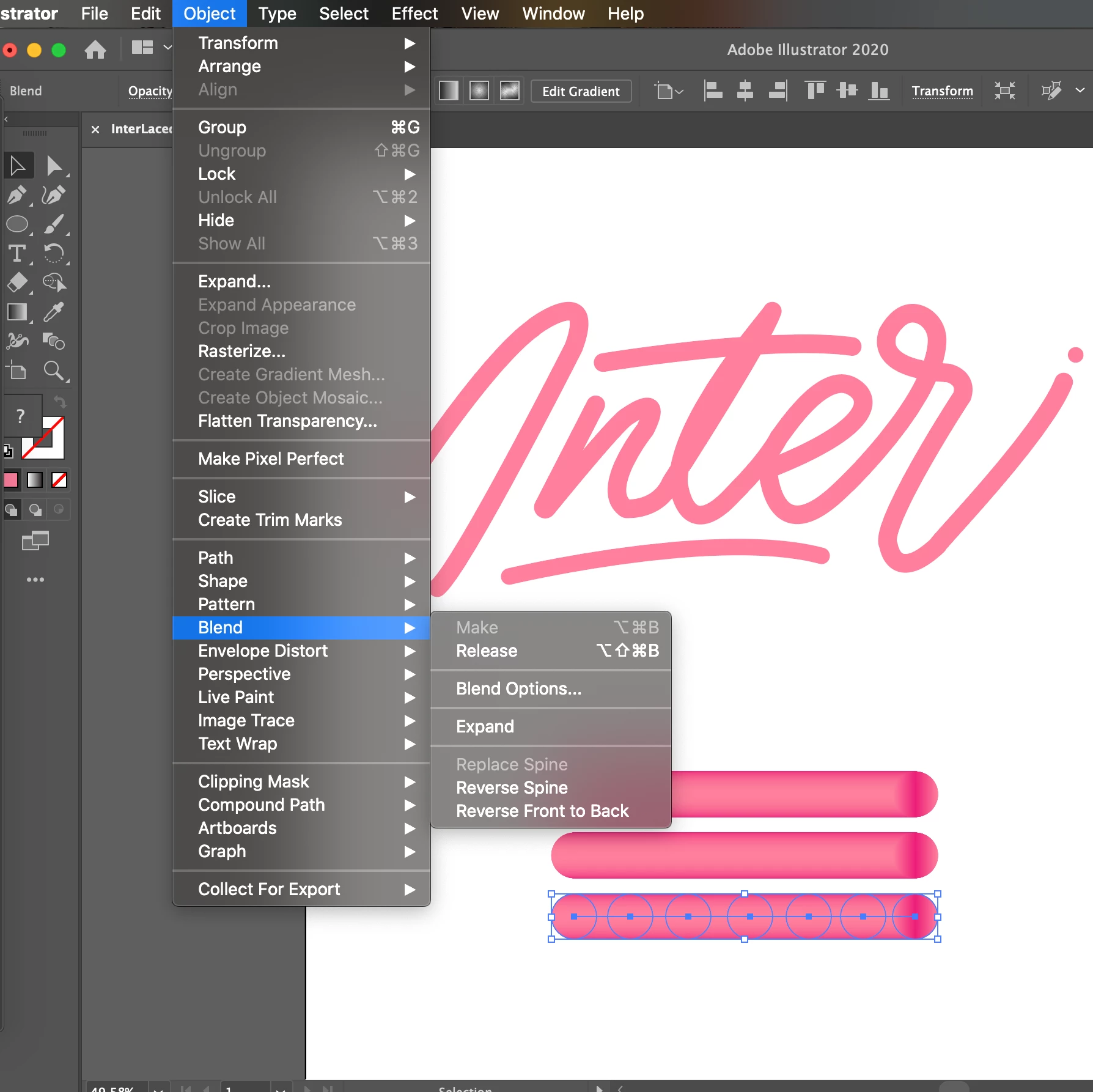
Why is the "replace spine" option greyed out?

  • July 22, 2020
  • 2 replies
  • 21908 views

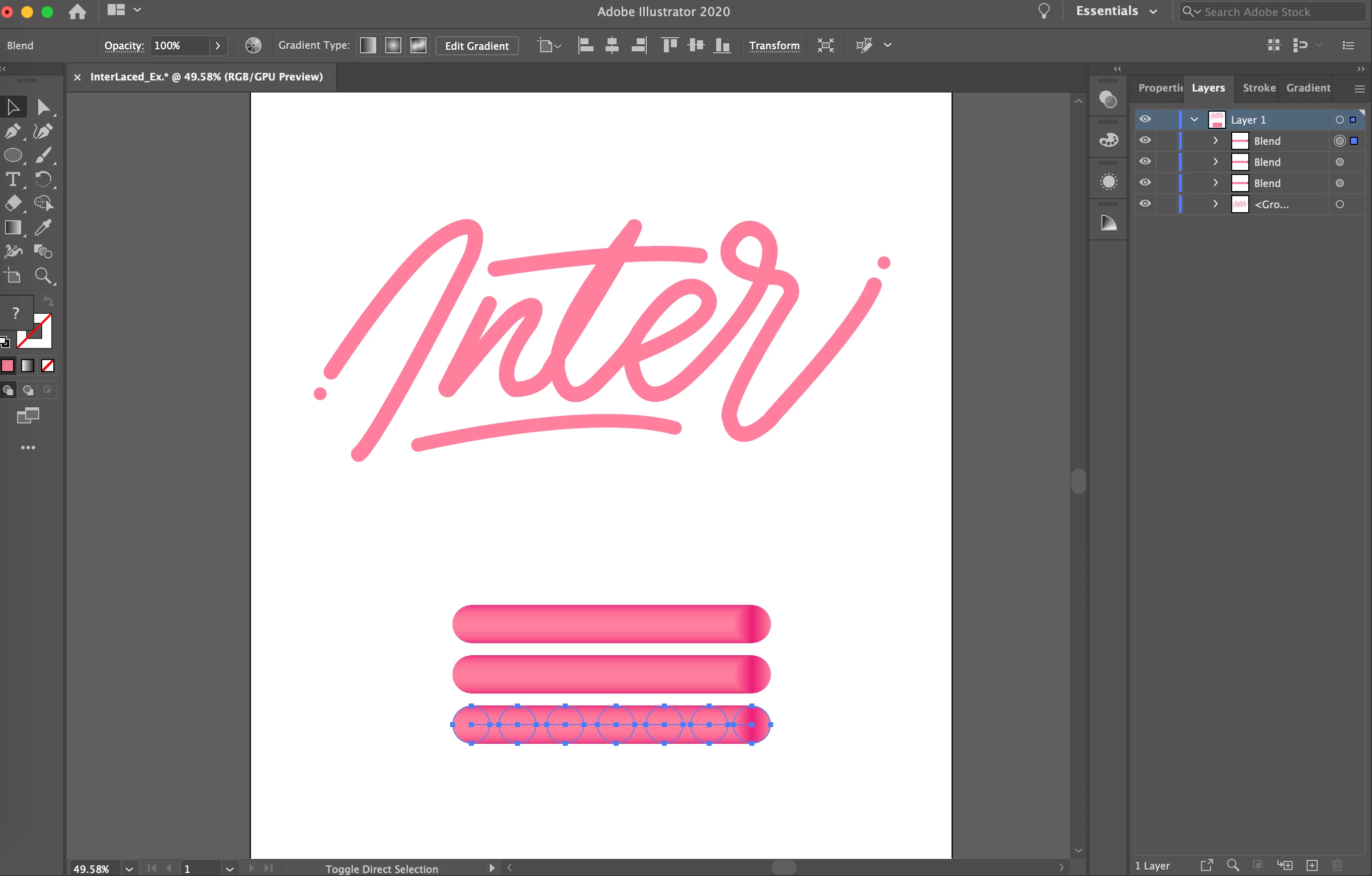
I tried to find solutions as to why my "replace spine" option is greyed out but with no luck I do not have a single idea as to why this is happening. All I have done is used pen tool to trace a picture and used the blending tool (specified steps 1000). Any help is very appreciated!
 

    This topic has been closed for replies.
    Correct answer Natalia22546272x8tc

    I had similar problem, make sure that spine that you want to replace with is not a group (press ungroup) nor compound path (press release if so). 

    2 replies

    Natalia22546272x8tcCorrect answer
    Participant
    January 7, 2022

    I had similar problem, make sure that spine that you want to replace with is not a group (press ungroup) nor compound path (press release if so). 

    Participant
    May 3, 2023

    This comment helped so much. Thank you for commenting!

    Monika Gause
    Community Expert
    Community Expert
    July 22, 2020

    You need to select the path you want to use as a spine and the existing blend. And then the command is active.

    Participant
    July 23, 2020

    It still does not let me 

    Participant
    July 23, 2020

    Wait nevermind, I solved it; I think I was not suppose to group it together. Instead I was suppose to click on each individual path or use direct selection and the blended object. The replace spine should then be active. For those who had the same problem as me, click on one object (the pen tool drawn object) then one blended stick/object by using the shift command.