Chris  P.  Bacon
Inspiring
November 13, 2022
Answered

Wrong color reproduction in AI file in Illustrator
  • November 13, 2022
  • 3 replies
  • 1275 views

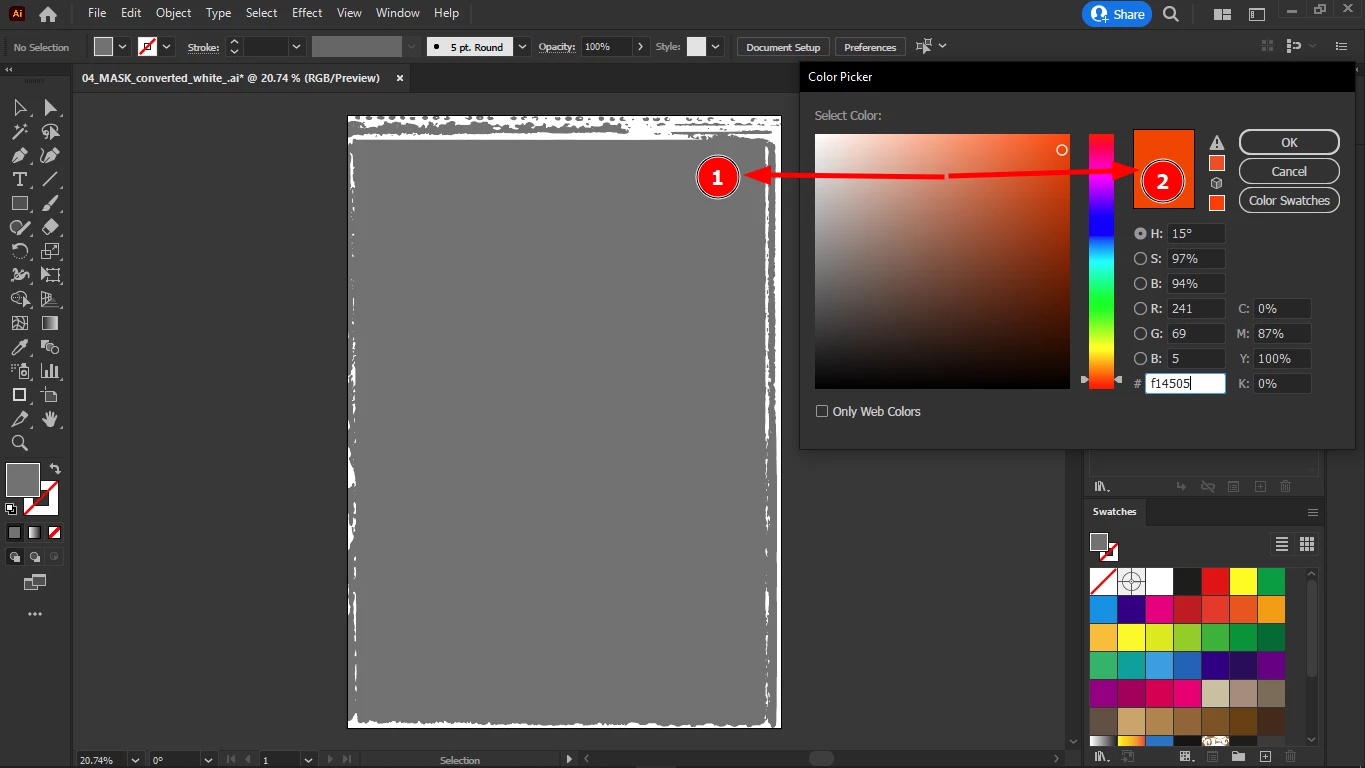
No matter which color profile I set in Illustrator, #f14505 which is an orange color will be shown as grey-brown in this vector AI file.

Why is this?

This topic has been closed for replies.
Correct answer Doug A Roberts

If I click on the swatches first and THEN set #f14505, it works.

But if not, I get the grey color replacement.

So it's solved now, I just don't understand why.


Seems to be because it's initially defined in greyscale:
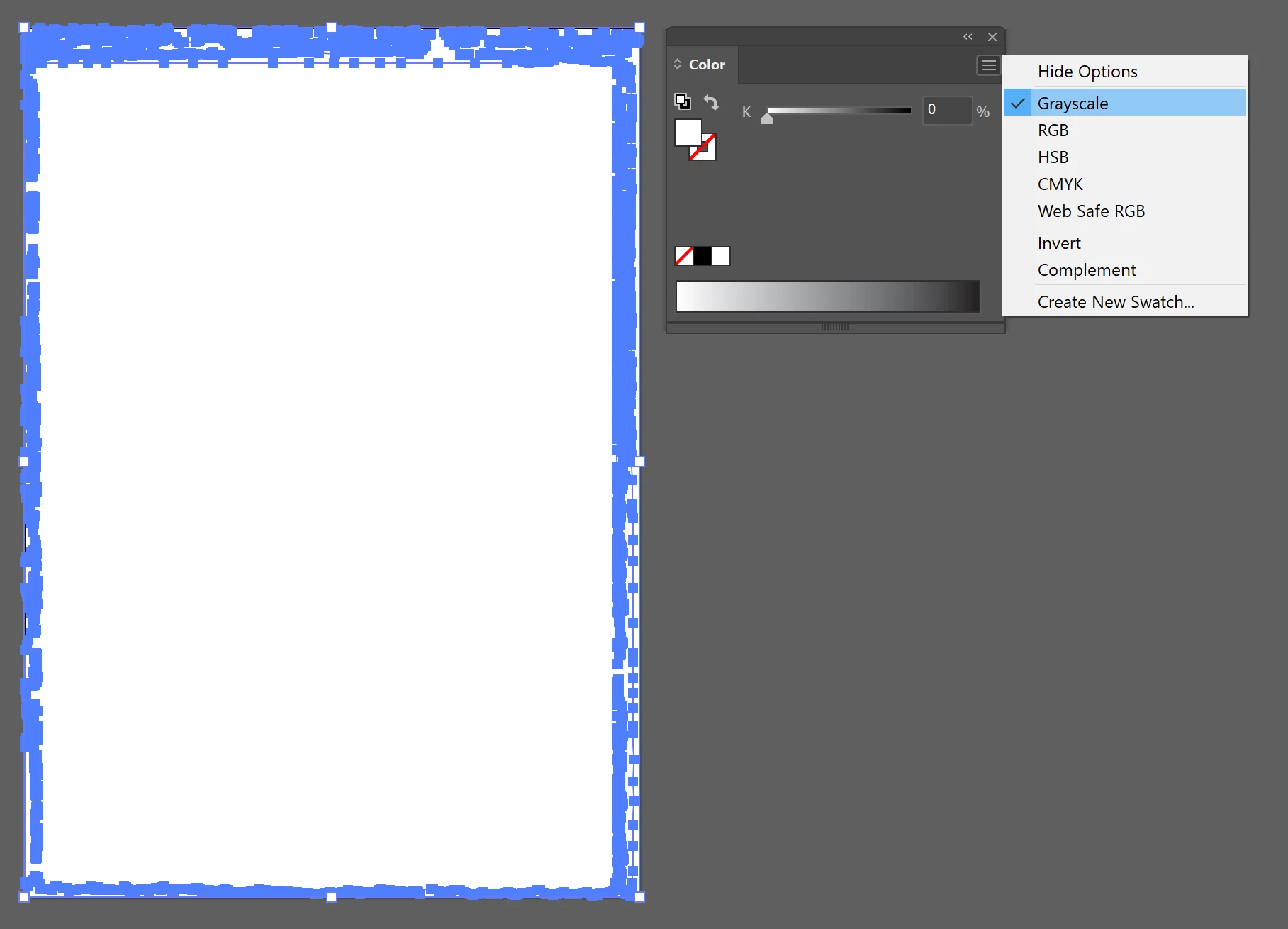
Change it to RGB first.


3 replies

Mylenium
Legend
November 14, 2022

Your traced shape is probably simply a mess with overlapping anchor points, stray anchors, gaps in the paths and all sorts of other issues causing rendering errors. You have to dissolve the comps and groups and do a bit of cleaning up to fix these issues. The grey area is the typical "could not generate fill" issue because of the problems with your shapes.


Mylenium

Chris  P.  Bacon
Inspiring
November 14, 2022

yes but changing its color to black or white works seemlessly, so that cannot be the issue

Ton Frederiks
Community Expert
Community Expert
November 13, 2022

You have nothing selected.

Chris  P.  Bacon
Inspiring
November 14, 2022

Same happens if I change the color after isolating the object (.ai file).

Chris  P.  Bacon
Inspiring
November 14, 2022

This is the separate .AI file.

If I click on the swatches, its fill color changes successfully, but if I define #f14505, it's just gray.


But #f14505 is s tricky color, I had issues with it in web design also.

Chris  P.  Bacon
Inspiring
November 13, 2022

By the way this is a transparent shape so there should be no white shown at all.