
Yin Yang - Shape Builder Tool not selecting what I want
Hello, I'm new to Illustrator. This is my first practice project and I'm already failing. I don't understand what I'm doing wrong yet it's so basic. I'm trying to make a simple Yin Yang object. I've watched a few You Tube tutorial videos which were good and easy to follow but when I'm doing it, I can't do ONE step. I've spend 5 hours stuck at this step.
I'm trying to use SHAPE BUILDER TOOL to make the Yin and Yang separation.
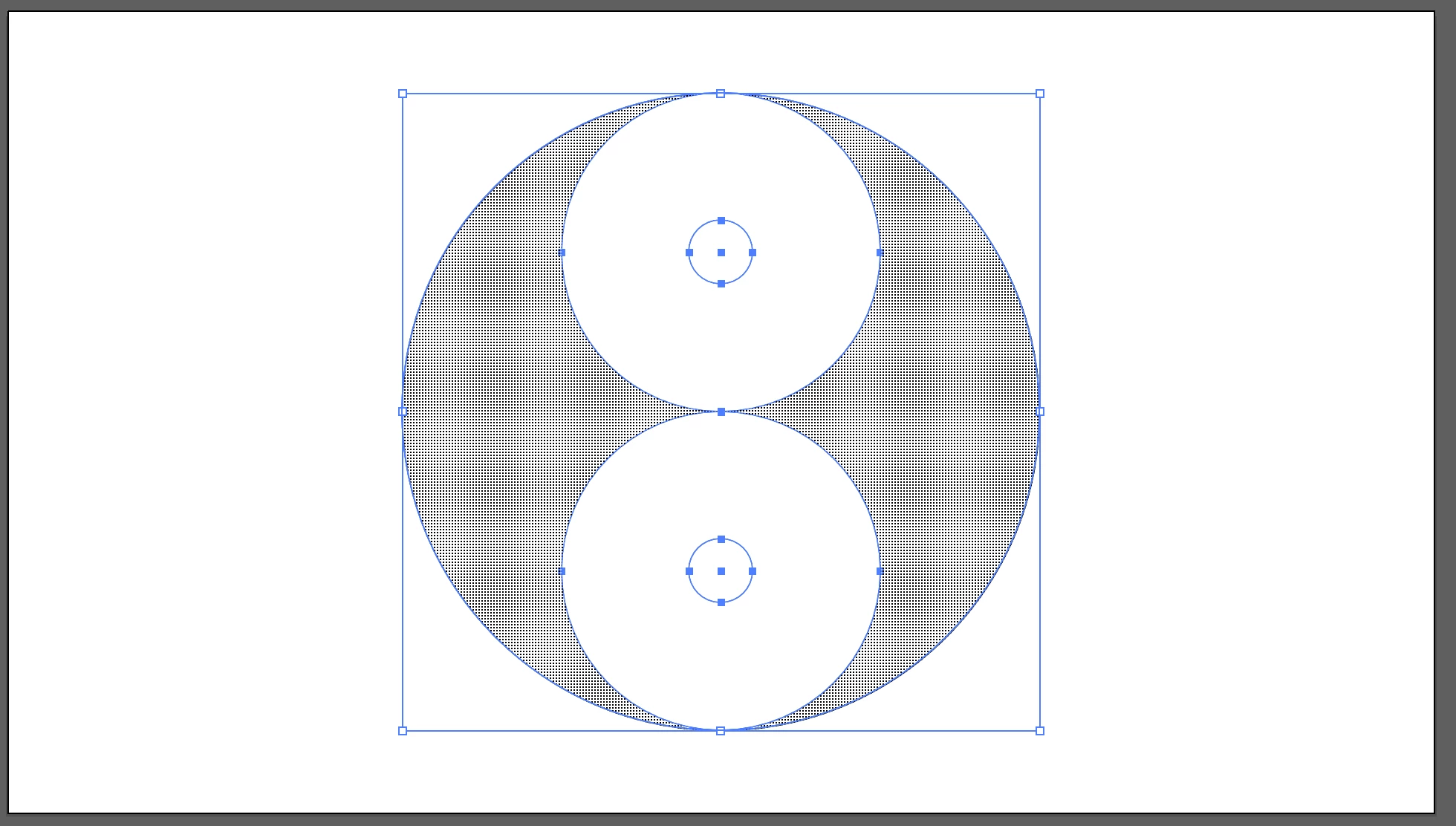
BELOW (my project): When using Shape Builder Tool, the gray is on both sides so I am not able to connect the left side gray with the top circle part.
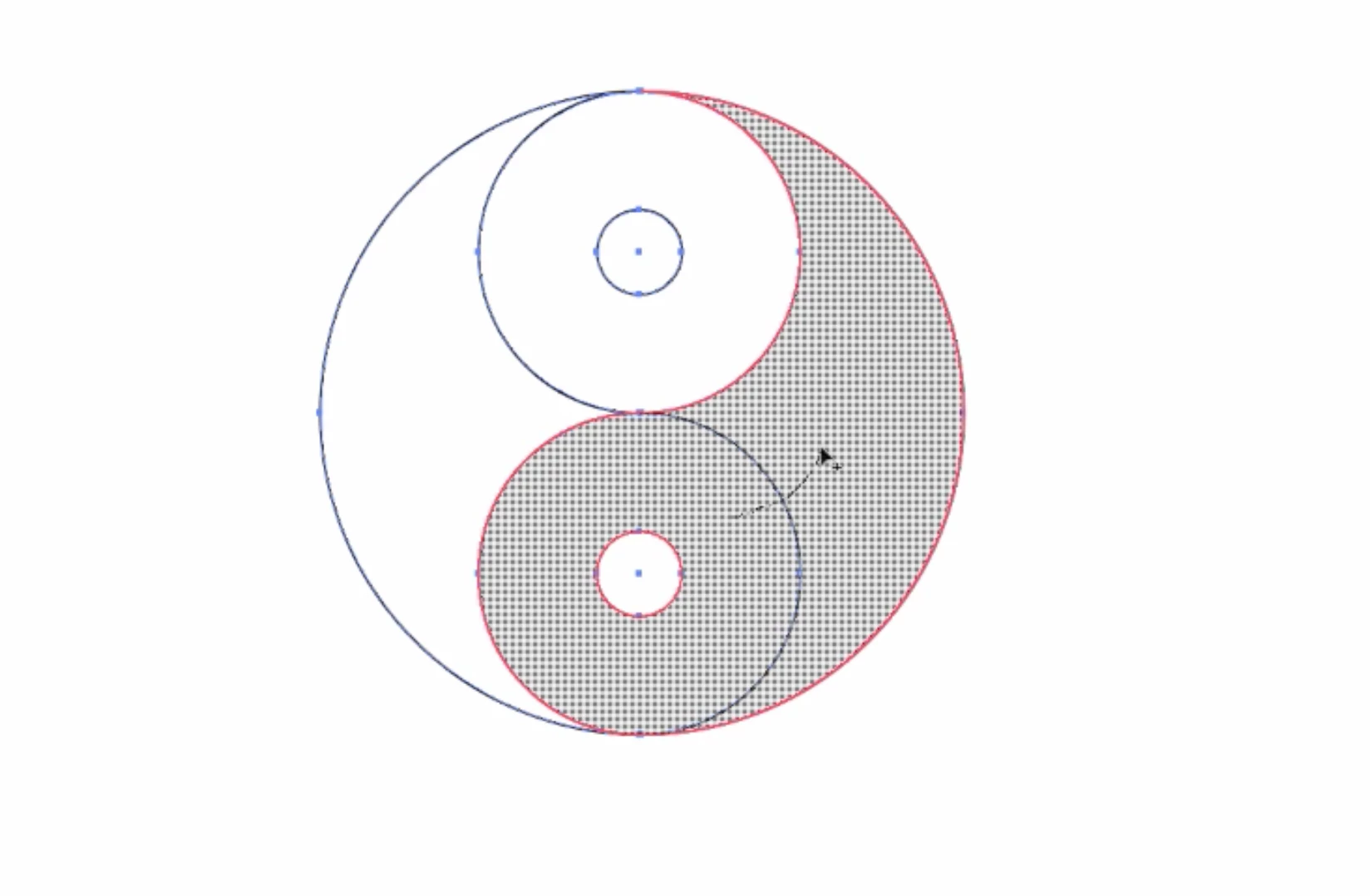
BELOW: On the YouTube video that I'm learning from, the gray is on one or the other side but not both. This is what I should see but clearly this is the correct way in order to connect the shapes.
I feel annoyed and embarrassed that I'm spending hours on a easy 2 minute tutorial video. I know this should be very easy solution. Please help. Please give me clear steps.
Thank you.
 AdChoices