
Participant
January 11, 2020
Question

9-Slice Scaling not working on illustrator for windows.

  • January 11, 2020
  • 2 replies
  • 1566 views

9-Slice Scaling is not working for me and I don't know why. I've seen multiple youtube videos showing it working in action (in illustrator) but for some reason my setup isn't working.
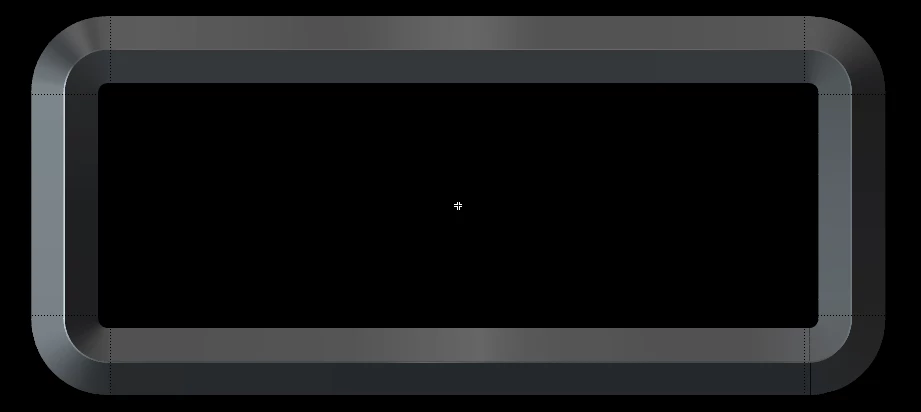
This is the setup I have with the guides on the image (it's hard to see), they're just outside of each of the corners so the sides will stretch but the corners will stay the same.
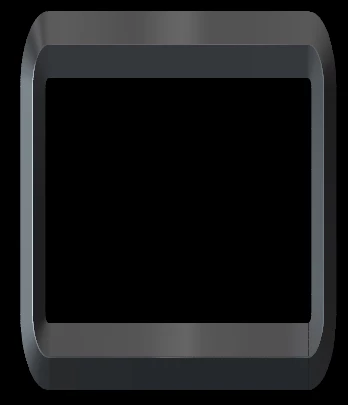
This is what happens when I squash the symbol. Instead of the vertical edges retaining their width, they've become really skinny, which as far as I understand it, is not what 9-Slice Scaling is supposed to do.
The only thing I can think of is that I'm working on a Windows PC and not a Mac like the videos.

Videos of 9-Slice Scaling working:

https://helpx.adobe.com/illustrator/atv/cs5-tutorials/using-9slice-scaling-options-with-symbols.html

https://www.youtube.com/watch?v=dk3XIaAX7eA


The Symbol is Static (although I've tried with Dynamic) and set to Movie Clip (I didn't bother testing Graphic because apparently those values are only for flash). I'm using illustrator version 24.0.2 but I also tried in 23.1 and 23.0.2.


Any and all help is appreciated!

This topic has been closed for replies.

2 replies

Myra Ferguson
Community Expert
Community Expert
January 17, 2020

I'm on Windows, and I can get a similar effect to work with 9-slice scaling. Here's what I did:


  1. Make a rounded rectangle with a stroke and no fill
  2. Open Graphic Styles (Window > Graphic Styles)
  3. Open the Graphic Styles flyout menu in the upper right and go to Open Graphic Styles Library > Buttons and Rollovers
  4. With your rounded rectangle selected, select the Steel Mouse Down graphic style
  5. If you want to remove what looks like a black outer stroke that was applied with the graphic style, open the Appearance panel and delete the black fill
  6. Expand it (Object > Expand Appearance...)
  7. With the entire rounded rectangle still selected, select the Shape Builder Tool (Shift + M)
  8. Hold Alt (Option on a Mac) and click in the center to make the fill go away
  9. Press F8 to make it a new symbol and make sure Enable Guides for 9-Slice Scaling is selected


You should be able to scale it now with the Free Transform Tool (E) and have it maintain the corners.

Monika Gause
Community Expert
Community Expert
January 11, 2020

What is that object? How did you build it?

ZeonasAuthor
Participant
January 17, 2020

It was 3 lines with gradients that I expanded. So I believe it's just 3 normal objects with gradients.

Monika Gause
Community Expert
Community Expert
January 17, 2020

No, it's not. Most probably it's a gradient mesh now. I'm not sure if 9-slice-scaling can deal with those.