Participant
December 26, 2020
Answered

Arabic letters lam-alif are separated, why?

  • December 26, 2020
  • 2 replies
  • 1918 views

Hello. I just started using Illustrator.

I can write arabic and have arabic keybord added to Windows 10.

In programs such as notepad, word, Edge, the key B becomes "lam-alif" when hit (with keyb changed).

لا

It is the letters L and A (lam alif) combined, a common "fixture".

As I stated - it works fine in any Windows or Linux program, but in Illustrator it gets separated "auto-corrected" and I wonder if this "auto-correction" can be turned of.

/Valter Ekholm
Correct answer Zaid Al Hilali

 You mentioned لا gets separated, does this issue shows on other Arabic words too?


I'm on Mac, Illustrator supports Arabic for over 20 years. If the separated characters show on all Arabic text, then you need to download Arabic supported version as follows:

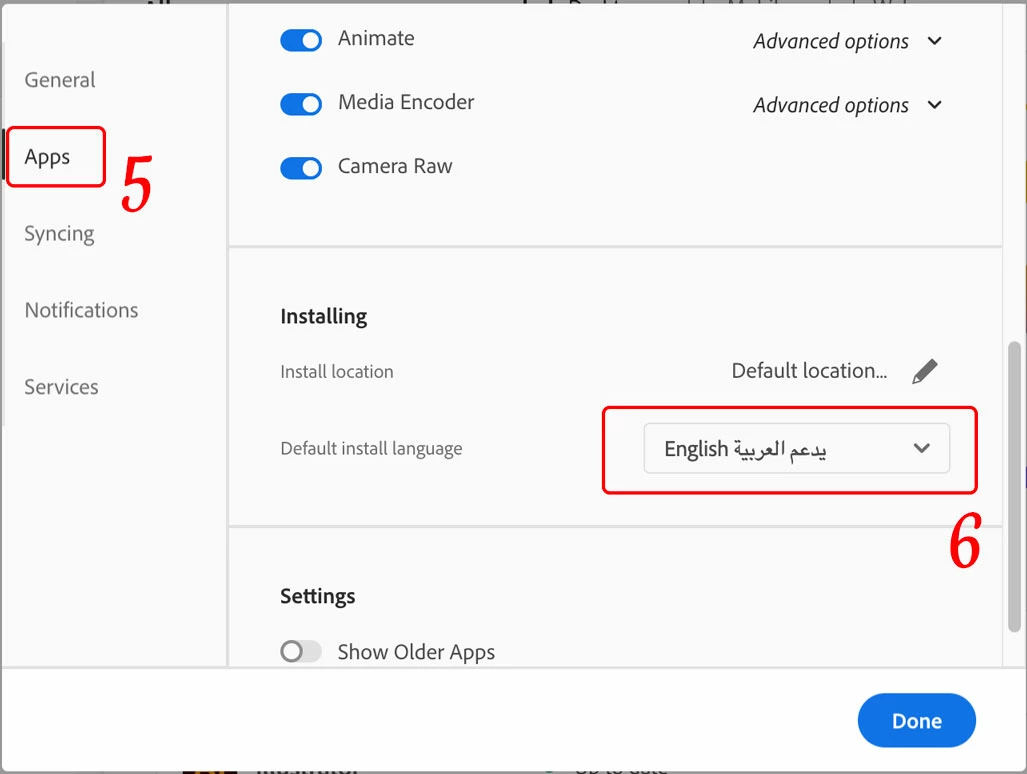
  1. From the Adobe Creative Cloud Desktop menu, click on All Apps to view a list of installed Adobe applications
  2. Click the three ellipses shown beside each installed application
  3. Choose Uninstall to remove the non-Arabic application
  4. Once ALL installed applications have been uninstalled/removed, click on the “Account” icon found on the top-right corner of the Creative Cloud desktop application and choose “Preferences”
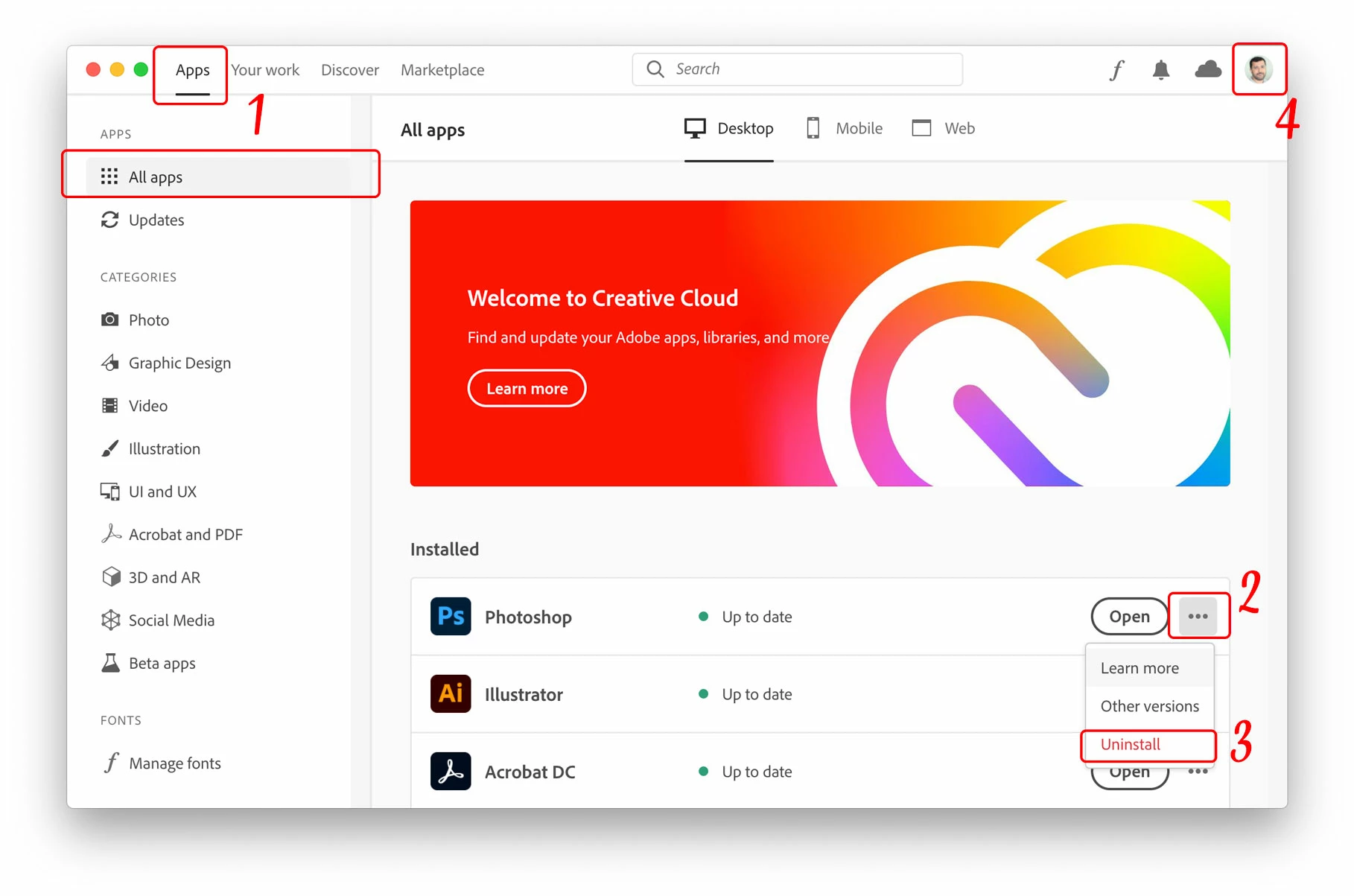
  5. In the newly opened Preferences dialogue window, click on “Apps” in the left pane
  6. Scroll down to the bottom of the window, from the “Default install Language” drop menu choose English يدعم العربية in order to have Arabic support in Adobe applications, then click the “Done” button.

2 replies

Zaid Al Hilali
Community Expert
Zaid Al HilaliCommunity ExpertCorrect answer
Community Expert
December 27, 2020

 You mentioned لا gets separated, does this issue shows on other Arabic words too?


I'm on Mac, Illustrator supports Arabic for over 20 years. If the separated characters show on all Arabic text, then you need to download Arabic supported version as follows:

  1. From the Adobe Creative Cloud Desktop menu, click on All Apps to view a list of installed Adobe applications
  2. Click the three ellipses shown beside each installed application
  3. Choose Uninstall to remove the non-Arabic application
  4. Once ALL installed applications have been uninstalled/removed, click on the “Account” icon found on the top-right corner of the Creative Cloud desktop application and choose “Preferences”
  5. In the newly opened Preferences dialogue window, click on “Apps” in the left pane
  6. Scroll down to the bottom of the window, from the “Default install Language” drop menu choose English يدعم العربية in order to have Arabic support in Adobe applications, then click the “Done” button.
Participant
April 28, 2025

This method can indeed be done, but not all fonts are resolved.

There are fonts that can be used, some cannot.

I use the font "LPMQ Isep Misbah" but it doesn't work. "lam alif" is still not written properly.

I have tried it in Adobe Illustrator and the results are good, no problems. But in Premiere Pro, this is problematic. I'm confused.


Zaid Al Hilali
Community Expert
Community Expert
April 29, 2025

Adobe uses different Text Engines for their different applications that's why an issue with Arabic text may show on certain application, and not on another.

As far as I know, Adobe planing to unify their text engines.

Inspiring
December 26, 2020

Looks fine in AI 2021 (Mac, but Win should be same). What version of AI are you on? ME support was pretty nasty in older versions, so upgrade if you’ve not already done so.