
Known Participant
August 20, 2021
Answered

EPS looking completely different in Illustrator

  • August 20, 2021
  • 3 replies
  • 5242 views

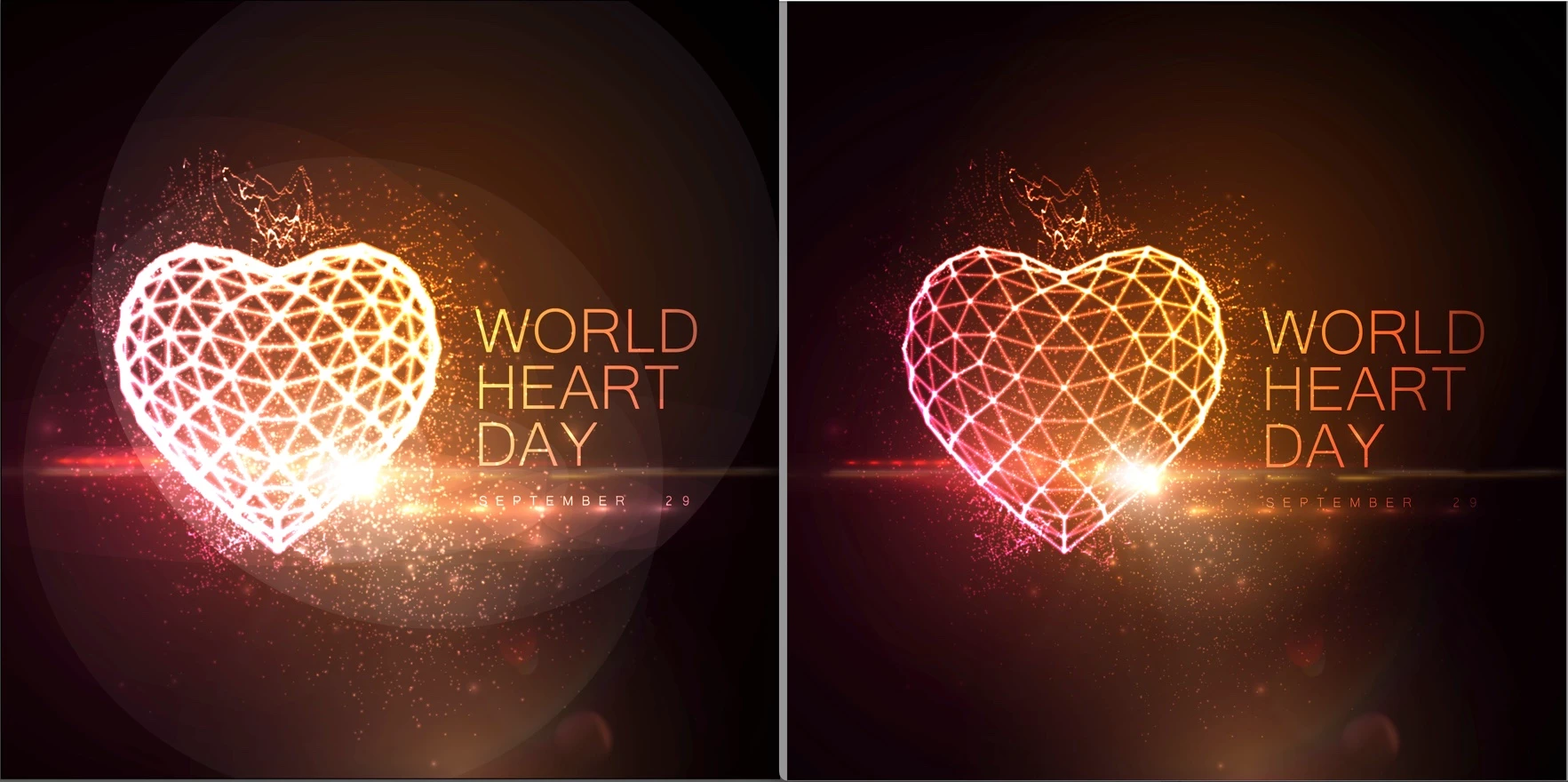
Hey guys! New here, and very new to Illustrator. Coming from Premiere Pro mostly as well as some Photoshop experience. So I'm trying to edit an EPS but when I open it in Illustrator it looks pretty terrible. Very different than the stock preview as well as the PNG. What am I doing wrong??


In the image you'll see the EPS open in Illustrator on the left and the PNG on the right. I want it to look like the PNG, I just need to be able to edit the layers...


thanks in advance!!
This topic has been closed for replies.
Correct answer Brad @ Roaring Mouse

Thanks again for all your help, and for saving a big headache trying to make the file work! I'll see what I can do with the PNG or just bag it altogether. Have a good one!


FIGURED IT OUT.

This was bugging me so I started poking at the construction of the actual gradients used in the file. Turns out they all used a Black defined as 100% Grayscale instead of an RGB Black 0R 0G 0B like the rest of the colors in the document.

So, here's the easy fix, open the file, Select All, and under Edit > Edit Colors > Convert to RGB.

Still, you might want to enlarge the file to a reasonable artboard size!

3 replies

Brad @ Roaring Mouse
Community Expert
Community Expert
August 20, 2021

It could be the person that created it did something "off" on export.

If you open it/place it into a Photshop file, does it look better or the same.


(If you'd like, post the file here/link to the file for us to poke at.

Known Participant
August 20, 2021

It's an EPS purchased & downloaded from Shutterstock. If you try to open it or place it in Photoshop it is extremely tiny and if you try to force it to open larger it looks terrible. I had also downlaoded the PNG from Shutter and it looks totally fine. Super strange! I attached the EPS file, and also the PNG for reference as to what it should like. I'd love to just use the PNG but I need to edit individual elements, like remove the text cleanly. Thanks for your help!

Brad @ Roaring Mouse
Community Expert
Community Expert
August 20, 2021

Holy doodle, there's definitely something weird with that file.

It's doing all the same things here that you've experienced. Even when placed in ID, it doesn't render properly at all, either to print or PDF.

I'll get back to you!

🙂


Monika Gause
Community Expert
Community Expert
August 20, 2021

How is your color management set up?

Known Participant
August 20, 2021

How would I find that? It's on the default settings -- I haven't changed anything. As I mentioned I am a total Illustrator noob -- learning it out of necessity for my other editing work 😉 Thanks

Brad @ Roaring Mouse
Community Expert
Community Expert
August 20, 2021

You might be working in a colour mode that is different than the stock EPS. My guess it's an RGB file (most are), so all the effects and transparencies are designed for that space.

Known Participant
August 20, 2021

I thought of that as well, and tried changing between RGB and CMYK but it did not fix it... 😞 Looked just as harsh in both. Thanks though!

Known Participant
August 20, 2021

I am opening the EPS in Illustrator -- either right clicking in my Finder and selecting open in Illustrator, or going to File:Open within Illustrator itself... I tried "placing" the file in a new file but it comes super tiny and low res without layers... Anything else I should try? Thanks again