
kyle79
Participating Frequently
February 6, 2018
Question

Eraser tool leaves outline after applying, or using scissor tool a better option?

  • February 6, 2018
  • 3 replies
  • 11727 views

Dear Sir/Mdm

I am currently working on creating a room's interior using Illustrator CS6, and there are still some tools I am trying to figure out at the moment.

The eraser/scissor/knife tool. I had a several inner lines i created that i would like to erase away, taken a screen shot, please refer to it as follows:
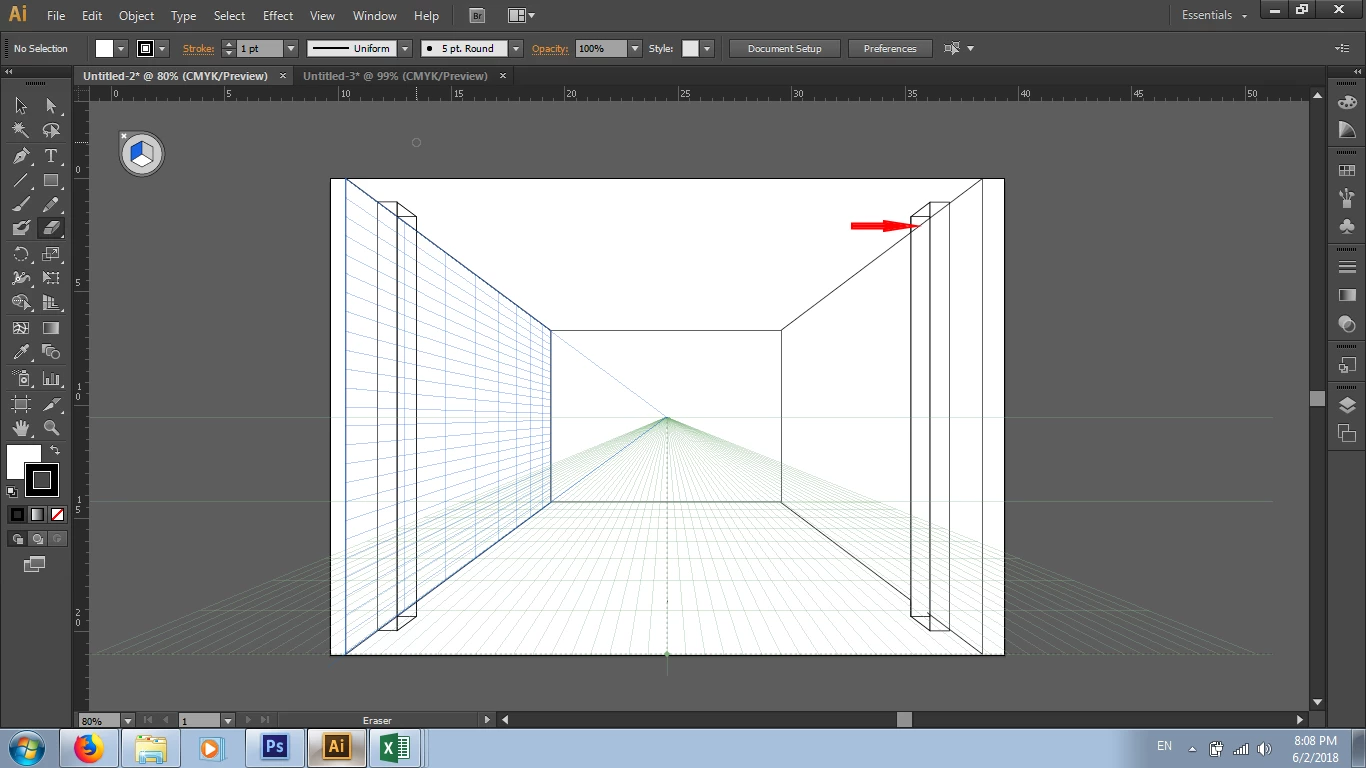
The red arrow shows one of the inner lines i would like to erase, so i decided to use eraser tool as a start, but when i applied it on, the result was as follows:
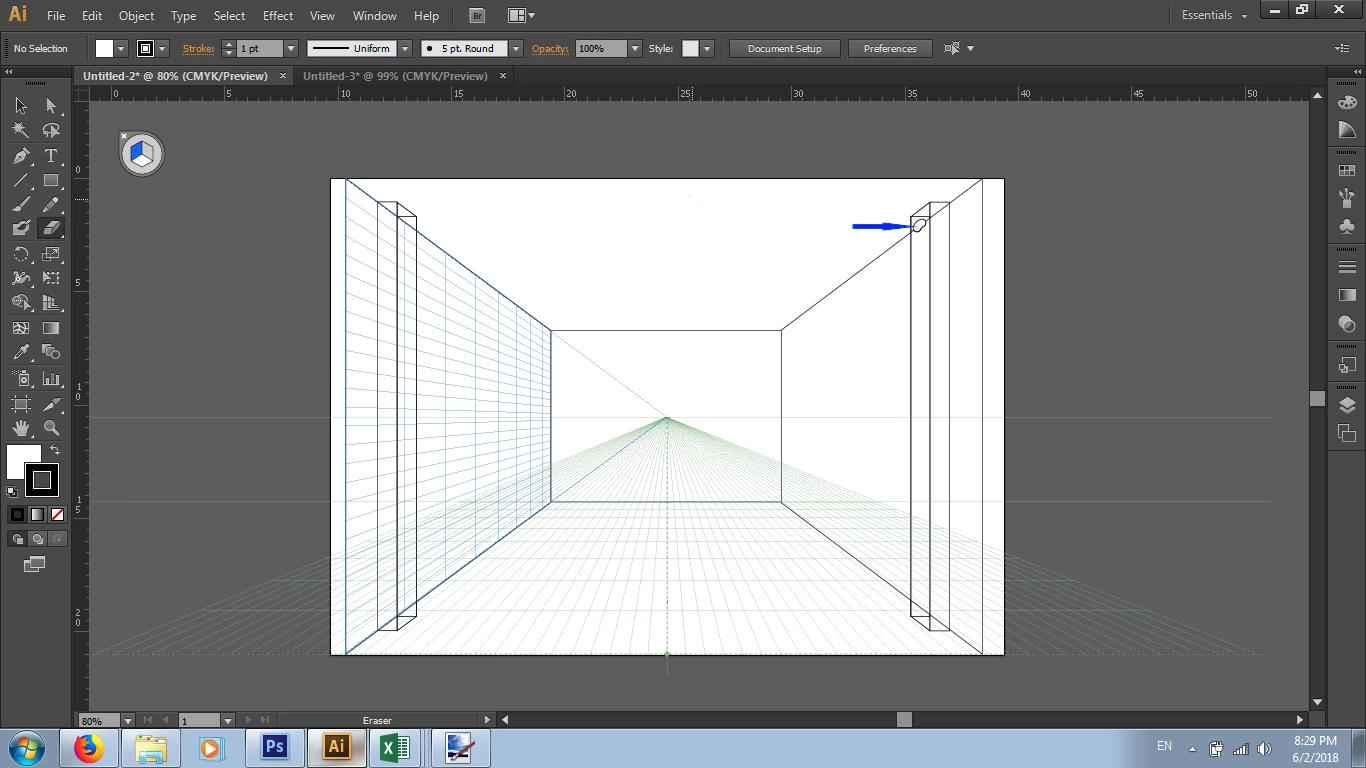
As shown above the blue arrow indicated the result after applying the eraser on. Any solution/s or method/s that i had missed? Or would it be better to use the scissor tool to cut away the inner lines? If so, would you mind if you can share with me how am i gonna use the eraser or scissor tool successfully?

Sincerely

Kyle Au Yong

3 replies

Ray Yorkshire
Participating Frequently
February 7, 2018

Best use just a stroke oe work in outline mode

Select the area with the Direct Selection Tool (white arrow)

Use Shapebuilder Tool.

Hold Alt (option on mac) down, hover mouse over line,

when line turns red press  click with mouse to delete

kyle79
kyle79Author
Participating Frequently
February 8, 2018

Dear Ray

Thanks for showing your instructions. Appreciate.

Sincerely

Kyle Au Yong

Monika Gause
Community Expert
Community Expert
February 6, 2018
Myra Ferguson
Community Expert
Community Expert
February 7, 2018

I second Monika's suggestion of the Shapebuilder tool. Maybe give it a try to see which approach works better for you. It looks like removing lines might be a frequent operation for the type of drawing you're doing, so finding an efficient workflow will save you a lot of time.

kyle79
kyle79Author
Participating Frequently
February 8, 2018

Dear Myra

Thanks for recommending Monika's suggestion, I will try to work on using that method...

Sincerely

Kyle Au Yong

Bill Silbert
Community Expert
Community Expert
February 6, 2018

There are a number of ways to do this but certainly the scissor tool is quick and efficient. See screen shot below:

In the first picture I select the entire line that is to be cut. In picture two I click with the scissor tool where I want my first cut. In picture three I click on the second tool (note that now only the segment to be deleted is selected). In picture four I delete the unwanted segment. Please note that the lines to be cut are unfilled paths which may be open or closed paths. If you try and do this with a closed path that has a color or pattern fill you will then have to re-close all of the paths involved to maintain the integrity of the fills.

kyle79
kyle79Author
Participating Frequently
February 7, 2018

Dear Bill

Thank you so much for your explaining. I tried using the instructions you gave, below are the screenshots of each step i took while using the scissor tool:

1st Step (Pic as shown below). I selected the entire object which it's top & bottom line intersected with another vertical object i created (My intention was to cut out the lines that intersected with the vertical object). It then showed 4 anchor points on the 4 corners of the entire object.

2nd Step (Pic shown below). I Then applied the 1st cut on the 1st intersection point (marked with a red arrow), which resulted in 2 of the 4 anchor points of the entire object (further right top and bottom points) to move to the point where i applied my 1st cut.

3rd Step (Pic below). After I applied my 2nd cut (marked red circle), the 4 anchor points of the entire object disappeared, and the result was a triangular selection with 4 anchor points.

That wouldn't be my intention to cut out the triangular selection, only the line that i had described in my starting post of this topic. Would you mind if you can kindly enlighten me further on this?

Sincerely

Kyle Au Yong

Bill Silbert
Community Expert
Community Expert
February 7, 2018

The triangle that you are left with, was it a separate shape to begin with? I downloaded your drawing to use as a template and drew those two vertical columns as adjacent rectangles and then drew a single line to connect them. If you had drawn an actual triangle there to begin with then that would explain everything you said above since you were actually applying the Scissor tool to the triangle and not the segment. If this was the case then lock the triangle (Control-2) so that you can apply it directly to the original segment. When I did it the way I just described I got the result shown below using the same process I described in my initial post:

By the way when you said that the anchor points of the entire object disappeared what actually happens during this process is that the point that is created by the Scissor tool becomes the endpoint of the segment before it and the rest of the original object is deselected. When you put in the next scissor point only what is left of the original is selected. This assumes that you are actually "scissoring" the original segment.