
Participant
August 15, 2019
Frage

How do I make a clipping mask on a custom illustration?

  • August 15, 2019
  • 6 Antworten
  • 1353 Ansichten

Hey Everybody!

Ive been struggling with this for a long time- I use a lot of custom illustrated elements in my graphic design work, and sometimes clients ask to see how these elements would look with foil treatments before going to print. I often default to Photoshop for this because its easier, but I really want to learn how to do this in Illustrator.

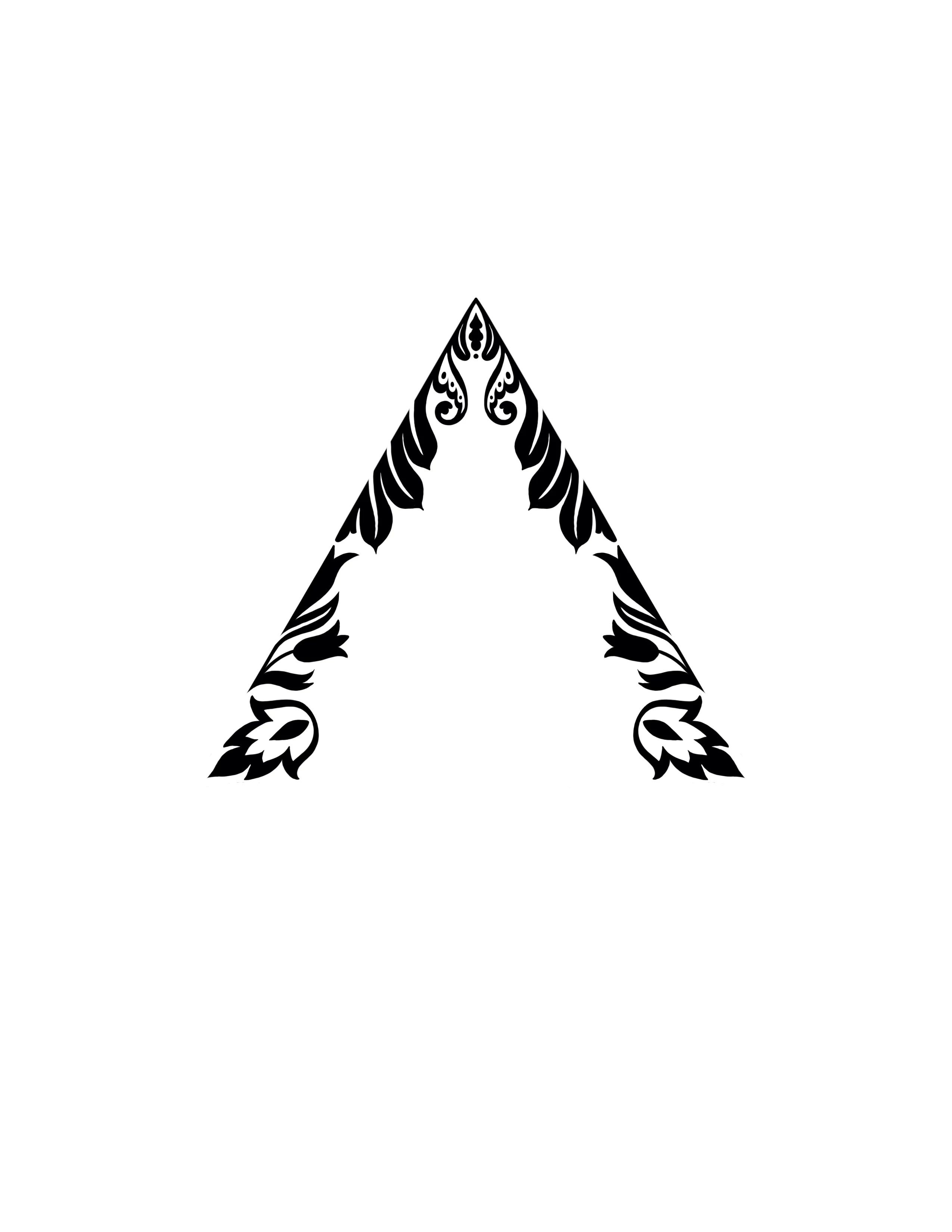
I drew this element and imported it into illustrator where I then vectorized it and expanded it to have the anchor points, but when I go to create a clipping mask it tells me that I must convert it to a path or compound shape. Even when I go through the motions to do this, it still does not work. Can y'all help me?!?!

Thank you!
Dieses Thema wurde für Antworten geschlossen.

6 Antworten

Peter Villevoye
Community Expert
Community Expert
August 16, 2019

You must know a little more about the difference between a group and that compound thing, and its effect on the clipping mask.

The clipping mask can only use 1 object to clip whatever's selected along, and underneath it.

But 1 object doesn't necessarily mean just 1 (closed) path or shape. In your design, you need to let several shapes work together as one large clipping mask, and that won't work by simply grouping them. They need to be more 'intimate' as I call it – hence: a compound. These special compound objects can consist of multiple paths/shapes, sharing their features (like fill and line color), and they swap their behaviours as fills or holes, whenever they're overlapping each other. So overlapping fills become holes ! (That's called Boolean operations.)

Now, let's look at the task at hand.

I cut away half of the design to make it easier for viewing here.

First: ungroup and release all previous groups and compounds, so we have the elements separated again.

And I coloured the elements for better understanding: blue parts need to become holes in the purple parts.

The left part is easy.

Simply select the blue and purple elements, use the Object - Compound command, or hit Cmd or Ctrl-8, and presto, it's a hole now.

You can also use the Pathfinder (second button) to perform the extraction, but then the stacking order needs to be correct to let the top element cut out of the lower element, like a cookie cutter. But that's easy as well, with the same result:

Next, the right part.

That needs some more preparation, because you first need several elements to behave like one cookie cutter. So there comes the compound again. Select the blue parts together, turn them into a compound with the command or keys. Or unify them with the Pathfinder (the first button).

I colored the compound yellow, so you can see it clearly.

Select the compound and the underlying purple element, and create another compound, but in this case I prefer to use the Pathfinder (second button, extraction). Sometimes the multitude of elements and their respective drawing directions can mess up a more complex compound. The Pathfinder is more obvious about it: I want to cut holes !

We're in the final stages now.

Select alle elements (all compounds and remaining black shapes) and turn them into one larger compound with the command, keys, or Pathfinder (first button to unify). So this yields one quite complex compound, with proper holes as well as some extra parts within:

Last step: put anything you want to reveal below this huge object, select them together, and create a clipping mask by using the command Object - Clipping Mask, or Cmd or Ctrl 7. It might warn you that it's a complex object, and that's totally correct...

I hope this lets you understand a little more about groups, compounds and clipping paths.

And how the Pathfinder can serve multiple functionalities when combining shapes.

Jacob Bugge
Community Expert
Community Expert
August 16, 2019

Jen,

If you are unable to create a Compound Path straight away without changing the black artwork so you can release and get back to the original without destroying/irreversibly changing it, you can just Group the black artwork, then have above the background (as for a Clipping Mask) and create an Opacity Mask (in the Transparency palette (flyout) click Make (Opacity) Mask with Clip ticked and Invert Mask unticked.

meganchi
Legend
August 15, 2019

You are almost there.

I opened your .ai file. Just one more step. As Mohammad.Harb​ said in his post, select your vector element, then go to the Object menu and select "Compound Paths", then "Make".

Now place your foil BEHIND that vector element. Select both the foil and vector element, then go to the Object menu, and select "Clipping Mask", then "Make".

It may pop up a warning box stating that the top object is very complex, but just click OK.

Participating Frequently
August 15, 2019

No problem:

If it's all black (no white design elements):

1. select all

2. Object - Expand Appearance

3. Keep all selected and hit Object - Expand

4. pathfinder - add* (often this is the step people forget before making a compound path, causing unpredictable issues)

That will give you a path that you can fill in with whatever color or coating you like.

If there are white elements over the black elements, the easiest way:

1. select all

2. flatten transparency (since there is no transparency it just combines the blacks and ignores the whites.

3. Put all white elements together in one layer - pathfinder add - object: create compound path

4. Put all black components on layer below white layer - pathfinder add - object: create compound path

5. Select both layers - pathfinder - subtract.

That should leave you with just the black path...

If the above didn't work, then you have to go step by step to pathfinder all the overlapping elements. That is a big pain.

Mohammad.Harb
Community Expert
Community Expert
August 15, 2019

First, select all ve tor elements and make it a compund path from object -> compound path-> make or press ctrl + 8

then this object will become the MASK and it MUST be ARRANGED on top of the MASKED element ( let’t say an image for example) 

to summerize :

make compound path

Arrange the image under the compound path

Select both objects and make clipping mask ( ctrl + 7)

Kurt Gold
Community Expert
Community Expert
August 15, 2019

Can you share this sample .ai file?

You may use Google Drive or any other reliable file sharing provider.

Participant
August 15, 2019
Kurt Gold
Community Expert
Community Expert
August 15, 2019

In case you still have trouble with the compound path, you could try to simplify the object (Object > Path > Simplify) in order to reduce the amount of anchor points.

Illustrator is sometimes a bit oversensitive when it comes to (compound) clipping paths that contain a certain number of anchor points.