

R Neil Haugen
Legend
February 11, 2020
Question

How do you stretch a shape without distorting angles?

  • February 11, 2020
  • 5 replies
  • 12676 views

Illustrator is SO not my thing (I'm more at home in Premiere ... ).


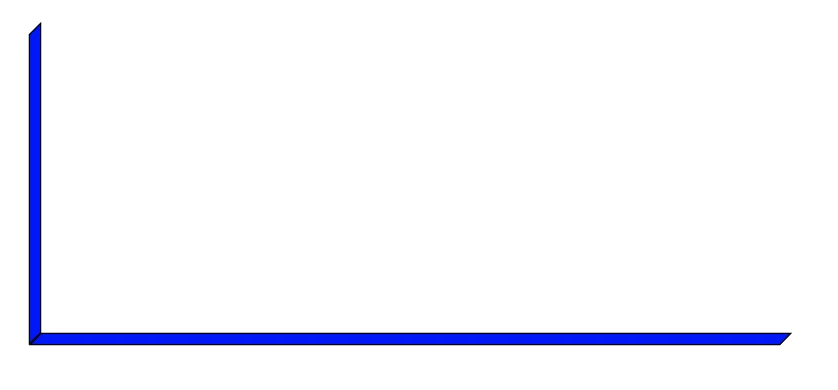
So ... I have two thin long rectangle shapes, with the ends at 45*, and at 90* to each other. I wanted to simply stretch out the lower shape.


I've been through I don't know how many pages of help files on working with shapes and transforming and such ... and nothing would help me simply "pull" the lower horizontal one out longer without changing the shapes at the ends.


I finally set the ends to square, stretched, then reset to the 45* angle.


There's got to be something that allows you to 'pull' the end without altering the shape?


And besides that, I'd like to make them just one thing ... and yet, they're always two separate shapes.
 

Neil

5 replies

R Neil Haugen
Legend
February 11, 2020

Thanks, all!


These are amazing programs ... yet all too often "intuitive" is not a word that seems to fit ... lol.


Neil

Everyone's mileage always varies ...
pixxxelschubser
Community Expert
Community Expert
February 11, 2020

@R_Neil_Haugen wrote:

"… And besides that, I'd like to make them just one thing ... and yet, they're always two separate shapes. …"


The Pathfinder Panel (Mode Add) is your friend)

or the Shape Builder Tool  (is this the correct english tool name?)


tromboniator
Community Expert
Community Expert
February 12, 2020

Yes, that is correct.

Legend
February 11, 2020

Use the Direct Select tool to grap the two points on the angle you want to preserve, and pull those points to the desired location. 

pixxxelschubser
Community Expert
Community Expert
February 11, 2020

Select the two anchor points with the "White Arrow", the Direct Selection Tool.

Click on one anchor point (and hold LMB) and drag to the right while additional hold [Strg] (or) [Ctrl] key.


You also can press the right arrow key on your keyboard multiple times (+ [Shift] key increases the steps by 10) after select the anchor points.

Ton Frederiks
Community Expert
Community Expert
February 11, 2020

The easiest way would be to make it a Symbol.

Drag the 2 shapes to the Symbols panel and check the Enable Guides for 9-Slice Scaling option.

After that the symbol can be scaled without distorting the ends.

Ton Frederiks
Community Expert
Community Expert
February 11, 2020

I know it does not sound very intuitive, but with 9-slice-scaling you only scale between these areas and leave the corner parts untouched.

Participant
August 14, 2025

Thank you for explaining this so clearly! I've spent so long trying to figure this out!