pwillener
Legend
August 27, 2012
Answered

How to break up a large document into multiple pages?

  • August 27, 2012
  • 2 replies
  • 43256 views

Sorry for my newbie questions, but I am really new to Illustrator (CS6 on Windows)...

I am creating a poster in A1 format.  My printer can only print up to A4, so I would like to break up my poster into 8 A4 pages to print a preview before sending the doc off to the printer.

Is there a way to easily do this?

Thanks in advance for your replies.

    This topic has been closed for replies.
    Correct answer Wade_Zimmerman1

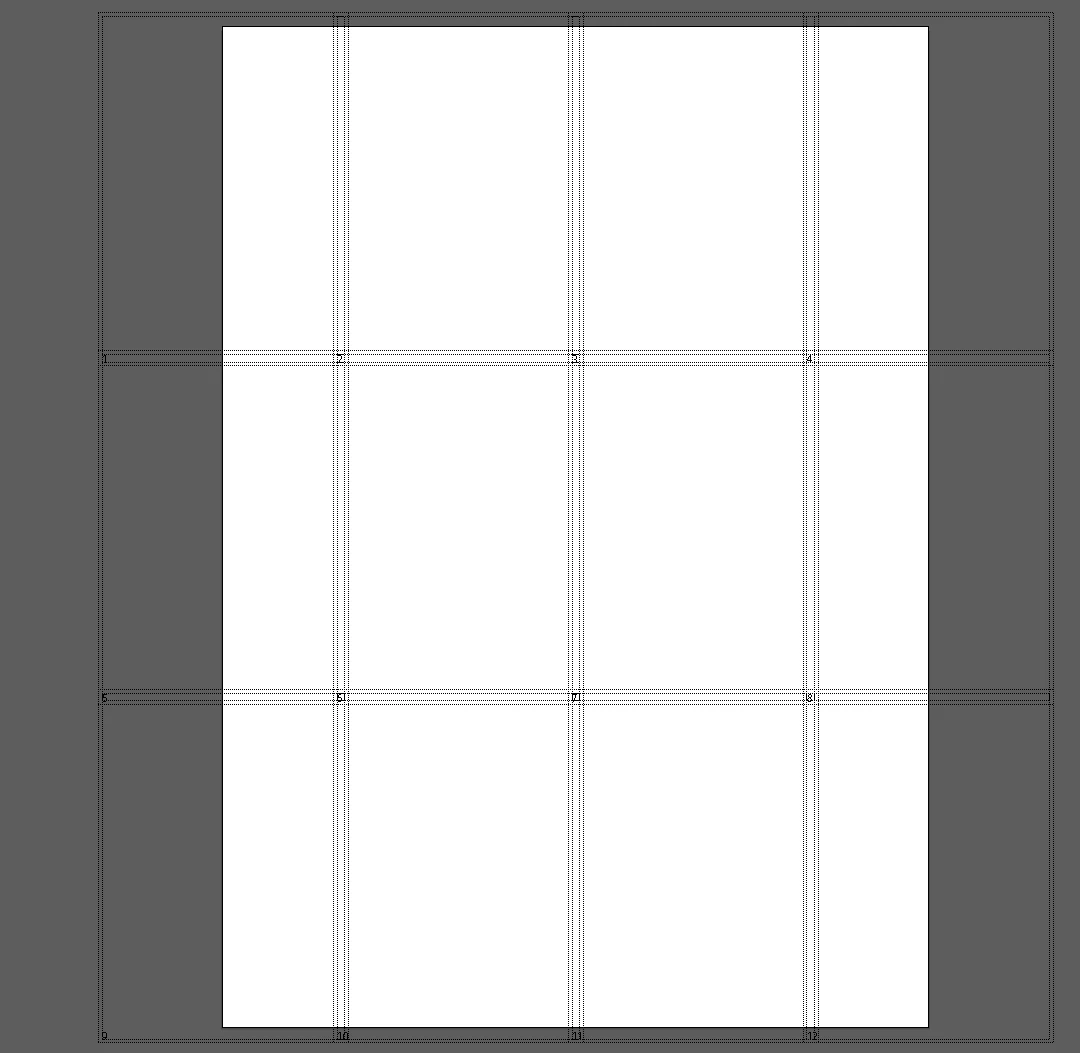
    Go to View>Show Print Tiling

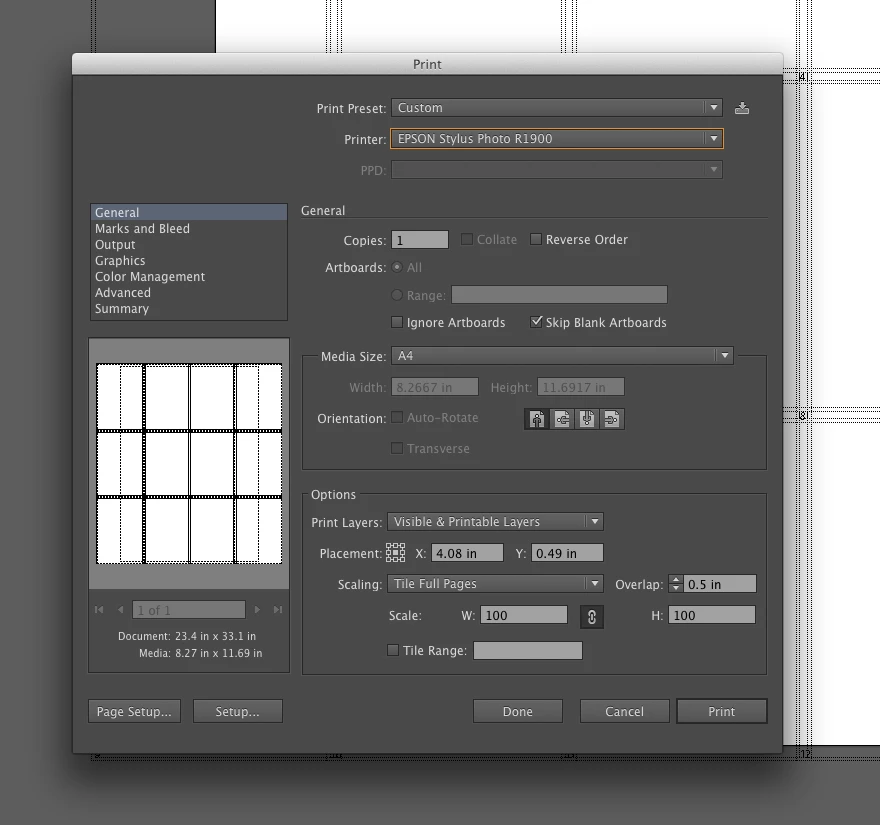
    then go to File>Print

    From the page Size select A4

    In the Print Dialog select from the Scaling optionsTile Full Pages from the drop down

    Youy will see the tiling you need  9 pages BTW

    One of the problems you cane see right away is that the pages are butted by the tiling and your printed might need a border on all edges.

    So tio compensate for this you need to have a little bit of an overlap that changes the tiling but when you trim the paper to the edge of the actual print area on the page and lay the pages on top of one another you will be able match them.

    I chose .5 inch for the overlap. You will have to figure out the amount you need for your printer.

    So in the print dialog to the right of the Scale Option Enter an over lap amount as well
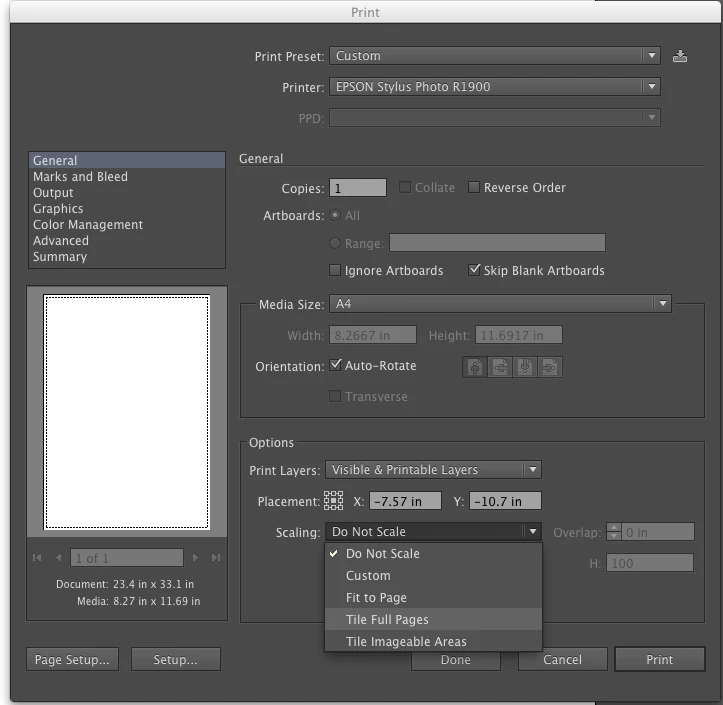
    You can do it with separate artboards but you will have a hard time when it comes to the overlap.

    2 replies

    Wade_Zimmerman1Correct answer
    Inspiring
    August 27, 2012

    Go to View>Show Print Tiling

    then go to File>Print

    From the page Size select A4

    In the Print Dialog select from the Scaling optionsTile Full Pages from the drop down

    Youy will see the tiling you need  9 pages BTW

    One of the problems you cane see right away is that the pages are butted by the tiling and your printed might need a border on all edges.

    So tio compensate for this you need to have a little bit of an overlap that changes the tiling but when you trim the paper to the edge of the actual print area on the page and lay the pages on top of one another you will be able match them.

    I chose .5 inch for the overlap. You will have to figure out the amount you need for your printer.

    So in the print dialog to the right of the Scale Option Enter an over lap amount as well
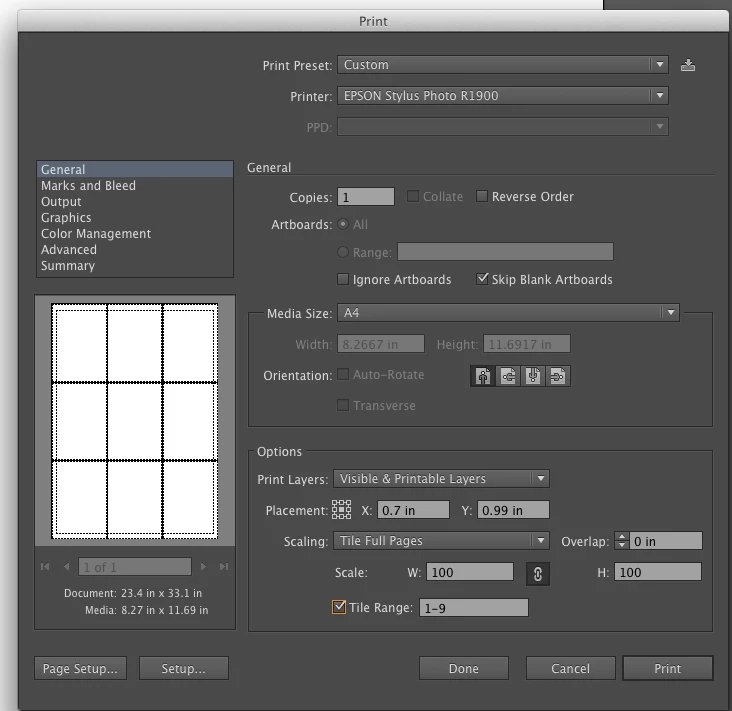
    You can do it with separate artboards but you will have a hard time when it comes to the overlap.

    pwillener
    pwillenerAuthor
    Legend
    August 27, 2012

    Thank you very much for the detailed tutorial!

    I don't mind the borders, as it is only a preview - to roughly see the size of the details, and the overall layout.

    I will have to look at the artboards at some other time.

    Inspiring
    August 28, 2012

    You're welcome.

    CarlosCanto
    Community Expert
    Community Expert
    August 27, 2012

    make 8 artboards?