Participant
December 29, 2017
Answered

How to change black outline to gradient background on vector image?

  • December 29, 2017
  • 4 replies
  • 2490 views

Newbie here & I have a question. I have this peace sign image (below) that I have imported to illustrator & I want to change the black outline to a gradient outline (below). Is there a way to do this? I can't figure it out.

This topic has been closed for replies.
Correct answer Bill Silbert

In the screen shot below I took your scan and was able to apply a gradient using the following steps:
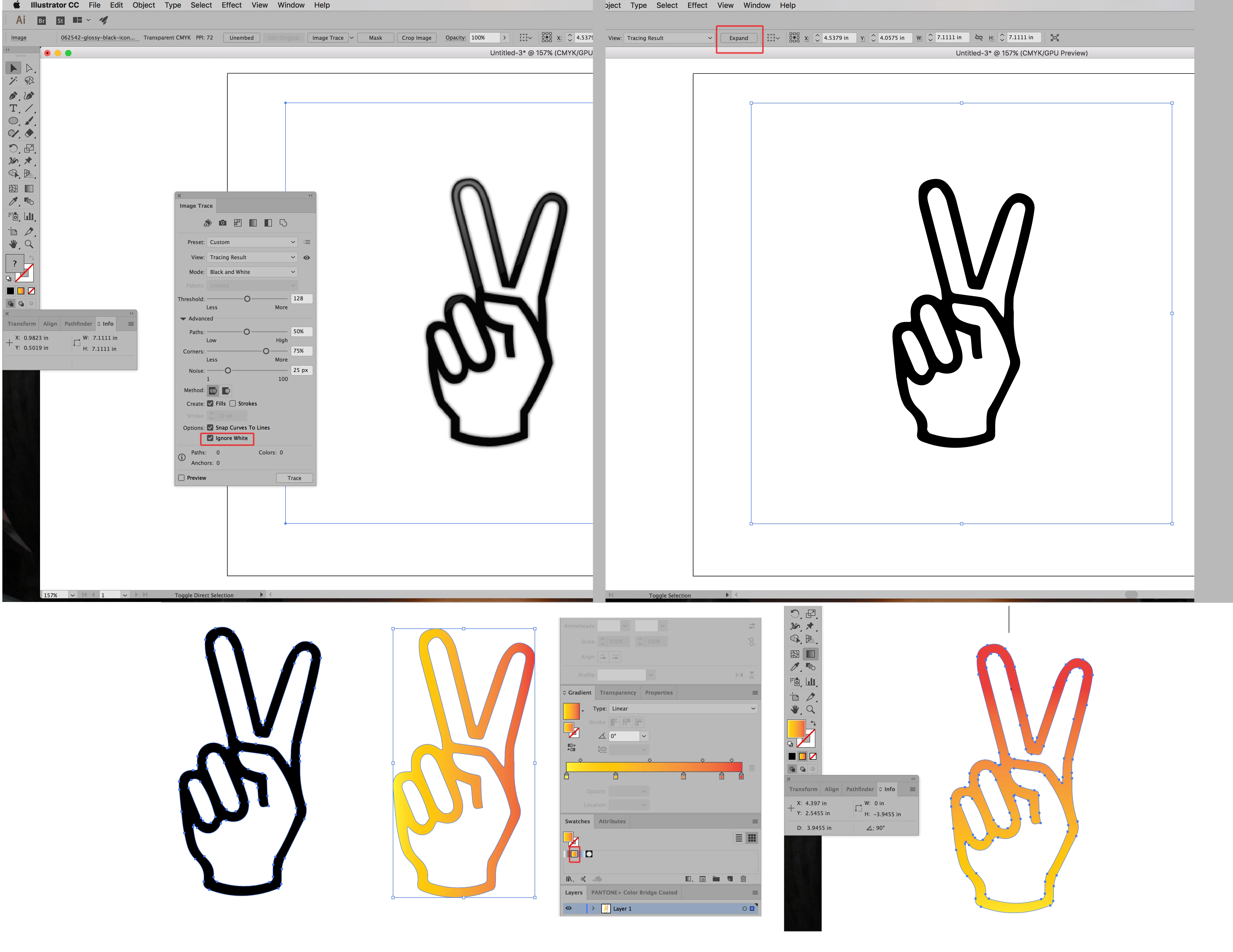
In the picture at top left I placed your raster image into Illustrator and embedded it through the option available in the Links Panel pull-down menu. I then set up the Image Trace Panel (found under the Window Menu) as shown, Making sure that "Ignore White" is checked (highlighted in red). The second picture shows the trace result but in order for it to be live vector art it must be expanded using the "Expand" button that appears in the upper menu after the image is expanded (highlighted in red). After the traced drawing is expanded it needs to become a single compound path, which in this case automatically happened when it was traced but had it not you would select all of it and use the keyboard command Command (Mac)/Control (PC)-8 to make it  a single compound path. Once that is done you can select the drawing and apply a gradient (highlighted in red in the swatch panel) as a fill (picture bottom center). Finally you would use the Gradient Tool (Shown selected in the final picture) to alter the direction of the gradient to suit your needs.


4 replies

Bill Silbert
Community Expert
Bill SilbertCommunity ExpertCorrect answer
Community Expert
December 29, 2017

In the screen shot below I took your scan and was able to apply a gradient using the following steps:

In the picture at top left I placed your raster image into Illustrator and embedded it through the option available in the Links Panel pull-down menu. I then set up the Image Trace Panel (found under the Window Menu) as shown, Making sure that "Ignore White" is checked (highlighted in red). The second picture shows the trace result but in order for it to be live vector art it must be expanded using the "Expand" button that appears in the upper menu after the image is expanded (highlighted in red). After the traced drawing is expanded it needs to become a single compound path, which in this case automatically happened when it was traced but had it not you would select all of it and use the keyboard command Command (Mac)/Control (PC)-8 to make it  a single compound path. Once that is done you can select the drawing and apply a gradient (highlighted in red in the swatch panel) as a fill (picture bottom center). Finally you would use the Gradient Tool (Shown selected in the final picture) to alter the direction of the gradient to suit your needs.

rcraighead
Legend
December 29, 2017

How is it built? Guessing it's a compound path with a fill and a stroke. It appears to already have a gradient fill, right? Do you just want to eliminate the stroke and see only the fill? If so, select all and set stroke to "none". If you want to maintain the width I'd suggest assigning an "offset" effect to the stroke to compensate for the lost width of the black outline.

24KaiAuthor
Participant
December 29, 2017

Thank you!

michelew83603738
Community Expert
Community Expert
December 29, 2017

Yes, if you select it and make sure the stroke is active - go to the gradient panel and then just click on the gradient. Once the gradient is added to the stroke, you can then edit it as you would any gradient.

michelew83603738
Community Expert
Community Expert
December 29, 2017

You don't need to expand the stoke. See below:

Select object and make sure stroke is active.

Then go to gradient panel and select the gradient to put it in stroke:

You can decide how the gradient falls across the stroke by changing the top three choices and you can change the colors by clicking on the stoppers.

erasmoj9901382
Participant
December 29, 2017

Great!!!

erasmoj9901382
Participant
December 29, 2017

You can expand the outline, and assign the gradient on it, which will look like the images below

24KaiAuthor
Participant
December 29, 2017

Thank you this worked!