
susanb23057128
Inspiring
August 23, 2017
Answered

How to edit text in multiple groups in ai file?

  • August 23, 2017
  • 2 replies
  • 9086 views

I'm really not proficient in Illustrator and am sure there's an easy answer!

I have an ai file and need to change the text. There are about five layers (that's the term in Photoshop, anyway) for the text. Is there a way to grab all the groups and edit them all at once?
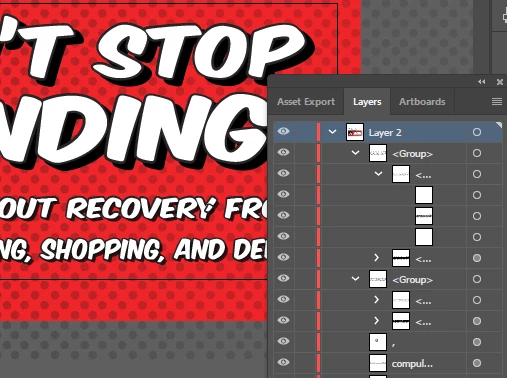
I am changing the wording plus adding words to it. No matter what I do, when I click the Text tool, it only changes one group/layer at a time. It seems like it will be impossible to figure out how each one lays on top of each other to make it look right this way!

I've written to the person who created the art for me, but it was over a year ago, so am not sure if I'll hear back.

Thanks for your help!

Susan

    Correct answer susanb23057128

    Ah, OK. Now I see what you mean. I was thinking of a completely different issue.

    The artist set up this file in a completely ineffective way.

    What you will need to do first is delete the additional copies of the text.

    You will then need to set up the artwork in a different way.

    Instead of duplicating the text, open that appearance panel.

    There create a new fill. Make it black

    Move it below the Content.

    Then apply Effect > Path > Offset Path to make it thicker

    Then create another new fill. Move it below the Contents

    Apply Effect > Distort & transform > Transform

    Move it Vertical and Horizontal as needed.


    Hi Monica,

    It turned out that the artist had saved it for earlier versions of Illustrator. I have the CC version. It's working now that she resaved it.

    Thank you for all your efforts.

    Susan

    2 replies

    Jacob Bugge
    Community Expert
    Community Expert
    August 23, 2017

    Susan,

    What happens if you simply try to Edit>Find And Replace, then Find and then Replace All?

    susanb23057128
    Inspiring
    August 23, 2017

    Hi Jacob,

    I tried that and it only works one letter at a time. So I know it is text, but not recognized as whole words.

    Thanks,

    Susan

    Jacob Bugge
    Community Expert
    Community Expert
    August 23, 2017

    Susan,

    it only works one letter at a time

    Even if you wriye the whole word word/sentence/whatever in the Find box, and similarly in the Replace With box?

    Monika Gause
    Community Expert
    Community Expert
    August 23, 2017

    Is it still editable text at all?

    If it is you could try and release all the groups.

    With the seletion tool select all the words and parts of words that have the same size.

    Copy

    with the text toolclick and drag a rectangle

    paste

    this will create a new text object. it might not have any spaces in it. it might need a lot of additional styling.

    if it lookd the way you need it, select the original text objects and delete them

    susanb23057128
    Inspiring
    August 23, 2017

    Hi Monica,

    The text is editable, and I already tried your suggestion. I copied the whole group and pasted it, but still, I have to edit the text one layer a time.

    Thank you for trying to help.

    Susan

    Monika Gause
    Community Expert
    Community Expert
    August 23, 2017

    have you ungrouped everything before selecting and copying? that would be important