
Participating Frequently
July 11, 2018
Answered

How to isolate the image without losing any detail in Illustrator?

  • July 11, 2018
  • 3 replies
  • 2255 views

hello all, so I want to make some thank you cards, and I found this image. its all greyed out so im pretty sure it has a transparency. the boxes at the bottom of my tools show X and ? instead of a color. I basically want to put it in black and white silhouette form, but I can't seam to figure out how to isolate the image without losing any detail.... PIXIE DUST IS A MUST ❤️ image trace removes this fine detail and I have prince charming squad goals so all the bedazzling is absolutely necessary. anywhoooo, if someone can walk me through the how it would be greatly appreciated. Oh and I'm super noob, like just downloaded the program like a month ago and have no formal or informal training ( aren't I just Charming.....) thanks guys. ill post the image here and host the svg I think I made? as well as the original on google drive with accessible links on the bottom of post. So yeah recap just want the image no background as vector art, or backgroundless image, and I want to change the color to black, so that I may put it on a thank you note background ive been working on for my nephews birthday...
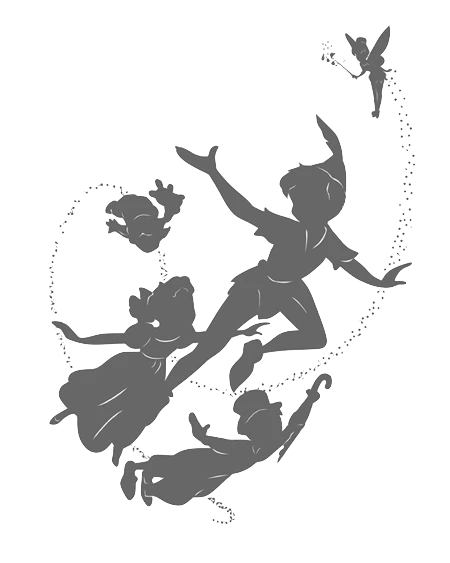
https://drive.google.com/open?id=1aElZLt5DGayyorD7L9LdoeRtBar35DU6

https://drive.google.com/open?id=1MGXDA5dqgP-kFj3OJJj8gVwG-b9qLcHP

This topic has been closed for replies.
Correct answer meganchi

FlyingPeterPan.ai - Google Drive

Here is a link to an .ai file from my Google drive with a vector black and white made from the original png image.

I had to take it into Photoshop first and convert it to a grayscale image, then add a levels adjustment layer so I could make the image 100% black.

Next, I placed the image into a new Illustrator document. Finally, I traced the image and adjusted the threshold and other settings in the trace panel until achieving a pretty close desirable result, and expanded the trace in order to have vector elements.

3 replies

meganchi
meganchiCorrect answer
Legend
July 11, 2018

FlyingPeterPan.ai - Google Drive

Here is a link to an .ai file from my Google drive with a vector black and white made from the original png image.

I had to take it into Photoshop first and convert it to a grayscale image, then add a levels adjustment layer so I could make the image 100% black.

Next, I placed the image into a new Illustrator document. Finally, I traced the image and adjusted the threshold and other settings in the trace panel until achieving a pretty close desirable result, and expanded the trace in order to have vector elements.

Participating Frequently
July 17, 2018

Thank you all for the help!!!!!

Legend
July 11, 2018

If you just need the transparent background and the image to be black, you can do this quickly in Photoshop. The PNG already has a transparent background. Add a layer style - Color Overlay, with a blend mode of Overlay, with the color set to black.

Not vector, but it will have the look you want.

Participating Frequently
July 17, 2018

Thank you

Ton Frederiks
Community Expert
Community Expert
July 11, 2018

It is an image (and a low resolution one).

To avoid losing detail, bring it into an image editor like Photoshop.