Participant
March 3, 2017
Answered

Illustrator CC2017 - How to Use Image as Color

  • March 3, 2017
  • 3 replies
  • 7350 views

Hello All,

Need some help with working with text and images.

I have an image of an ocean.  Next, I want to use the image as the fill for text (ABC Corp) .  The end result should be just ABC Corp and no ocean except for being the fill for the text.

I'mt having a hard time figuring this out..(new to Illustrator) . Any help on this would be great or if I need to provide any additional info please let me know!

Thank you
    This topic has been closed for replies.
    Correct answer SJRiegel

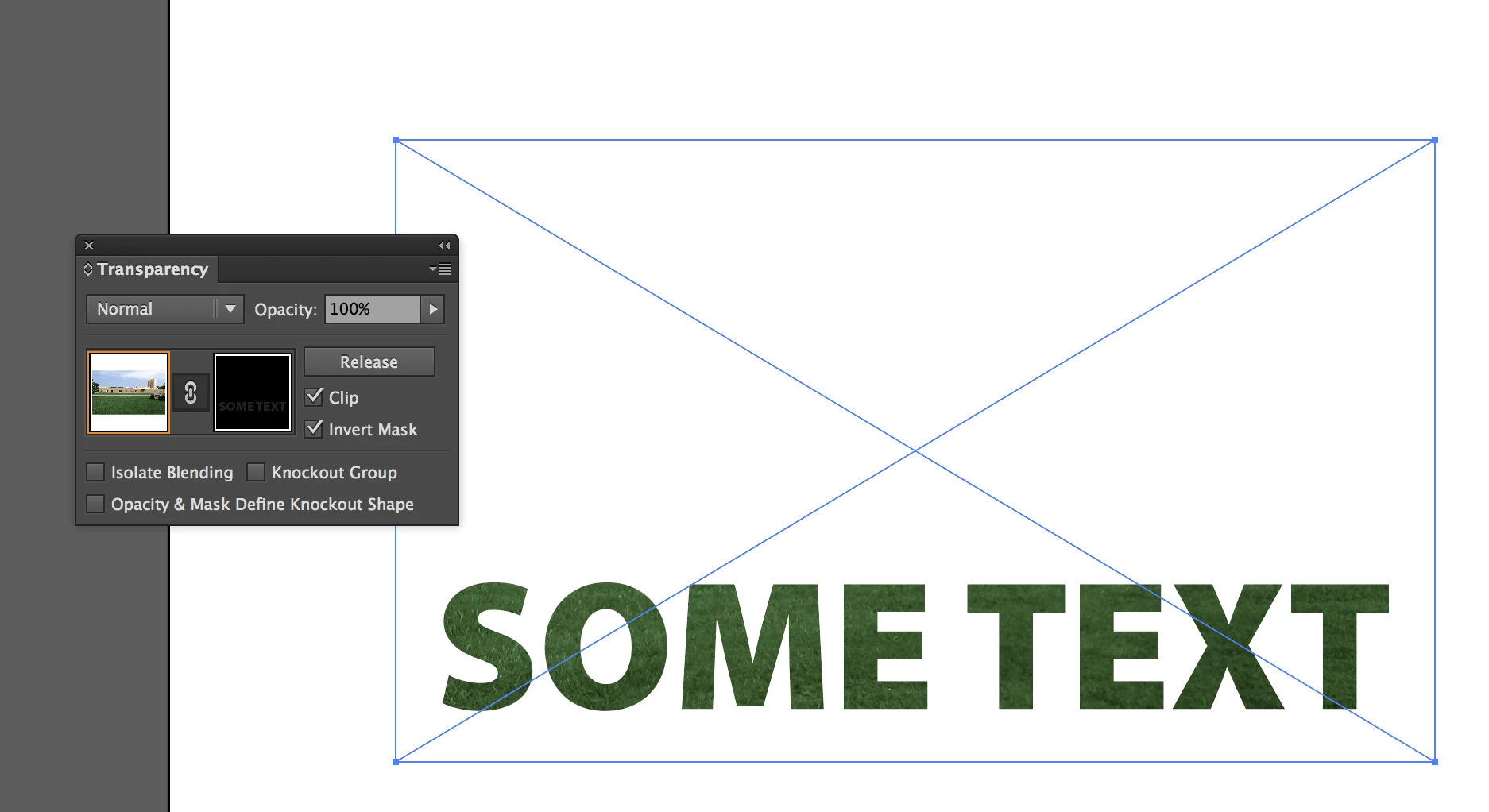
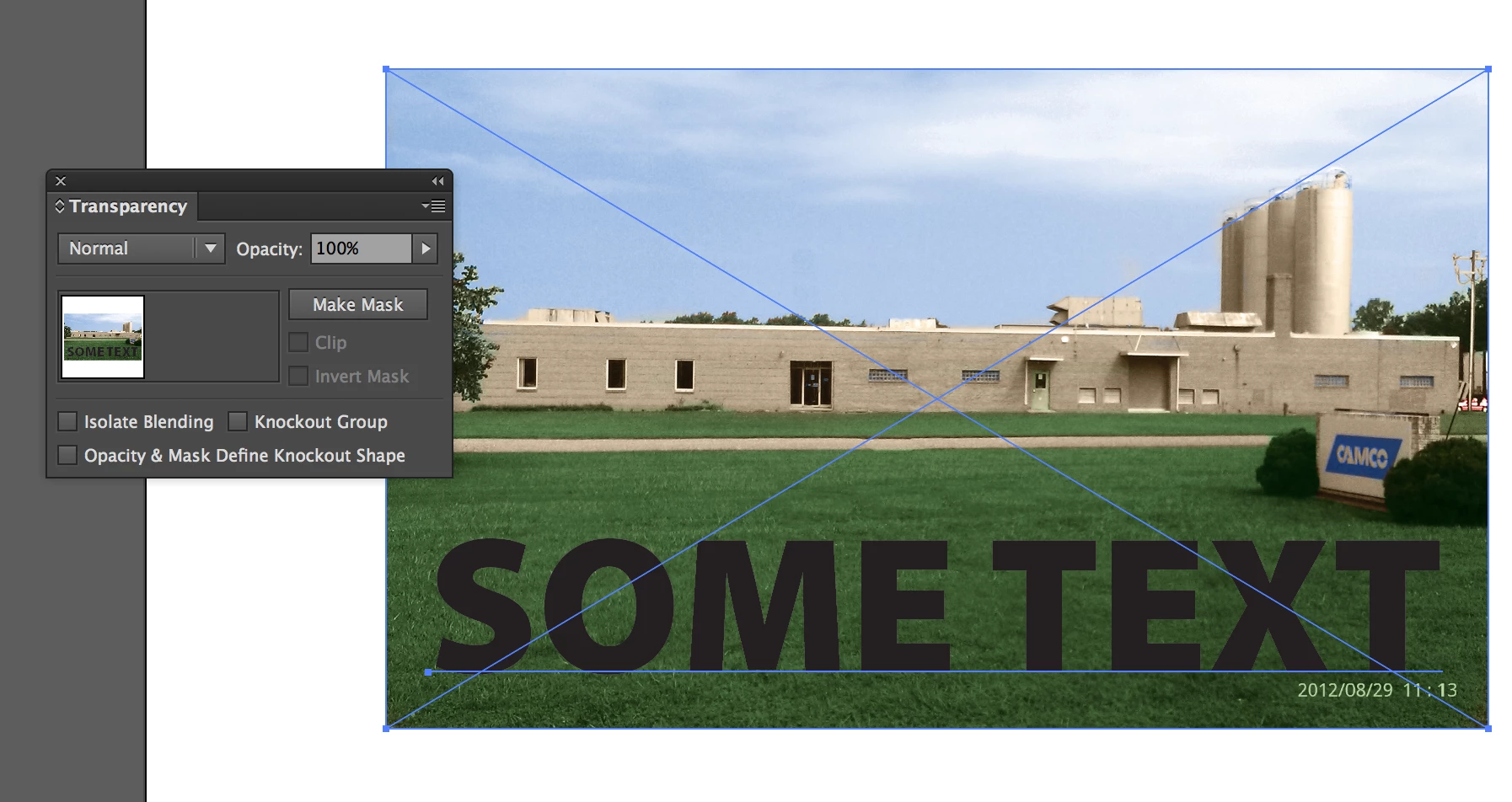
    Bring up the Transparency Pallet; Position your live text on over the photo.  (I didn't have any ocean handy, so I used grass)

    Select the photo and the text together

    Click Make Mask, and check the Clip and Invert Mask boxes.

    3 replies

    Participant
    February 10, 2021

    When I do this, the image turns to black and white


    SJRiegelCorrect answer
    Legend
    March 3, 2017

    Bring up the Transparency Pallet; Position your live text on over the photo.  (I didn't have any ocean handy, so I used grass)

    Select the photo and the text together

    Click Make Mask, and check the Clip and Invert Mask boxes.

    Participant
    March 6, 2017

    Thank you!

    Myra Ferguson
    Community Expert
    Community Expert
    March 3, 2017

    Put your text above the image, select both, and got to Object > Clipping Mask > Make to make a clipping mask How to use and edit clipping masks in Illustrator