Known Participant
August 24, 2017
Answered

Illustrator Color Palette - acting inconsistently

  • August 24, 2017
  • 2 replies
  • 3353 views

I thought that when you select an object the color palette would show you exactly the color you set -- and would show the color's original colorspace.  This doesn't seem to be happening though.

Please see the linked file below.

Open the Color Palette.

Select the top gray box.  It will show RGB 128, 128, 128. (this is correct -- it is how it was originally designated).

Select the middle gray box.  It will show RGB 147, 149, 152 (this was set originally as CMYK)

Select the bottom gray box.  It will show 50% Grayscale (correct -- this is how it was originally created)

No select the top gray box again.  Color palette shows it as a Grayscale value??? Why?

Select the middle gray box -- now it shows RGB again.  Now select the top box... it shows as RGB?  Why is this behavior so inconsistent?

Dropbox - Illustrator Color Selection Issues.ai

This topic has been closed for replies.
Correct answer Katie Houghton

Ok. I see your issue. It is a problem with flattening. PDF/X1-A and PDF/X3 both have to flatten the file for print. PDF/X-4 is considered live... hence you will not see the issue until you flatten (you flatten to go to print). The problem is when you choose just Black (K) you end up  with not enough colors to mix down when it has to raster an area in the flattening process. This makes it look different from the original background. You need it to be CMYK. You may only be using only the K channel in the original color, but having CMYK adds CMY to the mix down.

This is a process I always do in Illustrator and InDesign if I am going to print:

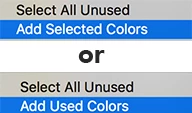
(I like to know what colors I am using). I usually use "Add Used Colors" unless you only want certain colors added then select the objects and use "Add Selected Colors". You can find these choices in the Swatches panel menu. I also "Select All Unused" colors and delete them. (That way I know exactly what I am going to print with.) Thought you do not have to do that. In any case, when you add the colors the one channel color (K) will come in as CMYK and be a global color.

You do not have to do anything else, just adding the global color will convert the color back to CMYK, where you won't have the weird box around the drop shadow.

Mike is right I keep it in RGB or CMYK  and not both (PDF/X-1A will convert it all the CMYK as it can hold no RGB). I would probably convert the CMYK back to RGB or all the colors to CMYK (just use a PDF/X-1A) but I do not think mixing the color modes will make any difference in this particular case. (though you may prove me wrong on a particular digital printer)
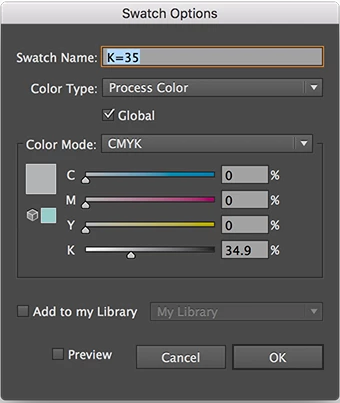
After you add the swatches your K color all come in as CMYK as shown below
Hope this helps answer your question. Sorry about the delay on getting back to you.

2 replies

Katie HoughtonCorrect answer
Inspiring
August 25, 2017

Ok. I see your issue. It is a problem with flattening. PDF/X1-A and PDF/X3 both have to flatten the file for print. PDF/X-4 is considered live... hence you will not see the issue until you flatten (you flatten to go to print). The problem is when you choose just Black (K) you end up  with not enough colors to mix down when it has to raster an area in the flattening process. This makes it look different from the original background. You need it to be CMYK. You may only be using only the K channel in the original color, but having CMYK adds CMY to the mix down.

This is a process I always do in Illustrator and InDesign if I am going to print:

(I like to know what colors I am using). I usually use "Add Used Colors" unless you only want certain colors added then select the objects and use "Add Selected Colors". You can find these choices in the Swatches panel menu. I also "Select All Unused" colors and delete them. (That way I know exactly what I am going to print with.) Thought you do not have to do that. In any case, when you add the colors the one channel color (K) will come in as CMYK and be a global color.

You do not have to do anything else, just adding the global color will convert the color back to CMYK, where you won't have the weird box around the drop shadow.

Mike is right I keep it in RGB or CMYK  and not both (PDF/X-1A will convert it all the CMYK as it can hold no RGB). I would probably convert the CMYK back to RGB or all the colors to CMYK (just use a PDF/X-1A) but I do not think mixing the color modes will make any difference in this particular case. (though you may prove me wrong on a particular digital printer)

After you add the swatches your K color all come in as CMYK as shown below

Hope this helps answer your question. Sorry about the delay on getting back to you.

Inspiring
August 24, 2017

The Color Palette is designed to create color. You can switch between many color modes just use the menu or shift click on the spectrum. When you first clicked in the RGB it was created with color and so was the CMYK item so they could be defined by the same mode. Once you clicked on the Grayscale it only had one channel so it showed as one channel "K". Once you clicked back on the gray image it could also be created in "K" so it stayed in grayscale. Your document's color space is defined by the Document Color Mode. That means even if I create an CYMK color and save it as a Global color if the document is RGB then the color will be defined as RGB. Illustrator is more closely related to Photoshop in this way... It has one color Mode at a time: RGB or CMYK. Maybe you are thinking of how InDesign works. 

Color panel is there to create color

These are the color options you can view a color in. You can also shift-click on the spectrum to change your mode.

File>Document Color Mode

Document Color Mode defines the color space of the document.

Global Color

A global color is defined by the documents color mode. Here I created the color as a CYMK but you can see it still shows up as RGB as that is my document color mode. (In InDesign you can have a spot CYMK, LAB, RGB, etc... all in the same document... though that is not a good workflow.)

Known Participant
August 24, 2017

Hi again Katie.

Thank you for your answer. While I'm definitely not an AI expert, most of what you said, I already know.

But I'm still not quite clear.  The top and bottom squares are not the exact same color.  One was set up as an RGB and the other was set up as a Grayscale.  So it doesn't seem that they should not show up as identical in the color swatch.

I know they are not the same color (and this somewhat relates back to the other thread where you were involved) because if I save a PDF X-3, the transparency shows up differently (as an error with the Grayscale one).  If I had to debug a file (such as to fix transparency issues as shown below), how would I know that the two colors were different if the swatch shows them as identical?  Hopefully what I'm asking make sense.

Mike_Gondek10189183
Community Expert
Community Expert
August 24, 2017

Top: Done correctly. Your document color mode and color palette match.

Middle: Incorrect. You entered CMYK values into a RGB document.

Bottom:  Would not recommend. For color constancy enter your values as RGB when in document color mode RGB.

If you enter CMYK numbers in to an RGB document, and you click off the items, then click back on it you will notice your CMYK numbers change. This is because Illustrator converts what you entered as CMYK to their perceived RGB equivalent. RGB and CMYK are 2 different color spaces, and all of as at fruit believe the numbers should go back and forth. Does not work this way as each colorspace  has a differ color gamut.