Participant
May 30, 2018
Answered

illustrator crashes while placing multiple images

  • May 30, 2018
  • 2 replies
  • 1028 views

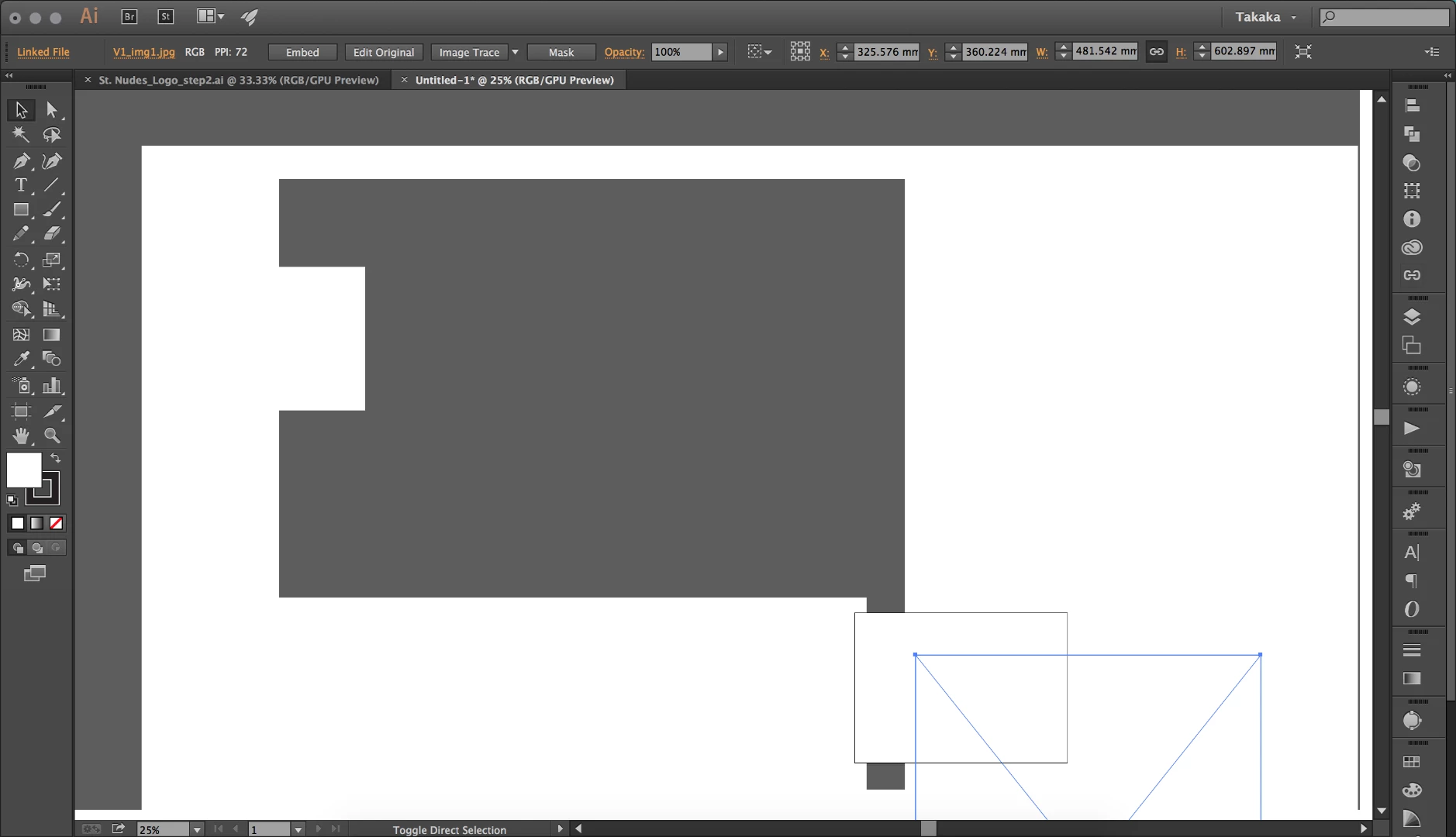
Every time I place multiple images from my folders illustrator crashes. It keeps running, but everything is getting messy and the preview is damaged. Zoom in and zoom out doesn't work, or work late. The file is affected and it's impossible to get back. Even if I quit the illustrator and open it again, reopen the file, the file is damaged. I have Adobe illustrator 15.0.0 release [ 19.0.0] version.

This topic has been closed for replies.
Correct answer Bill Silbert

Try trashing your Illustrator preferences:

To do so:

For Macintosh Users: With Illustrator closed launch a Finder Window in column view and click on your home folder. With the Option Key pressed choose Library from the Finder Go Menu. Within the Library folder find the folder called Preferences and within it find the following two files and delete them: “Adobe Illustrator <Version #> Settings” (earlier versions of Illustrator might just say “Adobe Illustrator”) and “com.adobe.Illustrator.plist”. When Illustrator is next launched it will create new preference files and the program will be restored to its defaults.

For Windows Users: You can try the quick way of resetting on a PC which is to hold down Ctrl + Alt + Shift when launching Illustrator and respond affirmatively when asked if you want to reset. There have been some recent reports that the window asking if you want to reset is not popping up but that the prefs are being reset anyway. If this works great but if it doesn’t you may have to manually delete them.

To do so:

On Windows 7 and above the preference files are hidden. To find them go to the Control Panel and open Folder Options and then click the View tab. Then select “Show hidden files and folders” or “Show hidden files, folders or drive options” in Advanced Settings. Then delete (or rename) the folder at the end of this path: C:\Users\[User Name]\AppData\Roaming\Adobe\Adobe Illustrator [version number]\ Settings\<Language>. Make sure that Illustrator is closed when you do this. When you relaunch the program it will create  new preference files and the program will be at its default settings.

The advantage of manually deleting preference files is that after you’ve reset up the program (make sure that no document window is open) to your liking, you can create copies of your personalized “mint” preference files (make sure that you quit the program before copying them—that finalizes your customization) and use them in the future to replace any corrupt versions you may need to delete.

2 replies

creativejake
Participating Frequently
May 30, 2018

In some cases, I have simply copied everything in a document (make sure Paste Remembers is on from the upper right flyout / drop-down menu on the layers panel). I then create a new document at the same size and Paste in Front (Command+F or Control+F) so it will paste in the correct spot within the document and keep all of your layer structure. Then save the new file and start placing your images in again. Kind of a pain, but so are crashes. My hypothesis in these cases is that there is some little code gremlin in the file that is causing an issue. That is not a technical explanation, but in those instances, it has always worked for me.

Now, there could also be an issue with one of the images you are trying to bring in too.

Bill Silbert
Community Expert
Bill SilbertCommunity ExpertCorrect answer
Community Expert
May 30, 2018

Try trashing your Illustrator preferences:

To do so:

For Macintosh Users: With Illustrator closed launch a Finder Window in column view and click on your home folder. With the Option Key pressed choose Library from the Finder Go Menu. Within the Library folder find the folder called Preferences and within it find the following two files and delete them: “Adobe Illustrator <Version #> Settings” (earlier versions of Illustrator might just say “Adobe Illustrator”) and “com.adobe.Illustrator.plist”. When Illustrator is next launched it will create new preference files and the program will be restored to its defaults.

For Windows Users: You can try the quick way of resetting on a PC which is to hold down Ctrl + Alt + Shift when launching Illustrator and respond affirmatively when asked if you want to reset. There have been some recent reports that the window asking if you want to reset is not popping up but that the prefs are being reset anyway. If this works great but if it doesn’t you may have to manually delete them.

To do so:

On Windows 7 and above the preference files are hidden. To find them go to the Control Panel and open Folder Options and then click the View tab. Then select “Show hidden files and folders” or “Show hidden files, folders or drive options” in Advanced Settings. Then delete (or rename) the folder at the end of this path: C:\Users\[User Name]\AppData\Roaming\Adobe\Adobe Illustrator [version number]\ Settings\<Language>. Make sure that Illustrator is closed when you do this. When you relaunch the program it will create  new preference files and the program will be at its default settings.

The advantage of manually deleting preference files is that after you’ve reset up the program (make sure that no document window is open) to your liking, you can create copies of your personalized “mint” preference files (make sure that you quit the program before copying them—that finalizes your customization) and use them in the future to replace any corrupt versions you may need to delete.