I am not sure, but to do what you want in the way that you want, you should:
Change/set your Illustrator workspace to be in pixels.
Make your artboard the size you want your final PNG to be. If that's 548 x 223 pixels, then make it that size.
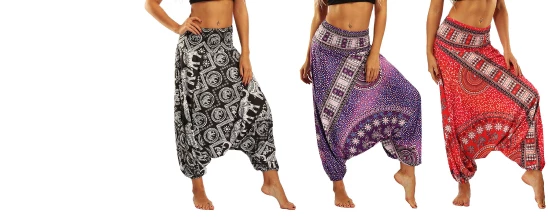
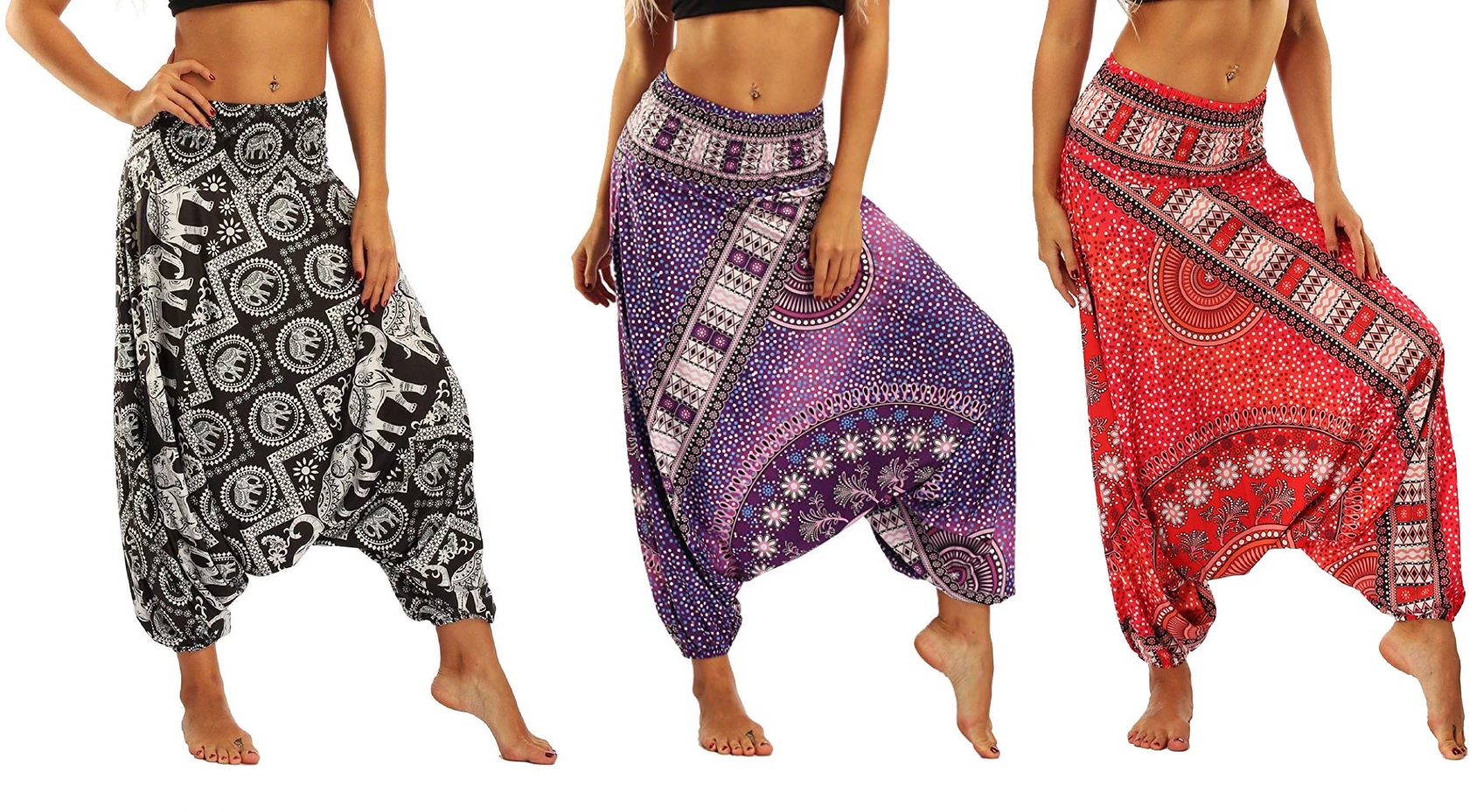
Place your raster images (such as the harem pants) into the Illustrator file, size it as you want them to appear within the 548 x 223
(side note: Just add your type at this stage? but if not...)
Export as a png, making sure the "Use Artboards" option is checked in the Export box.
This will create the PNG as you expect it.
HOWEVER, you do seem to be confusing size with quality. Bigger images will always look better, but if your size is limited as you said above, then your images will always look a little blurry or lower-quality compared to the same image exported at a higher resolution. Don't compare apples to oranges, just make what you need to fit. If the small image size is unacceptable, then you'll have to change the size of your final product so you can use larger images.
Thank you so much for all the help... I'm gonna try this out... Hopefully, it will work and save me a ton of time... As for now, I'm having to make designs in Canva, save them in PDF, then import them to Photoshop, then save them again to PNG-24...
It the only way to I can find to get the maximum quailty...



 AdChoices