
den2908
Participant
November 7, 2017
Question

Image tracing problem

  • November 7, 2017
  • 2 replies
  • 1704 views

Hi,

I am fairly new to Illustrator and am trying to image trace. I have a simple black line drawing that I have saved a psd file in photoshop in greyscale and place it into Illustrator.
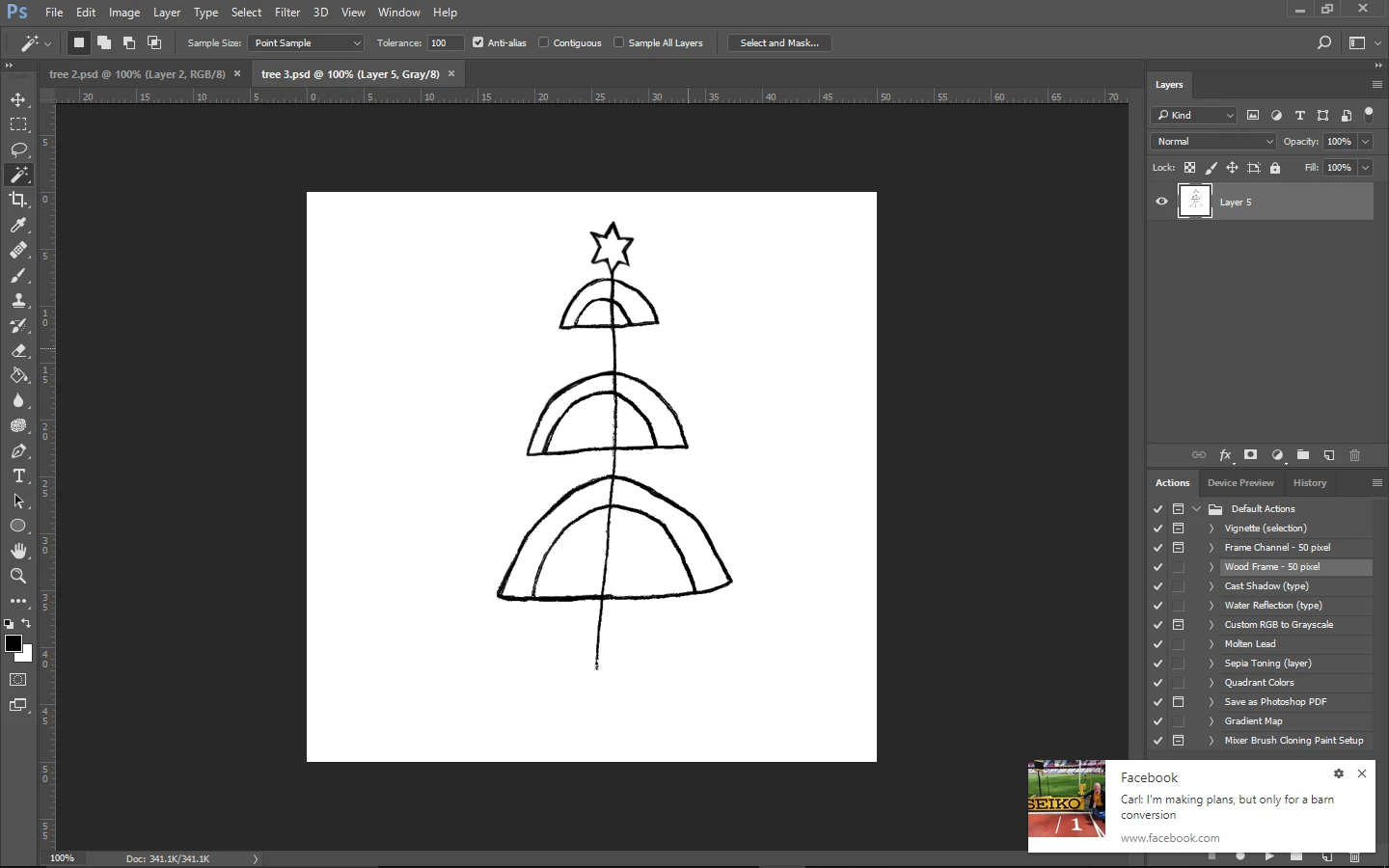
Then I open up the image trace panel - select ignore white, trace and then expand.
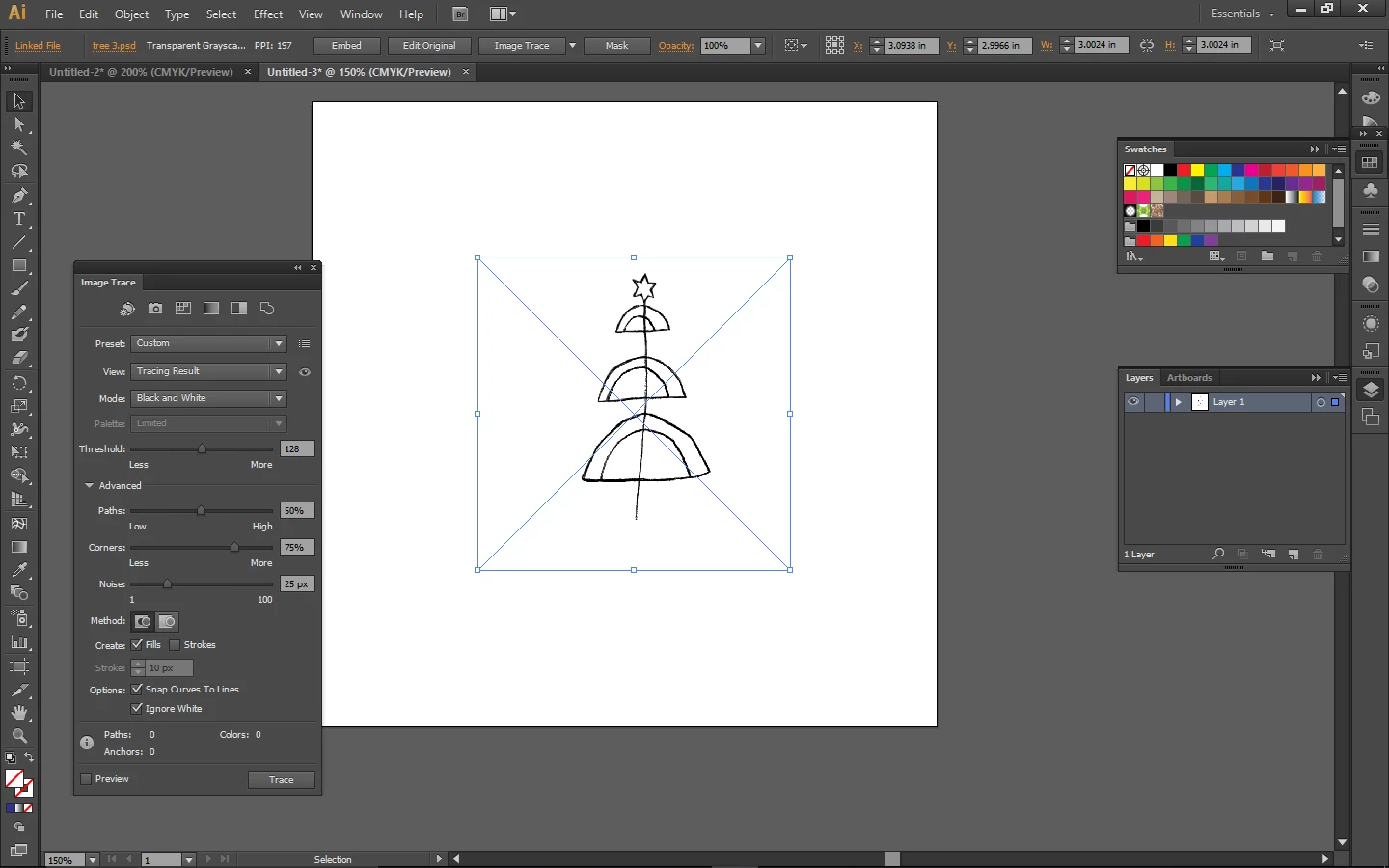
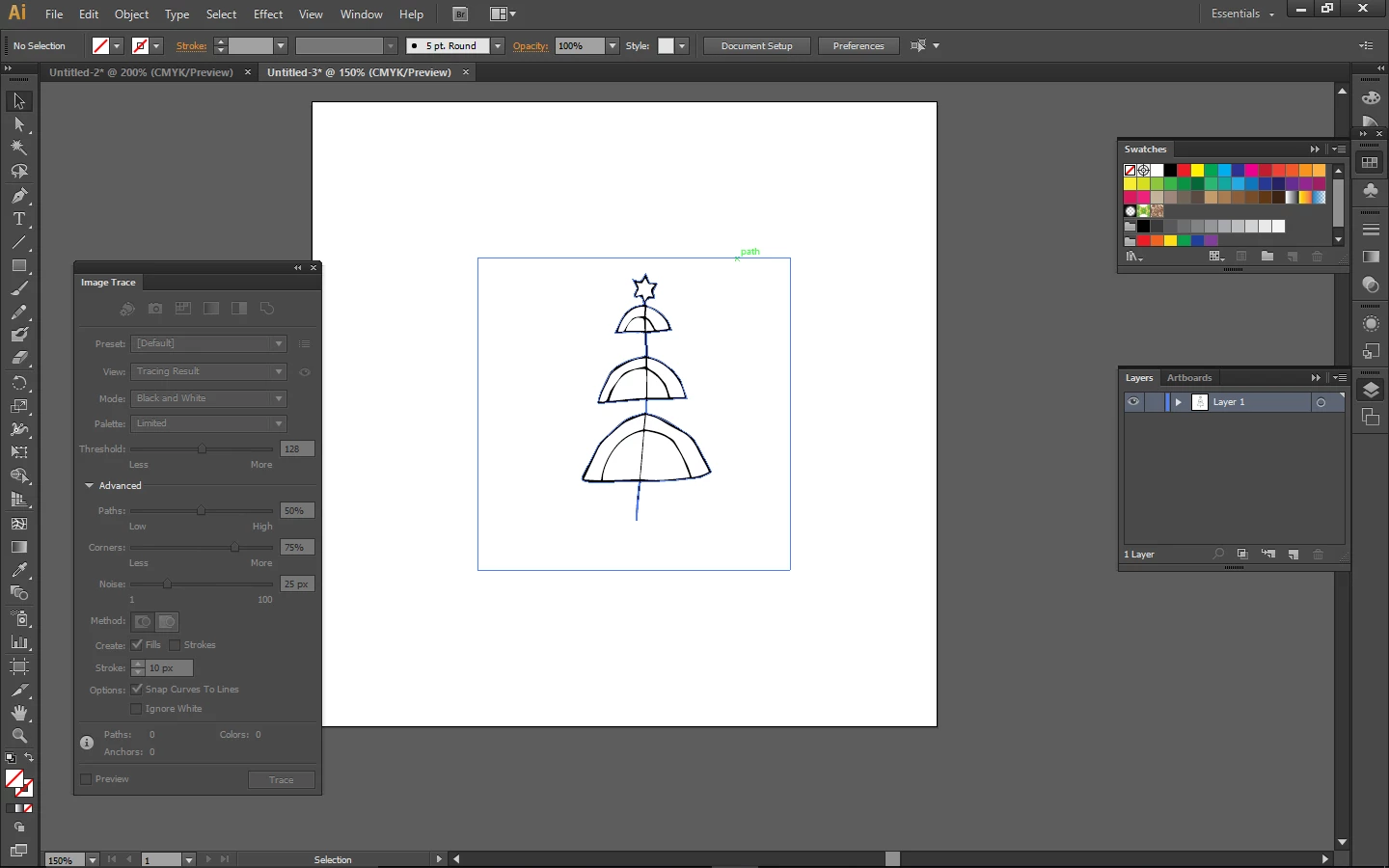
The line drawing is expanded just as expected by I have an additional square path which seems to trace the outline of the edge of the photoshop document.
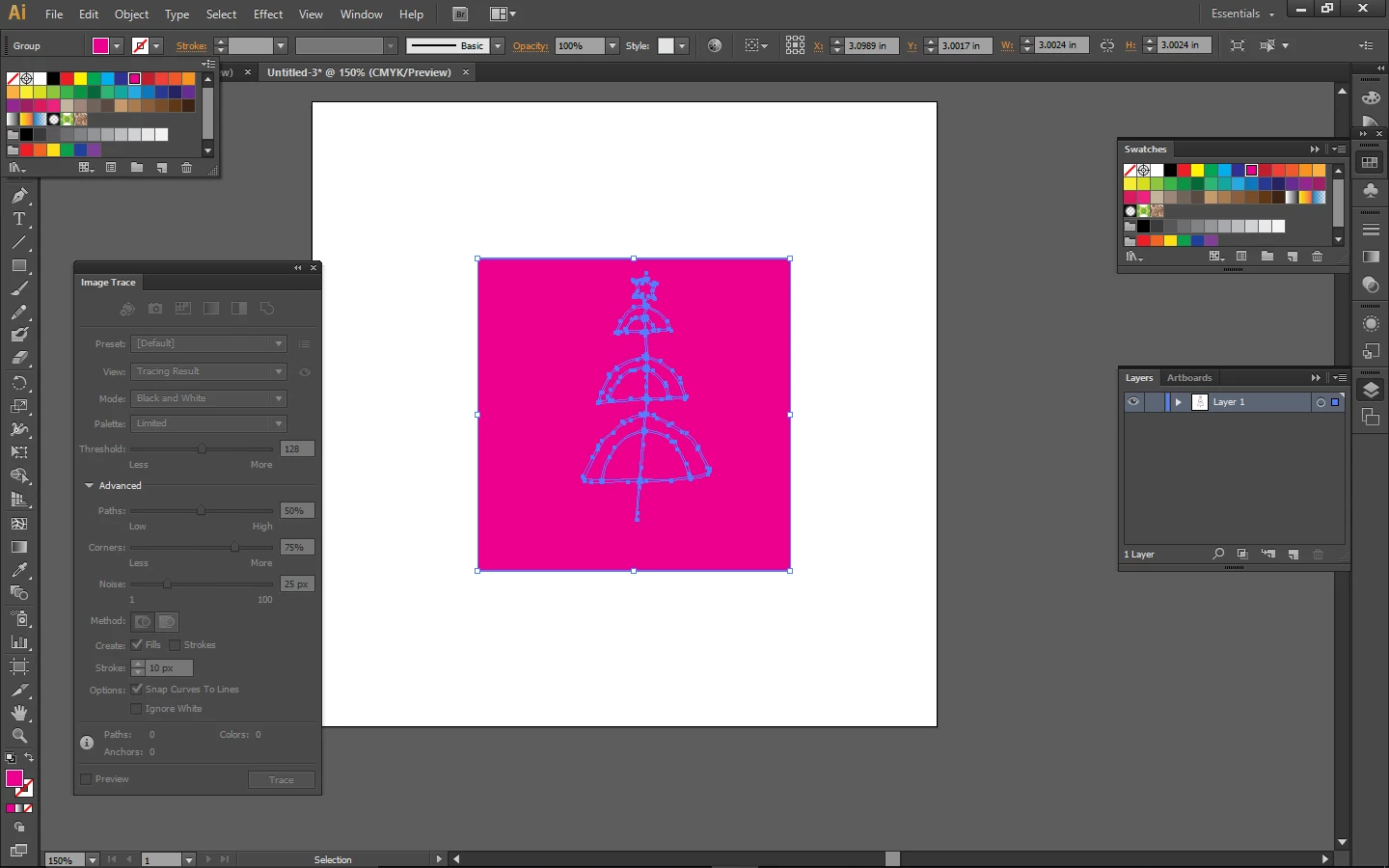
I would like to be able to change the colour of the black line drawing but when I change the fill it fills the whole rectangle.
I have tried this side by side with my colleague who was doing the same thing on her mac and she isnt having this problem.After expanding, her traced artwork is neatly clipped around the object. Is there a setting I need to change? Any help would be greatly appreciated.

Denise

    This topic has been closed for replies.

    2 replies

    WILDCAT54
    Inspiring
    November 7, 2017

    After tracing the image you can select the expand which will convert the object into paths

    Then with your selection still active, ungroup ( ctrl+shift+G) and select and delete the pieces you do not want.

    den2908
    den2908Author
    Participant
    November 7, 2017

    Thanks Wildcat54 that works - Hurray!

    I thought the ignore white function should do this automatically though- and it does in my friends programme. If anyone can shed any light on why this might be that would be helpful but for now I can use your fix Wildcat. Thanks again.

    Monika Gause
    Community Expert
    Community Expert
    November 8, 2017

    In Illustrator CS6 Ignore White had a bug and did create invisible (unfilled/unstroked) objects. WHich version is yours?

    Using the magic wand actually isn't time consuming. It's just one click to select same objects.

    Monika Gause
    Community Expert
    Community Expert
    November 7, 2017

    Did you specify "Ignore white"?

    In that case the background should be gone.

    But you can also just select it with the magic wand and then delete all white objects

    den2908
    den2908Author
    Participant
    November 7, 2017

    Hi, Thanks for your reply Monika - Yes I did select ignore white - and that's what's so puzzling. Your right, I could select the magic wand tool but on more complicated shapes this would be quite time consuming so I'd like to get to the bottom of why ignore white isn't working. It's an odd one isn't it?