Participant
February 16, 2021
Answered

Is there a way to simultaneously move points in opposite directions?

  • February 16, 2021
  • 4 replies
  • 12320 views

I'm editing parts of a symmetrical face, the parts were created with the pen tool. Is there a way to select corresponding points on opposite sides of each object, the mouth for example and have them move in a mirrored fasion? (ie if I grab the one on the right and move up, they both move up, but if I move right, away from the center line, the left one will move to the left rather than also going to the right)


I've watched several tutorials on both the pen tool and manipulating objects and couldn't find any solution. The closest thing I found was a video where someone did this with the lower corners of a rectangle. I tried to follow their on-screen (non-narrated) instructions, but either I'm missing something or the technique is for "shapes" from the shape tool and doesn't work for random objects drawn with the pen tool.


Any help would be greatly appreciated.
This topic has been closed for replies.
Correct answer barbara_a7746676

I'm not sure that I understand the question, but will give it a try. 

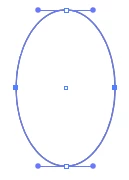
On the ellipse below, the left and right points are selected using the Direct Selection tool. 

Still using the Direct Selection tool, if you drag one of the selected points up, they both move up. (Holding down Shift will constrain the movement so that they move straight up.)

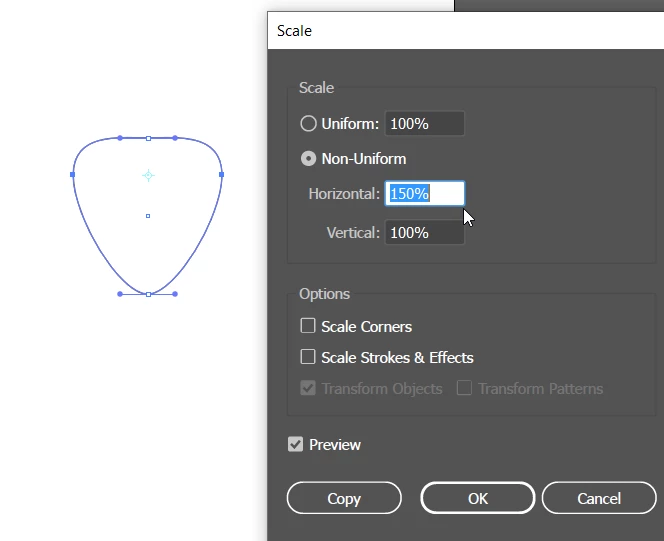
With the same two anchor points selected, when you want to move them away from the center or towards the center, one way is to double click the Scale tool in the Tools panel to open the Scale dialog box. Select Horizontal or Vertical and enter a percentage larger than 100% to move the points away from the center, or a percentage smaller than 100% to move them towards the center.


4 replies

Participant
February 6, 2023

I have an illustrator script i found on GitHub that does this exact thing. I had been annoyed for years trying to figure it out and finally find the solution made by a total stranger. 


Can be found at https://github.com/creold/illustrator-scripts


Download the zip, extract it, and drag and drop the scripts you want into the scripts fodler under you installation location.

(Instructions are provided on github page)


The specific script that does this is called "MirrorMove" so if you just want that then copy that the MirrorMove.jsx file only, into your scripts folder. and use according to directions given on GitHub creators page


barbara_a7746676
Community Expert
Community Expert
February 17, 2021

Great - I'm glad that helped!

tromboniator
Community Expert
Community Expert
February 16, 2021

As Barbara says, direct select the two points you want to move. Click on the Scale Tool or press the S key and the scale reference point will appear between the points. Click and hold anywhere and drag. A straight horizontal drag away from the reference point will widen the shape, toward it will narrow it. Other directions will twist and bend it in interesting ways. Click anywhere you like to change the reference point and experiment with the results.

Peter


Participant
February 17, 2021

Hi Peter,

Thanks for taking the time to reply. Good to know the shortcut for the scale tool too.


-Dan

tromboniator
Community Expert
Community Expert
February 17, 2021

You're welcome, Dan

barbara_a7746676
Community Expert
barbara_a7746676Community ExpertCorrect answer
Community Expert
February 16, 2021

I'm not sure that I understand the question, but will give it a try. 

On the ellipse below, the left and right points are selected using the Direct Selection tool. 

Still using the Direct Selection tool, if you drag one of the selected points up, they both move up. (Holding down Shift will constrain the movement so that they move straight up.)

With the same two anchor points selected, when you want to move them away from the center or towards the center, one way is to double click the Scale tool in the Tools panel to open the Scale dialog box. Select Horizontal or Vertical and enter a percentage larger than 100% to move the points away from the center, or a percentage smaller than 100% to move them towards the center.


Participant
February 17, 2021

Hi Barbara,

Thank you so much for the help. Apparently you understood the question quite well enough, this is just what I needed. 


-Dan