Known Participant
March 28, 2017
Answered

Iteration of a Graphic

  • March 28, 2017
  • 7 replies
  • 1506 views

I hope I am clear in what I am seeking to do. Years ago I could do this in CorelDraw (can I say that here?) but have never tried it in AI.

I have a graphic that I'd like to iterate iterate multiple times to form a fan or circle. I want the upper left point of the original graphic to be the center point of the "fanning out" iterations.

Again, I hope I am explaining this clearly. I'd like the graphic to "fan out" to 360 degrees creating a circular final graphic.

Feel free to ask for clarity if need be.

Thank you in advance for any illumination.
    This topic has been closed for replies.
    Correct answer SJRiegel

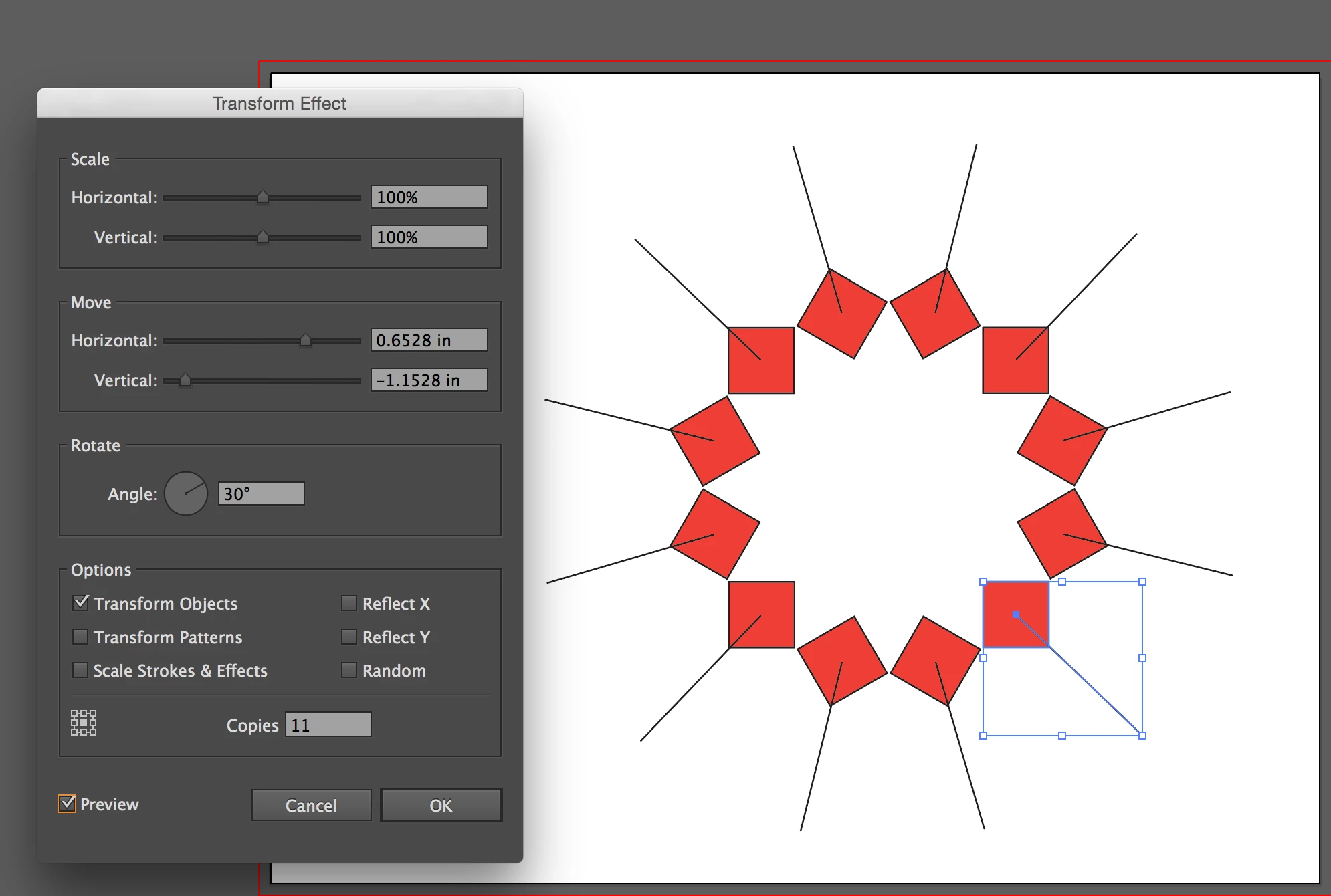
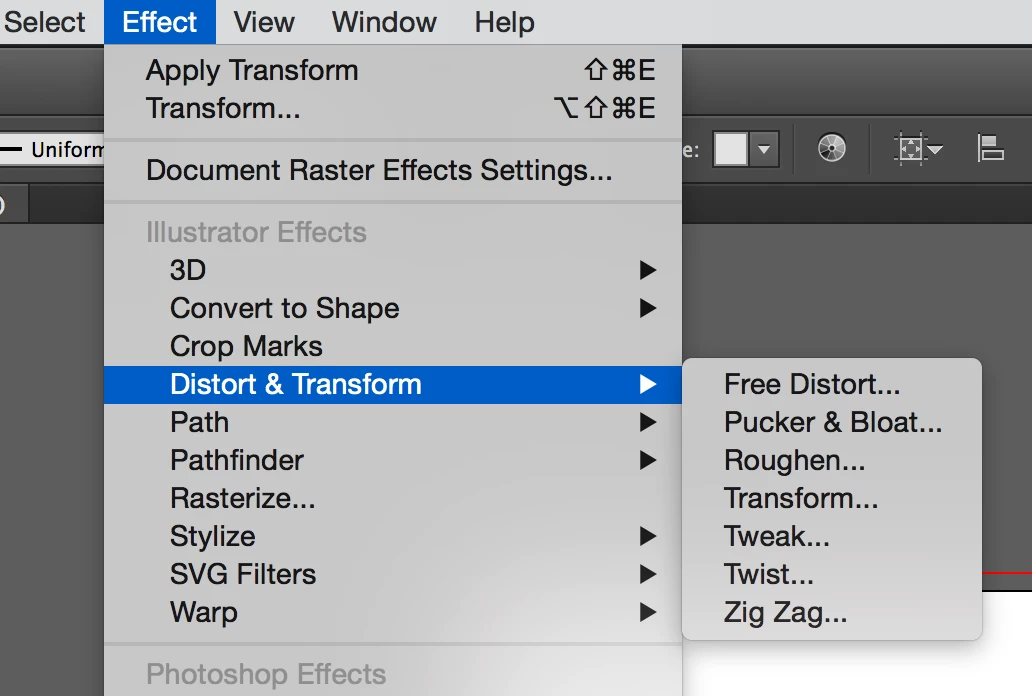
    You can also use Effect > Distort & Transform > Transform to make a live version, that you can easily alter on the fly.

    7 replies

    rollsnutAuthor
    Known Participant
    March 29, 2017

    So simple...those darn trees got in the way of seeing the forest again!

    Thank you for responding.

    rollsnutAuthor
    Known Participant
    March 29, 2017

    Jacob:

    Thanks for the follow up. I had created a graphic using Susan's method as mentioned above. I opened the graphic and attempted your suggestion of Object>Expand. All of the iterations became selected and if I tried to select a single one to manipulate it wasn't possible. Once I expanded it all iterations were selected and one unit. What am I doing incorrectly?

    Thanks.

    Doug A Roberts
    Community Expert
    Community Expert
    March 29, 2017

    ungroup them too.

    rollsnutAuthor
    Known Participant
    March 29, 2017

    Saeed, Susan and Jacob:

    Thank you all for the info. I have been playing with variations and here are my comments and dilemma:

    Saeed - your method is unique because if I create a text iteration I can go back and edit each one, so for a group I could put individual names that create a whole unique graphic because of varying name lengths.

    Susan - your method creates what I had in mind. I just wish one could manipulate the various segments but that's no your fault.

    Jacob - your comment to set the rotation point is something that was frustrating me at first. You comment is huge.

    The dilemma...who gets the green star? Every answer is CORRECT in it's own way. If you have comments I'm open...

    Thank you all again so much....I now have some fun ahead!

    Jacob Bugge
    Community Expert
    Community Expert
    March 29, 2017

    rollsnut,

    If you use the Effect way suggested by Susan, you can always Object>Expand Appearance and get individual(ly) changeable objects. You may consider your saving the effect version in case you wish to go back (beyound Undo).

    And for my part you are welcome.

    rollsnutAuthor
    Known Participant
    March 28, 2017

    Thank you all so far. Before I ask more questions I am trying to utilize your suggestions. I'm further than I was before so I'm getting there!

    I'll be back in touch

    Jacob Bugge
    Community Expert
    Community Expert
    March 28, 2017

    rollsnut,

    In addition to what Saeed and Susan said, remember to set the rotation centre; with the Transform way you may Click the upper left corner of the object, with the Effect way you may Click the upper left Reference Point.

    SJRiegelCorrect answer
    Legend
    March 28, 2017

    You can also use Effect > Distort & Transform > Transform to make a live version, that you can easily alter on the fly.

    saeedalkarmi
    Participating Frequently
    March 28, 2017

    Hello

    You can do that in Illustrator!

    select the object you want, press "R" to rotate tool

    click the left mouse button with "ALT" and divide the 360 to whatever number of objects you want

    press OK

    Then press "CTRL+D" to duplicate the command to make the shape closely circle

    regards,