
NorthpointToledo
Participant
September 8, 2017
Answered

Knockout text from image?

  • September 8, 2017
  • 1 reply
  • 5537 views

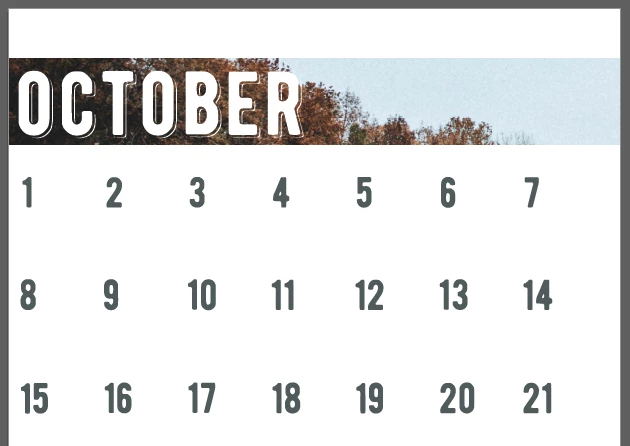
I want to see if I can knockout some text from an image so that I can print on colored paper. Does that make sense?

I have tried embedding the image, taking action before and after masking the image, etc. Here's a screenshot. I want the text to be essentially a hole in the image when it prints out so that I can print on cream colored cardstock. I tried a transparency mask and I can't get it to work. Please help!
    This topic has been closed for replies.
    Correct answer Jacob Bugge

    tr,

    Here is the amended text of the first post that I was too slow in making:

    Assuming we are talking about the OCTOBER text, you may select the text and the image and then in the Transparency palette flyout click Make Opacity Mask with Clip unticked and Invert Mask ticked.

    This works whether the text is live Type, or paths (such as outlined Type) as long as they are Grouped or form a Compound Path, or just an image (with the non white parts being black or transparent).

    Sorry.

    Apart from that, you can only see the true effect if you simulate the paper through File>Document Setup>Transparency or by placing a coloured rectangle or something behind the whole thing.

    Edit: Hi Susan. Is the sun still up there?

    1 reply

    Jacob Bugge
    Community Expert
    Community Expert
    September 8, 2017

    tr,

    You may select the text and the image and then in the Transparency palette flyout click Make Opacity Mask with both Clip and Invert Mask unticked.

    NorthpointToledo
    Participant
    September 8, 2017

    When I do that, it just looks like I deleted the text

    Legend
    September 8, 2017

    If it is only the paper that you need to have showing through, then you can just set the text to white. When you print, white just means no ink (unless it is set as a spot color)