
Answered
les outils derrière la petite flèche noire n'apparaissent pas
Bonjour
Quand je clic sur la petite flèche noir en bas à droite d'un outil, le 2e outil derrière ne s'ouvre pas
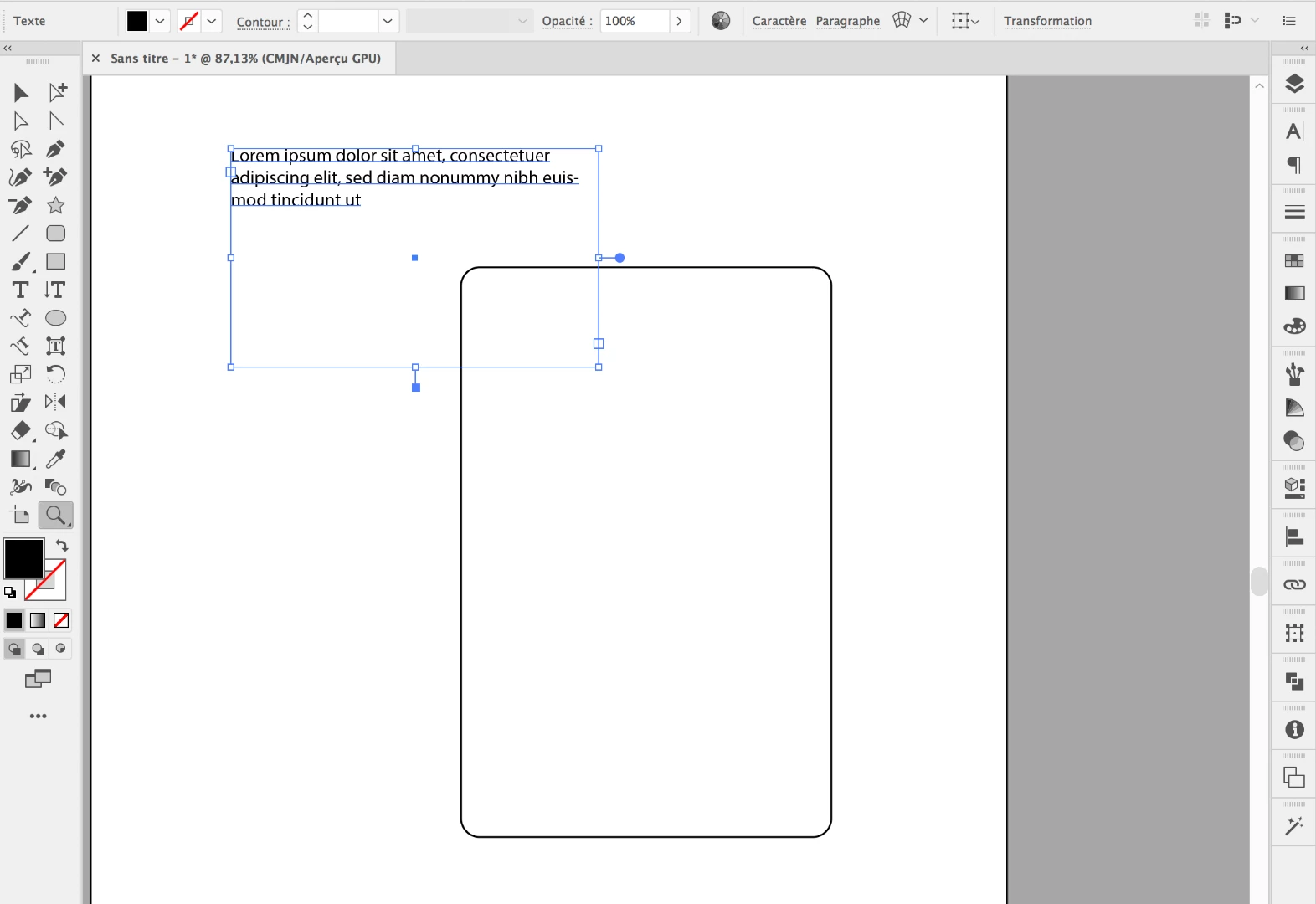
merci de votre aide

Bonjour
Quand je clic sur la petite flèche noir en bas à droite d'un outil, le 2e outil derrière ne s'ouvre pas
merci de votre aide
thank you for your information but nothing has changed I still have the same problem
As I understand it, the problem you are having is that none of the pull-down menus that are supposed to appear when you click on a "v" next to a field within a panel are actually appearing. If you have done the three troubleshooting steps I suggested in earlier posts (preferences, OOBE files and uninstall and reinstall) and nothing has changed then there may be a conflict with some other program that is running on your system (what operating system are you on?). Try restarting your computer with all other programs and utilities turned off and only launching Illustrator. If you no longer have the problem when doing this then you will have to track down what other program is conflicting by launching other programs one at a time until the problem with Illustrator reappears.
If all of this fails then you may need to contact Adobe Customer Support Contact Customer Care . They will be able to run a diagnostic on your system and determine what may be stopping illustrator from functioning properly better than can be determined in the user to user forum.
Already have an account? Login
Enter your E-mail address. We'll send you an e-mail with instructions to reset your password.
 AdChoices