
ChillyWinters
Known Participant
March 16, 2019
Answered

Line Work & Having Issues Coloring In ILLUSTATOR

  • March 16, 2019
  • 3 replies
  • 2993 views

so i am making artwork for a song for myself & Bizarre of D12. We have a song coming out on my Album in one month, I need to do this art for youtube, Im on a deadline, I just got illustrator. My line work is amazing, but coloring has been a huge headache for me...

I am new to ILLUSTRATOR, but i have always been a great artist & i will attach a picture of my Line Work.

First of all, I AM SET TO RGB. I AM NOT IN GREY SCALE.

I did do something dumb and i merged all my lines, saved, then closed out. Now i cannot undo the merge or ungroup my lines. My ungroup option in OBJECT is greyed out. So because i did this, all my lines are merged as one and i can no longer select them individually to delete or redo them. If i select a line/stroke then it selects the whole thing.

It will not let me create a colored brush. Everytime i select a color and go to draw my line always returns to the color black. like i said before, I AM IN RGB in my color options. I have tried clicking all the arrows and boxes on the bottom left of the tool bars where it shows your loaded color.

When i go to color a specific part of the picture with the fill option it colors more than what i want it to.

I dont feel i should only have to color in fill, which doesnt work anyways.

my brush wont color in anything but black & i dont feel like coloring should be this complicated. photoshop never gave me a problem coloring. my problem in photoshop is the line work using the pen tool is terrible. but the coloring part was amazingly awesome. if i wanted to put one dot of color in an area in photoshop it let me. I do not understand why Illustrators coloring process isnt the same.

Is there a way i can color (MANUALLY) like a stroke for stroke thing. like coloring book style????

IM LOST AND I DO NOT WANT TO START OVER. CAN ANYONE PLEASE GIVE ME SOME ADVICE????

THANK YOU SO MUCH.

Ps - I AM DRAWING ON A WACOM PRO TABLET
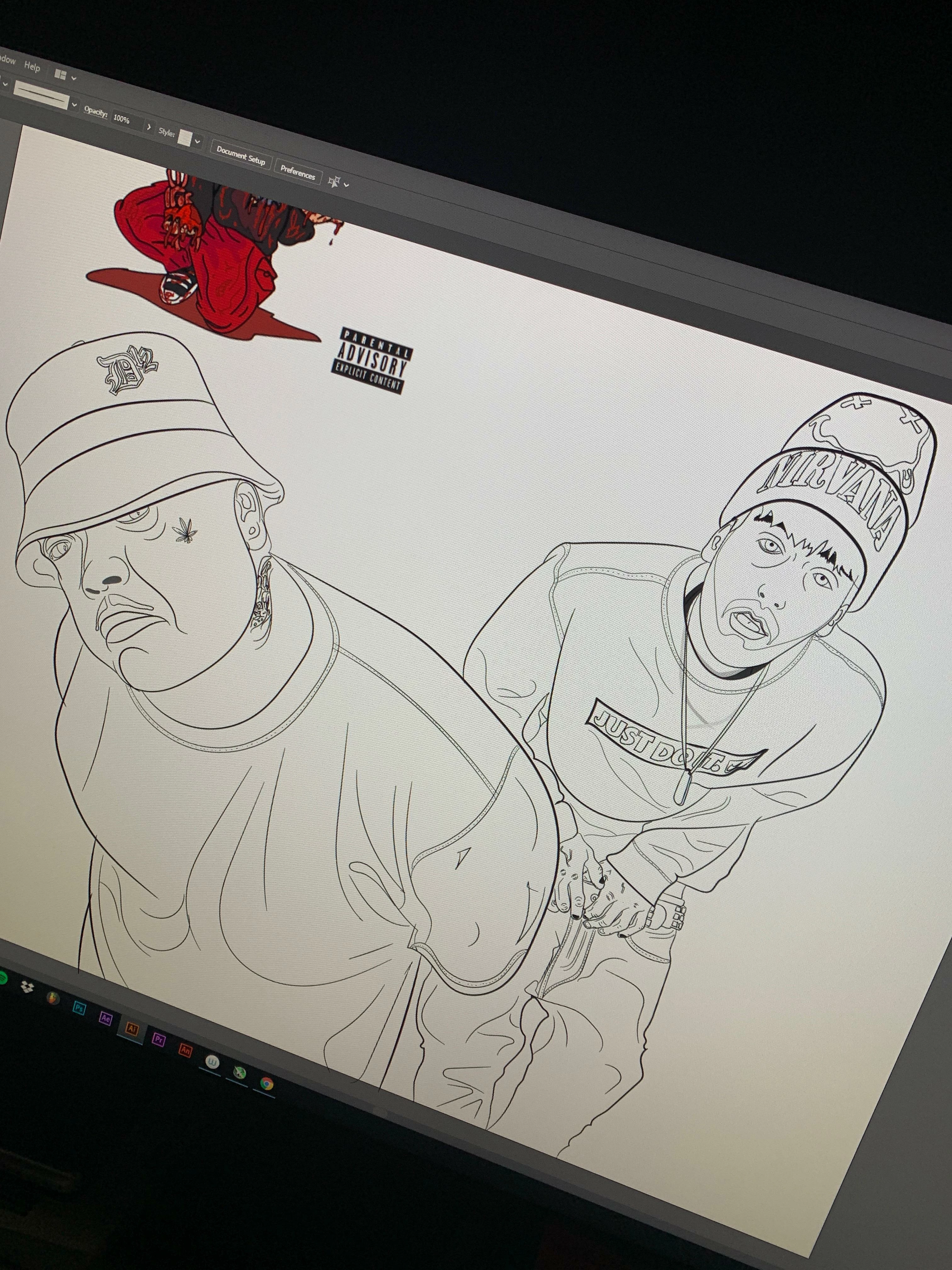
this is the drawing of Bizaree & Myself. WHY CANT I COLOR THIS IN AN EASY FASHION????? lol, im in a pinch.

YOU GUYS ARE AWESOME, THANK YOU!

This topic has been closed for replies.
Correct answer Monika Gause

You just want to fill all these with color?

Use Live paint.

How to create and work with Live Paint groups in Illustrator

3 replies

ChillyWinters
Known Participant
March 17, 2019

Hey LIVE PAINT was the Answer. Along with the thread below, which showed me to change the anchor points of certain vectors allowing me to get the full use out of the live paint tool. So cool! I thank you guys so much, You really helped me. I almost started everything over. lol. HAVE A GREAT DAY EVERYONE!!!! final of the coloring below. Now i just have to turn it into Album Artwork!

Monika Gause
Community Expert
Community Expert
March 17, 2019

Awesome!

Thanks for showing the result and best of luck for your album!

barbara_a7746676
Community Expert
Community Expert
March 16, 2019
So because i did this, all my lines are merged as one and i can no longer select them individually to delete or redo them. If i select a line/stroke then it selects the whole thing.

You can select segments of the lines and edit anchor points individually using the Direct Selection tool.

It will not let me create a colored brush.

The default colorization method is None, which sets the color to whatever the color of the brush was when it was created. Choosing Tints will let you use whichever color your current stroke color is.

When i go to color a specific part of the picture with the fill option it colors more than what i want it to.

In order to fill a specific area, that area must be a closed object and not have little gaps in the lines. You can get around this limitation by using the Live Paint Bucket tool. There are several tutorials on the web, but basically, you select all the artwork and click on it with the Live Paint Bucket.

If some areas have gaps, you can choose Object > Live Paint > Gap Options to change gap detection.

If you double-click on Live Paint Bucket in the Tools panel, you can change the default so that it colors lines as well as fills.

photoshop never gave me a problem coloring. my problem in photoshop is the line work using the pen tool is terrible. but the coloring part was amazingly awesome. if i wanted to put one dot of color in an area in photoshop it let me. I do not understand why Illustrators coloring process isnt the same.

Photoshop is bitmap and Illustrator is vector. They work very differently. Many people use both programs to create artwork. You can import or copy paste your vector artwork into Photoshop to add finishing touches.

Is there a way i can color (MANUALLY) like a stroke for stroke thing. like coloring book style????

I'm not sure I understand the question, but you can use the Pencil tool or the Brush tool to draw freehand in Illustrator.

ChillyWinters
Known Participant
March 16, 2019

how can i copy and paste my line work into photoshop? this would be amazing if i could do this.

also i still feel like coloring should be a more simpler process than making all those anchor points and gap detections. that seems like a lot.

thank you so much for replying. you are helping a lot!

barbara_a7746676
Community Expert
Community Expert
March 16, 2019

To copy Illustrator art into Photoshop, simply select and copy the objects. Open Photoshop and paste. You'll be presented with the Paste dialog box.

If you paste as Smart Object, it will go onto it's own layer and will not be editable in Photoshop. However, if you double-click the layer thumbnail, Illustrator will automatically open and you can edit the artwork. After saving any changes in Illustrator, Photoshop will automatically update the Smart Object layer.

If you paste as pixels, it does just what it says -- the Illusrtrator art will be converted from vector to bitmap.

Path will paste the objects as Photoshop paths that will lose any of the original color.

Shape layer will paste as a Photoshop shape layer. The art remains vector and can be edited in Photoshop, but will contain only one color. Of course, you can add different colors on other layers.

Monika Gause
Community Expert
Monika GauseCommunity ExpertCorrect answer
Community Expert
March 16, 2019

You just want to fill all these with color?

Use Live paint.

How to create and work with Live Paint groups in Illustrator

ChillyWinters
Known Participant
March 16, 2019

live paint helps a lot! but it still is funny in some areas where im sure my anchor points are off. im having a real tough time with this and i really do not want to start over