Participant
March 19, 2018
Answered

Live Text With Transparent Stroke with Offset Fill?

  • March 19, 2018
  • 1 reply
  • 815 views

Hey all!

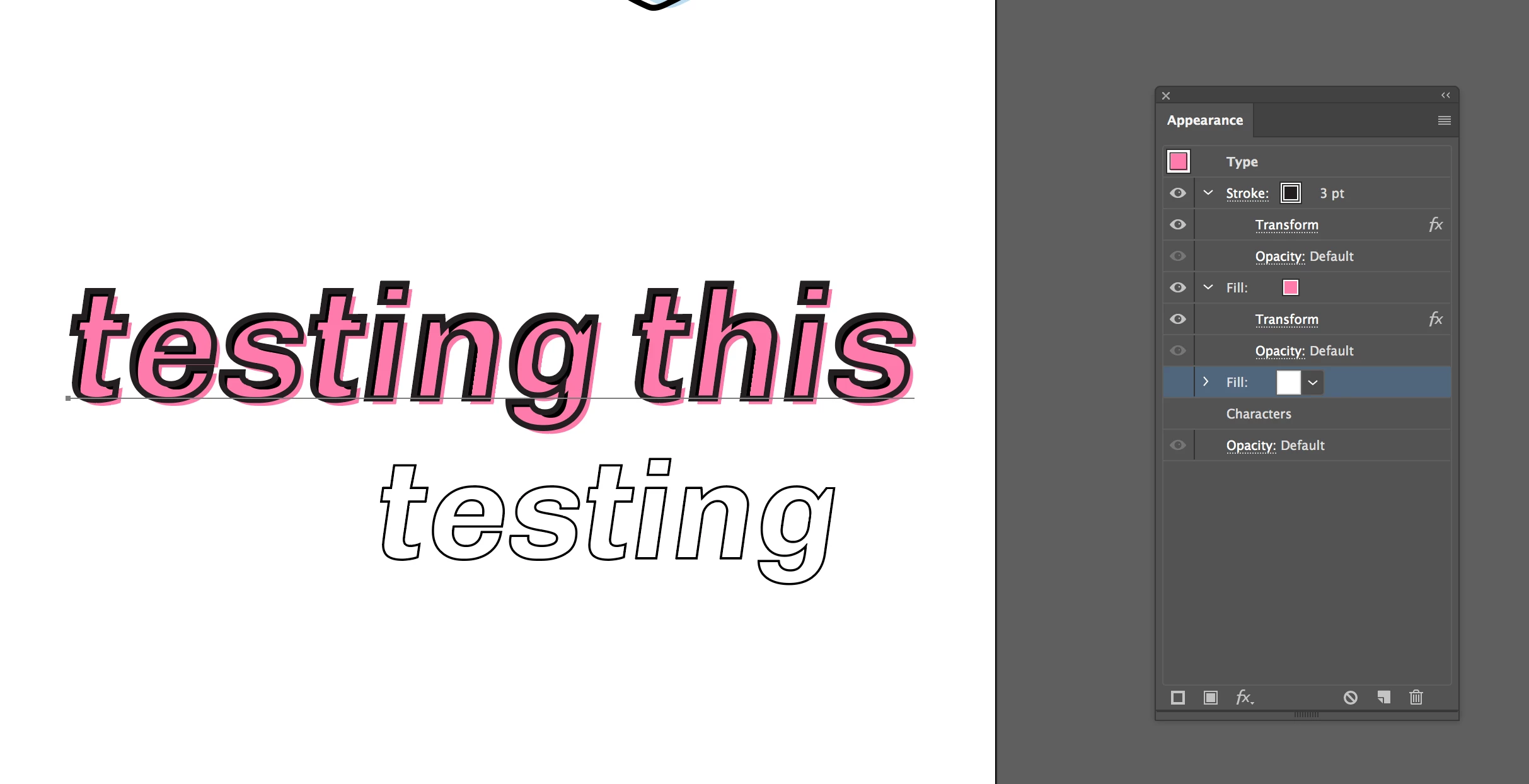
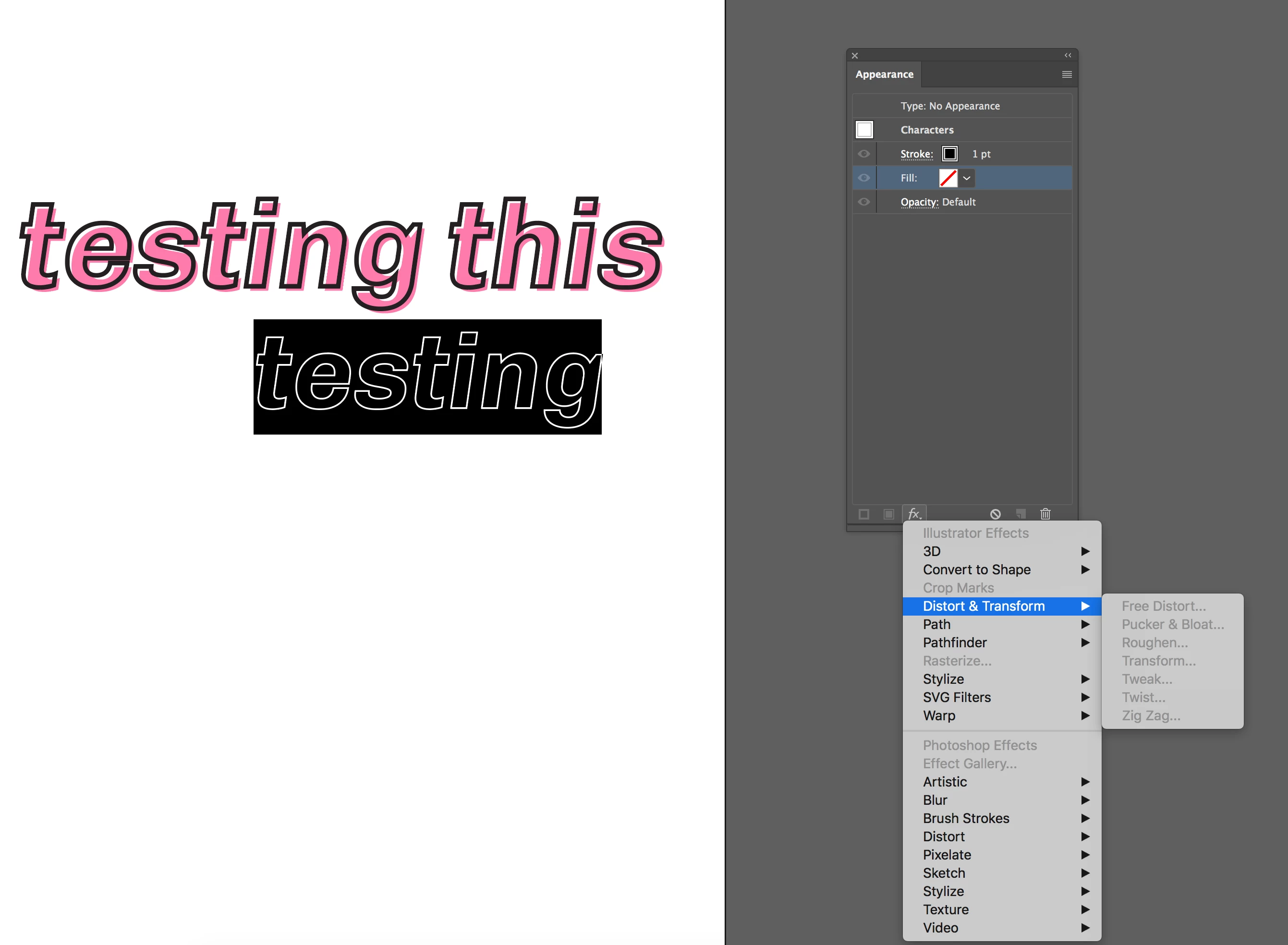
I've been trying to make some text with a cool offset fill in the nested appearance panel options, but I can't figure out how to make it transparent in some areas. If I don't include a white fill in the back, the stroke takes over that area and is completely black instead of just being a stroke. What's annoying is that I would be up for doing it in the regular appearance panel for it if I make it a stroke with a transparent fill, but then I can't add another fill for the offset interior (the pink) or transform the existing fill to mimic the same thing.

I've been trying to figure out how to use the knockout group or the masks, but I want to keep my text live, and am pretty sure I'm not getting something.

Anyone have any insight?
(with white fill)

(without white fill)

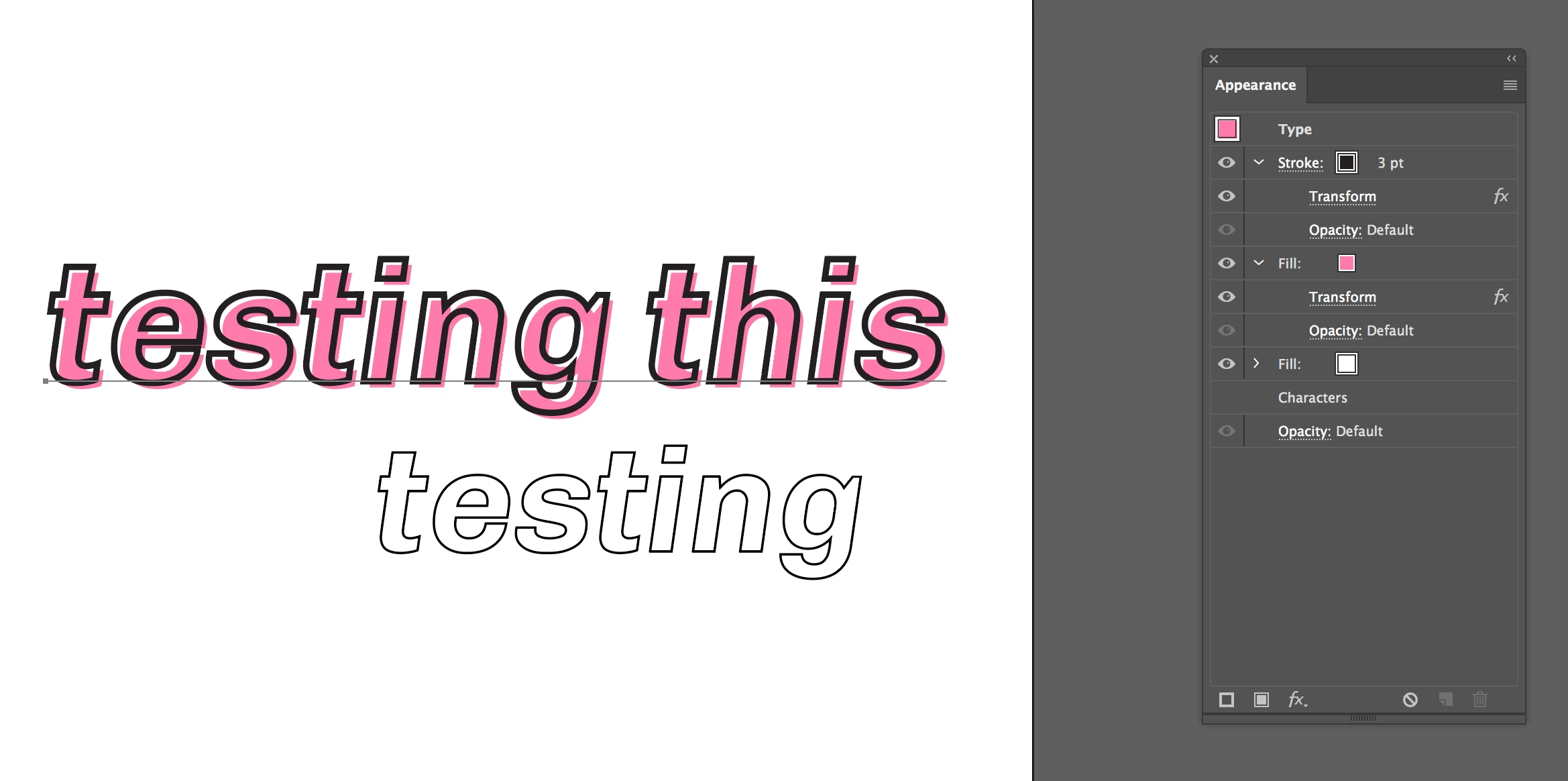
(trying to transform or duplicate a fill from here)

This topic has been closed for replies.
Correct answer Myra Ferguson

I got it to work if you first set your text to have a stroke and no fill then in the appearance panel add the 3 pt. stroke and pink fill. Then with the fill selected, go to Effects and set your Transform.

If the text starts out with no fill and a black fill, then if I add the pink fill and stroke, I get what you're getting in the 2nd image.

1 reply

Monika Gause
Community Expert
Community Expert
March 19, 2018

Please post how you want it to look. Even if you need to outline and edit it. Please do that. Because I don't understand your need.

sbpro-990Author
Participant
March 19, 2018

I want it to look the same as the first photo I posted but without needing the white fill. What happens is that the stroke acts like a fill and doesn’t work as a stroke through that nested panel.

Myra Ferguson
Community Expert
Myra FergusonCommunity ExpertCorrect answer
Community Expert
March 19, 2018

I got it to work if you first set your text to have a stroke and no fill then in the appearance panel add the 3 pt. stroke and pink fill. Then with the fill selected, go to Effects and set your Transform.

If the text starts out with no fill and a black fill, then if I add the pink fill and stroke, I get what you're getting in the 2nd image.