
Mesh lines won't go away, can't show colors
Well I thought I had the Gradient Mesh tool licked. I finally sorted out what was giving me so much greiff on adding color to the mesh. So I've just been working away and getting pretty good t getting a pretty polished look.
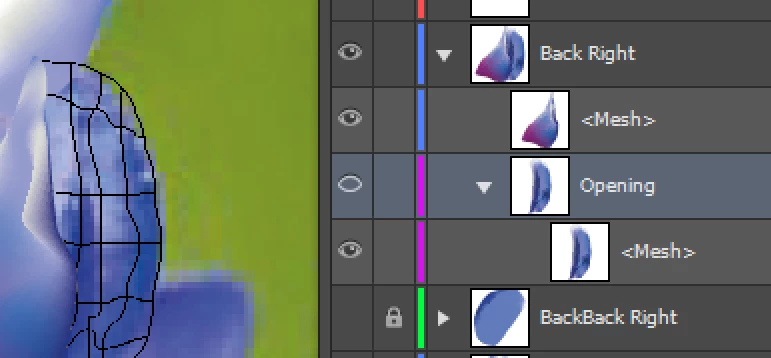
Now on the last mesh I've hit a snag. So far every one of these I've built I am left with a Black copy of the actual mesh lines but it will go away when I switch into Preview mode. This last one won't go away and what's more it doesn't show the colors I spent a good bit of time tweaking when I switch to Preview mode.
I've double , triple checked and it's for sure in Preview mode. And even if it weren't I've hit the ctrl +"y" hotkeys a bunch of times and it won't go away or show the colors. colors. Oddly it does show the colors in the thumbnails of the Layers menu. In the screenshot the layer named "Opening" - "Mesh" is the layer / object you're looking at. Just to the left of that object is another mesh where the colors are visible. You can see the thumbnail for that layer also . Any ideas what I'm missing. This is new behavior so I'm thinking I must have inadvertently done something , changed something... In any event I've run out of ideas for how to get the layer to show and get the mesh line to go away.
 AdChoices