lambert0508
Participant
July 7, 2017
Answered

Minus Front is distorting my image

  • July 7, 2017
  • 3 replies
  • 2862 views

I am losing my god damn mind with this Minus Front tool.

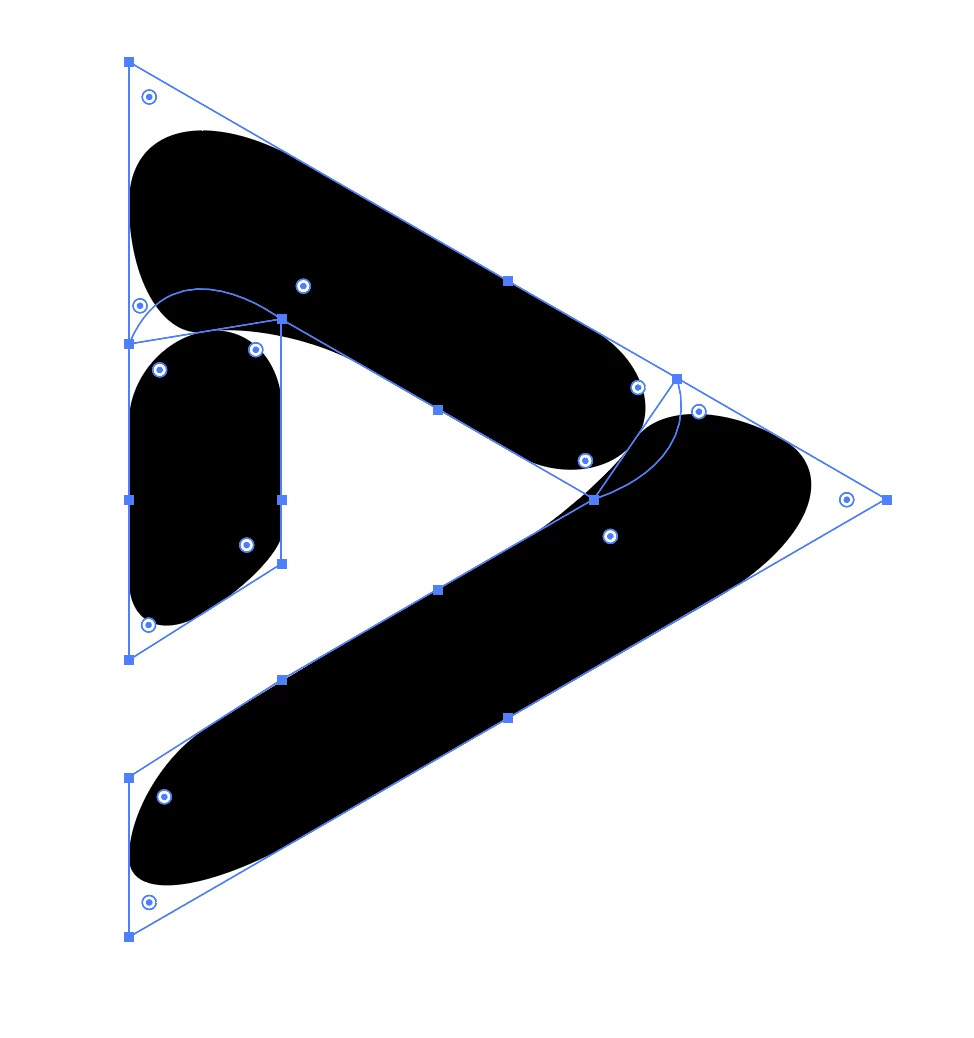
The first shape below is the one I want to CREATE. The second one is the shape I get after using the Minus Front tool. I'm following a youtube tutorial and the guy is horrible at answering questions. The middle white triangle has been merged with another shape to make an opening at the bottom of the shape. I used the pen tool to make the curved lines on the top and right corners of the black triangle. When I select the entire thing and click Minus Front, I get the second or third picture (I keep getting both things)

How do I get rid of those white arches that are created after

first (what I want):

Second (What I get when I select all and click minus front):

      

    This topic has been closed for replies.
    Correct answer Monika Gause

    Uh, OK. I'm not posting 20 screenshots. Watching a 6-minute video is easier to see what I'm doing but ok....

    1. Draw triangle holding down the SHIFT, color black.

    2. Cmd+C+F. Duplicates it in place.

    3. Shrink second triangle, color white.

    4. Now I have a bigger black triangle with a smaller white one in it.

    5. Rotate.

    6. Select black triangle only, Pathfinder>Merge.

    7. black triangle still selected, Effects> styalize> rounded corners>100px.

    8. Use pen tool to draw an arch between the inner triangle and outer triangle on the top and right corners.

    9. Use pen tool to create a white rectangle on the lower left corner, color white. this gives the effect of an "opening".

    10. Select rectangle and inner white triangle> pathfinder> merge.

    11. Select all> pathrfinder> minus front.

    Those are the directions in the video and I get different results.

    -D


    Do you have Illustrator CC? In that case don't use the Round corners effect, but the corner widget.

    And then: with your open paths that subtract pathfinder will never work as expected. Use live paint instead. Actually I don't know why people (and that includes many tutorial guys) don't know how to properly use it. It's been there for 12 years.

    How to create and work with Live Paint groups in Illustrator

    3 replies

    Participant
    November 5, 2020

    Depending on your version of Illustrator, you may need to go to "Object > Expand Appearance" before applying the Pathfinder.

    barbara_a7746676
    Community Expert
    Community Expert
    July 8, 2017

    Instead of Select All, select the black and white triangles, but do not select the curved lines in the corners.

    Let me know if that works for you.

    Monika Gause
    Community Expert
    Community Expert
    July 7, 2017

    You applied effects?

    Maybe you first need to Object > Expand appearance?

    Then "Minus Front"?

    If that doesn't help:

    Please describe step by step what you have done to get to that point.

    Post screenshots with appearance panel.

    lambert0508
    Participant
    July 8, 2017

    Hi Monika, That didn't work

    I'm following this video: How to Draw a Gradient Logo in Illustrator - YouTube

    From 0:25 - 6:35. I'm doing every step exactly.

    Monika Gause
    Community Expert
    Community Expert
    July 8, 2017

    Please describe the steps.

    I won't watch a video.