
New shapes have opacity drop automatically applied
Hey! This is a new one for me.
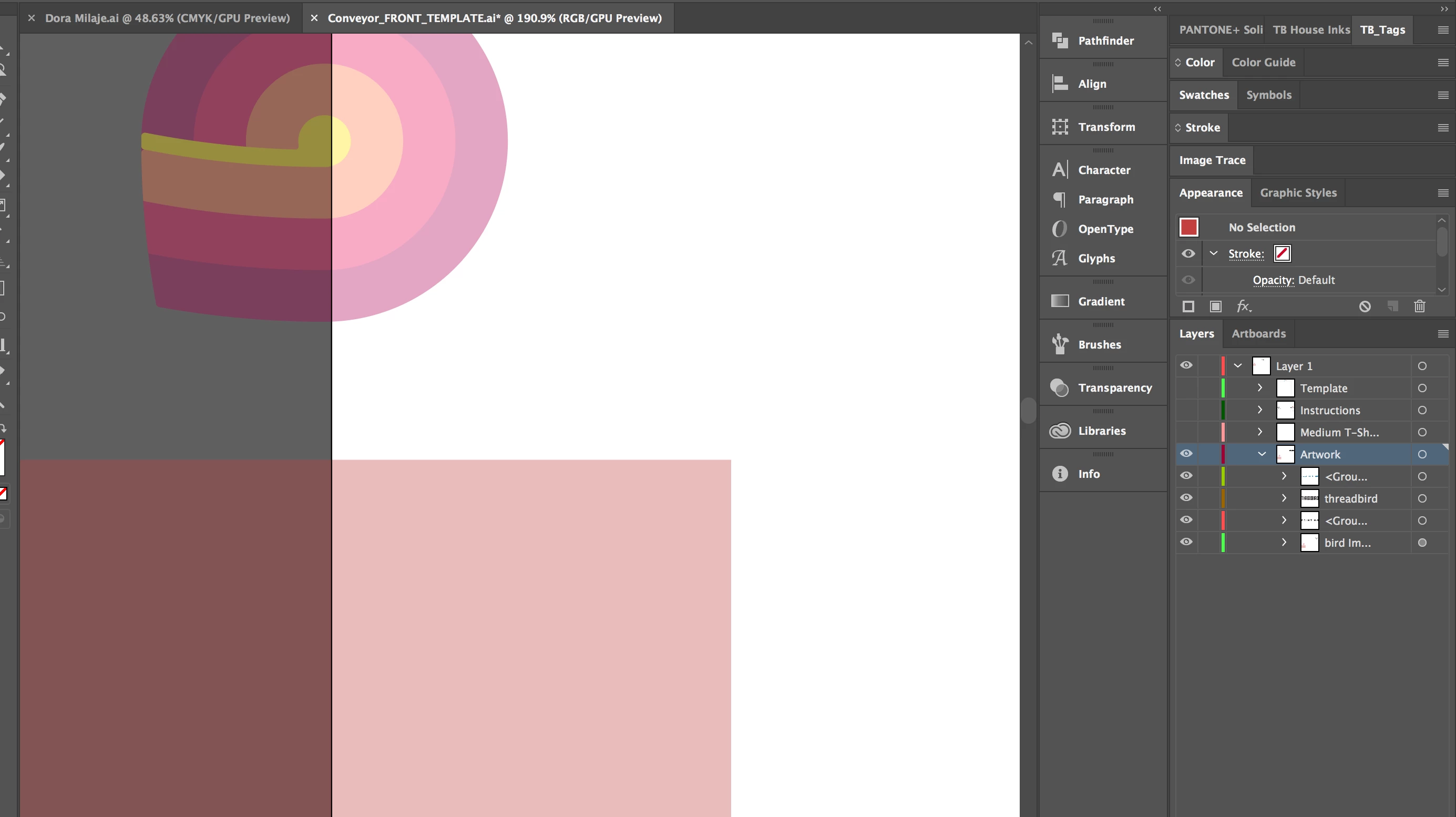
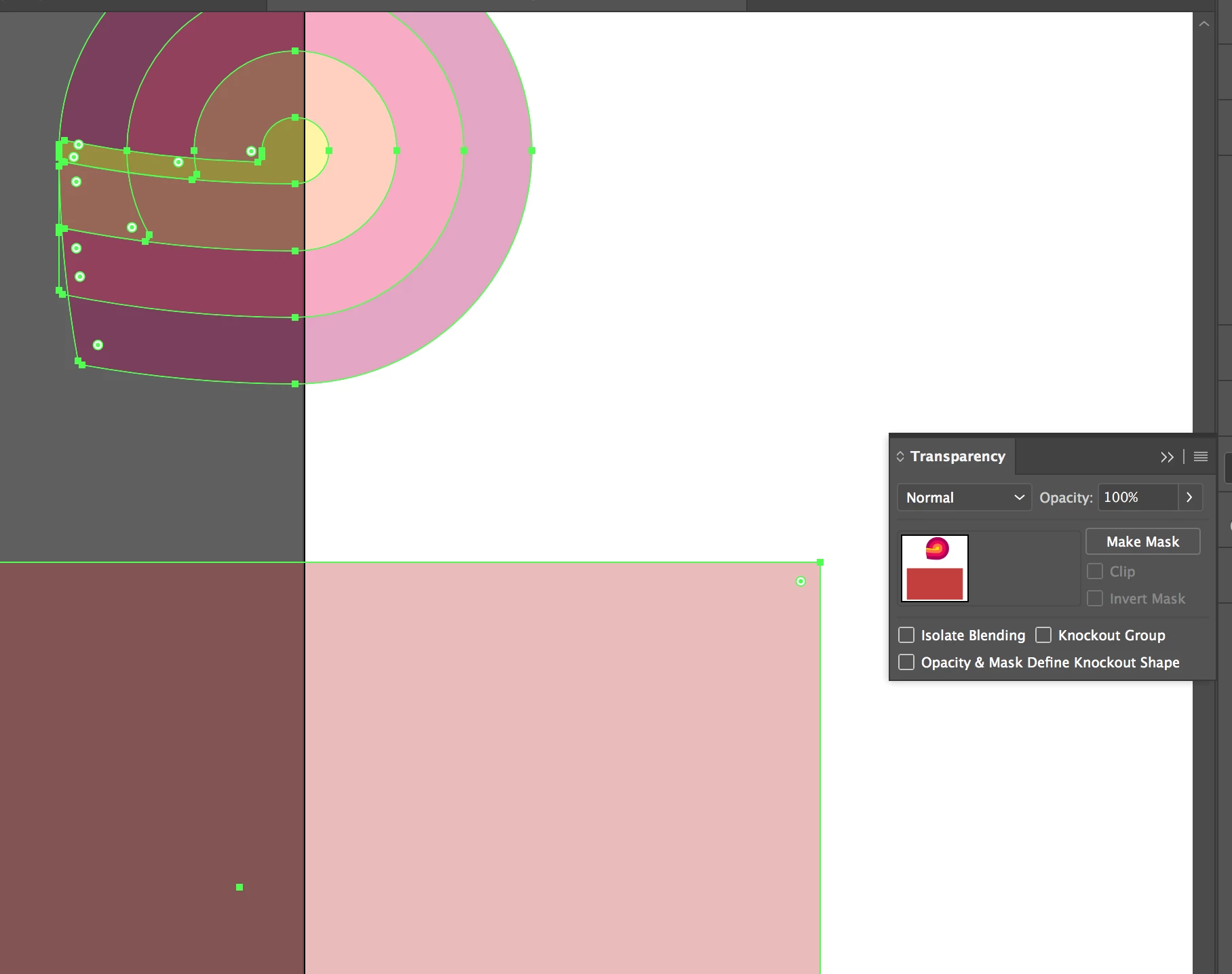
I noticed the art I opened had an opacity drop on it, but check the transparency panel it's 100%. I typically have a few options for fixing this but after creating a new shape (pressing M and dragging out rectangle) I saw that the new shape automatically had an opacity drop on it. There's nothing clipped to the layer that this artwork is on "Artwork". Appearance and transparency shows opacity at 100%. In the transparency panel it also shows the artwork at 100% Any ideas?
Whats weird is the top layer and sub-layers are all displaying at 100% opacity, it's just this "artwork" sub layer. The opacity drop isn't just within the artboard, it's the entire canvas. When I copy and paste artwork into a new document the art is 100% opacity - so finding a different solution isn't the problem, I just want to know what
I'm missing.
Top art is the original art, the rectangle is what I created
 AdChoices