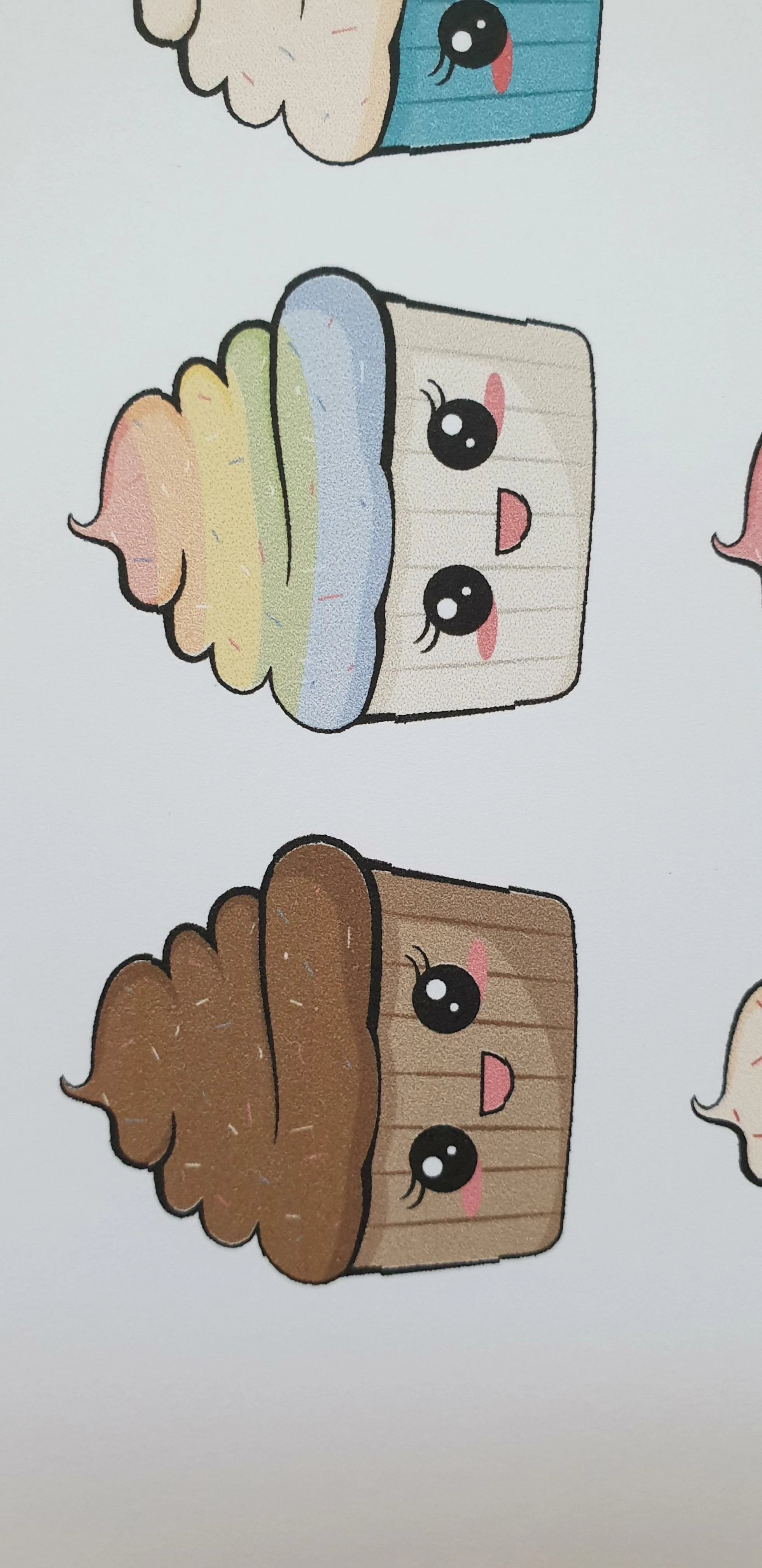
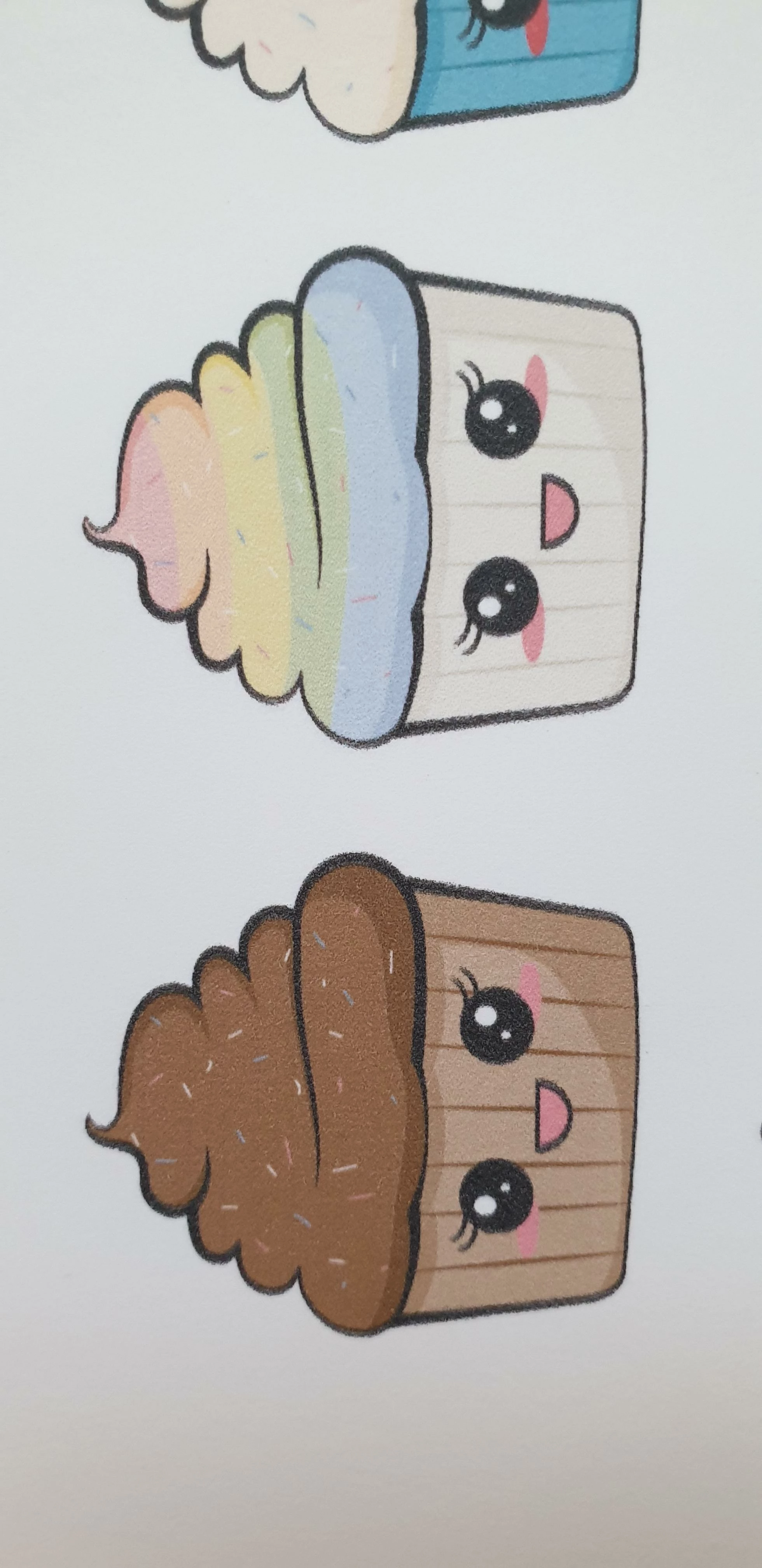
The screening effect (dots in the solid colors) can't be prevented. You might call the fills in your design "solid" but the inkjet printer needs to render them in a matrix of ink dots (in those typical 4 key ink colors, CMYK) to create the perception of the precise color. Only in shapes with a 100% fill of Cyan, Magenta, or Yellow (and combinations of these), you wouldn't be able to spot such dots. So that's okay – no improvement possible.
The 'softer' impression of the Photoshop version can be attributed to the fact that the automatically initiated/generated pixel resolution is probably less than the highest possible resolution of your printer. So the pixels tend to spread across several printer dots. Try opening (not Placing) the Illustrator file in Photoshop, and check the settings (e.g. size and resolution) upon opening. Use at least a 300 dpi resolution at the intended print size. Change it accordingly, if necessary. Hope this helps.
Now let's address the chunky elephant in the room here !
Because what the heck is happening with this directly printed Illustrator file ?? Wow, these repetitive chunks/jags are really weird ! This is not right. It must have something to do with a faulty PostScript/PDF interpretation of your printer. I checked the specs of your Canon MG7550 printer, which is from the Pixma series. These printer models have no clue about PostScript, and yours is even capable of ruining a print from Acrobat !
So I think you're stuck with this workaround, to convert the image to pixels in Photoshop.
Otherwise, please refer to the supplier and/or manufacturer of your printer to ask their advice.


 AdChoices