
Participant
July 18, 2017
Answered

punch out text from a 3D Sphere

  • July 18, 2017
  • 4 replies
  • 788 views

Hi all,

I created a sphere by drawing a circle, deleting half the anchors to create a semi circle and going to effect > 3D > Revolve.

I now want to basically create text that will be transparent through the sphere so basically, holes in the sphere in the shape of letters. Anyway to do this? I cannot compound paths and delete text is not working.
This topic has been closed for replies.
Correct answer Bill Silbert

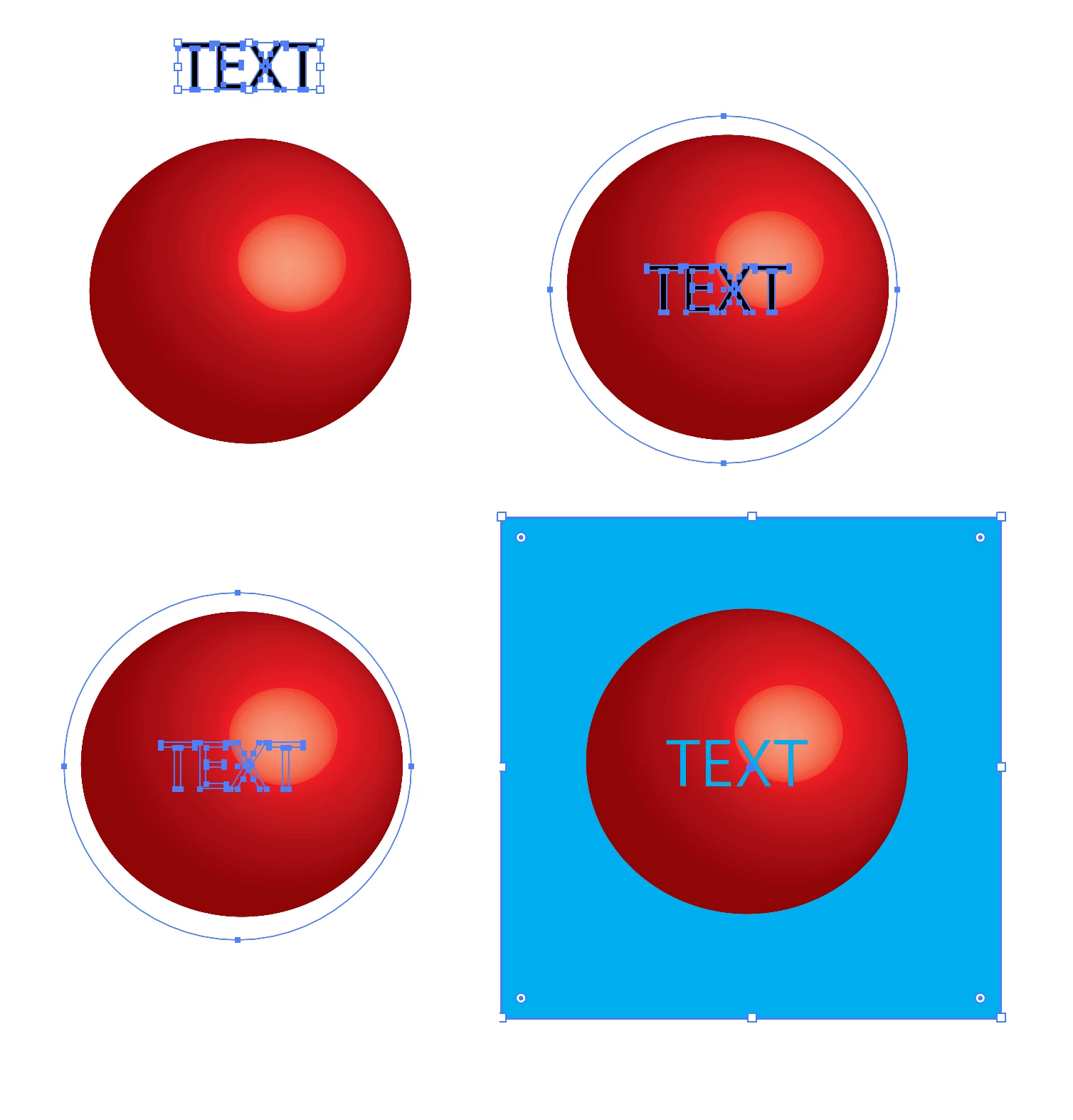
To put transparent text on a sphere which has been created in the manner you described. See the steps in the screen shot below:

Start with the sphere and set the text you need and convert it to outlines (picture one above). Then draw a shape around the sphere (it doesn't need to be form fitting) and make a compound path of it and the outlined text (Command/Control-8) (picture two). Then select the compound path and the sphere and make a clipping mask (Command/Control-7) (picture three). Picture four shows that the text is now transparent and allows the background color to show through.

4 replies

Jacob Bugge
Community Expert
Community Expert
July 18, 2017

lca,

To punch out just using the the sphere and the text (which may be/remain live Type) as they are, you may:

Select both sphere and text and in the Transparency palette flyout click Make Opacity Mask with both Clip and Invert Mask unticked for black text, or with Clip unticked and Invert Mask ticked for white text.

Monika Gause
Community Expert
Community Expert
July 18, 2017

If this is not what you want, please show a sketch

Doug A Roberts
Community Expert
Community Expert
July 18, 2017

in case you want the text to be incorporated into the 3D sphere as opposed to just visually knocking it out, that's beyond the capabilities of illustrator's 3D tools.

Bill Silbert
Community Expert
Bill SilbertCommunity ExpertCorrect answer
Community Expert
July 18, 2017

To put transparent text on a sphere which has been created in the manner you described. See the steps in the screen shot below:

Start with the sphere and set the text you need and convert it to outlines (picture one above). Then draw a shape around the sphere (it doesn't need to be form fitting) and make a compound path of it and the outlined text (Command/Control-8) (picture two). Then select the compound path and the sphere and make a clipping mask (Command/Control-7) (picture three). Picture four shows that the text is now transparent and allows the background color to show through.