Participant
January 28, 2020
Answered

Recoloring artwork

  • January 28, 2020
  • 2 replies
  • 711 views

I am trying to recolor artwork. I know how to recolor normal artwork, but I am having an issue with patterns. When I use a pattern from swatches how can I change the background color. For instance if I use a polka dot pattern I know how to change the polka dot color. I want the dots to be white so I change them. The issue becomes that the background is still white. I want to be able to change the color of the background so I can have a pink background and white polka dots. What is the best way to do this? I have seen YouTube videos on overlays, would this work with this particular problem? If so how? 
This topic has been closed for replies.
Correct answer tromboniator

If you used a dot pattern from the Illustrator Swatch Library there is no background color except the white of the artboard, so you will need to add a fill to the path containing the dots. 


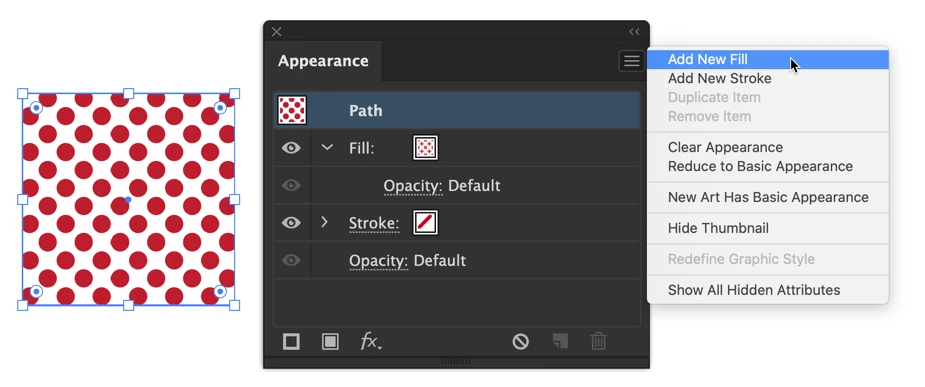
1. Select the path with the applied pattern and go to the Window menu > Appearance to open the Appearance panel.

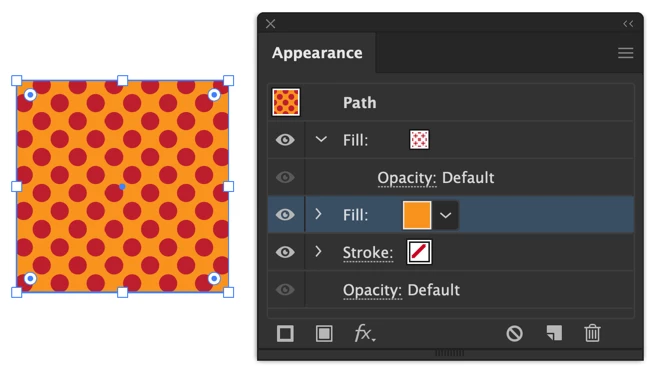
2. From the panel flyout menu (three horizontal lines in upper right corner) choose Add New Fill. You should now see two fills in the Appearance panel with the pattern applied,

3. Click on the lower of the two fills.

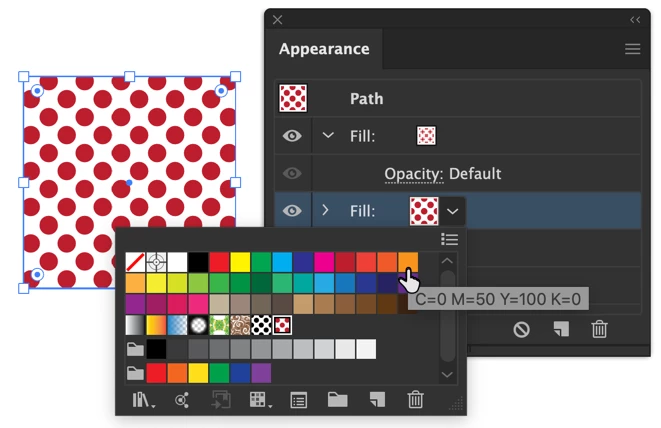
4. Click on the Fill selection icon and choose a color.


Peter


Edit: Or do as Barbara says to edit the swatch!


2 replies

tromboniator
Community Expert
tromboniatorCommunity ExpertCorrect answer
Community Expert
January 28, 2020

If you used a dot pattern from the Illustrator Swatch Library there is no background color except the white of the artboard, so you will need to add a fill to the path containing the dots. 


1. Select the path with the applied pattern and go to the Window menu > Appearance to open the Appearance panel.

2. From the panel flyout menu (three horizontal lines in upper right corner) choose Add New Fill. You should now see two fills in the Appearance panel with the pattern applied,

3. Click on the lower of the two fills.

4. Click on the Fill selection icon and choose a color.


Peter


Edit: Or do as Barbara says to edit the swatch!


barbara_a7746676
Community Expert
Community Expert
January 28, 2020

In the Swatches panel, drag the pattern you want to hange on to an artboard. Select the rectangle the is behind everything in the pattern; the rectangle will have no fill and no stroke. Make sure that the whole rectangle is selected. Copy it and while it is still selected, choose Edit > Paste in Front. Change the fill olor of the copied rectangle. Select the whole pattern and drag it into the Swatches panel to add it as a new swatch. If you want to replace an existing pattern swatch instead of adding a new one, hold down Alt or Option as you drag the whole pattern on top of the pattern you are replacing in the Swatches panel.