
ecopenhaver
Participant
March 16, 2019
Answered

Scaling data point size without rescaling spacing

  • March 16, 2019
  • 1 reply
  • 892 views

Hello!

I have some scatter plots saved as .eps files (from Matlab). There are several objects when I open the files: the axes, axis labels, data point outlines, and data point fills. The data points all live in a group together. I would like to be able to select that group of data points and rescale their size. For example, if the points are circles and the circles are 10 pixels wide in diameter, I'd like to take all the data points and rescale their diameters down to 5 pixels wide. I cannot simply transform the data points and scale them to 1/2 because that shrinks the whole group - i.e. the spacing between the data points also shrinks. Is there a way to keep the centers of each of the data points fixed while commonly scaling the size of each marker?

Thanks in advance!
This topic has been closed for replies.
Correct answer tromboniator

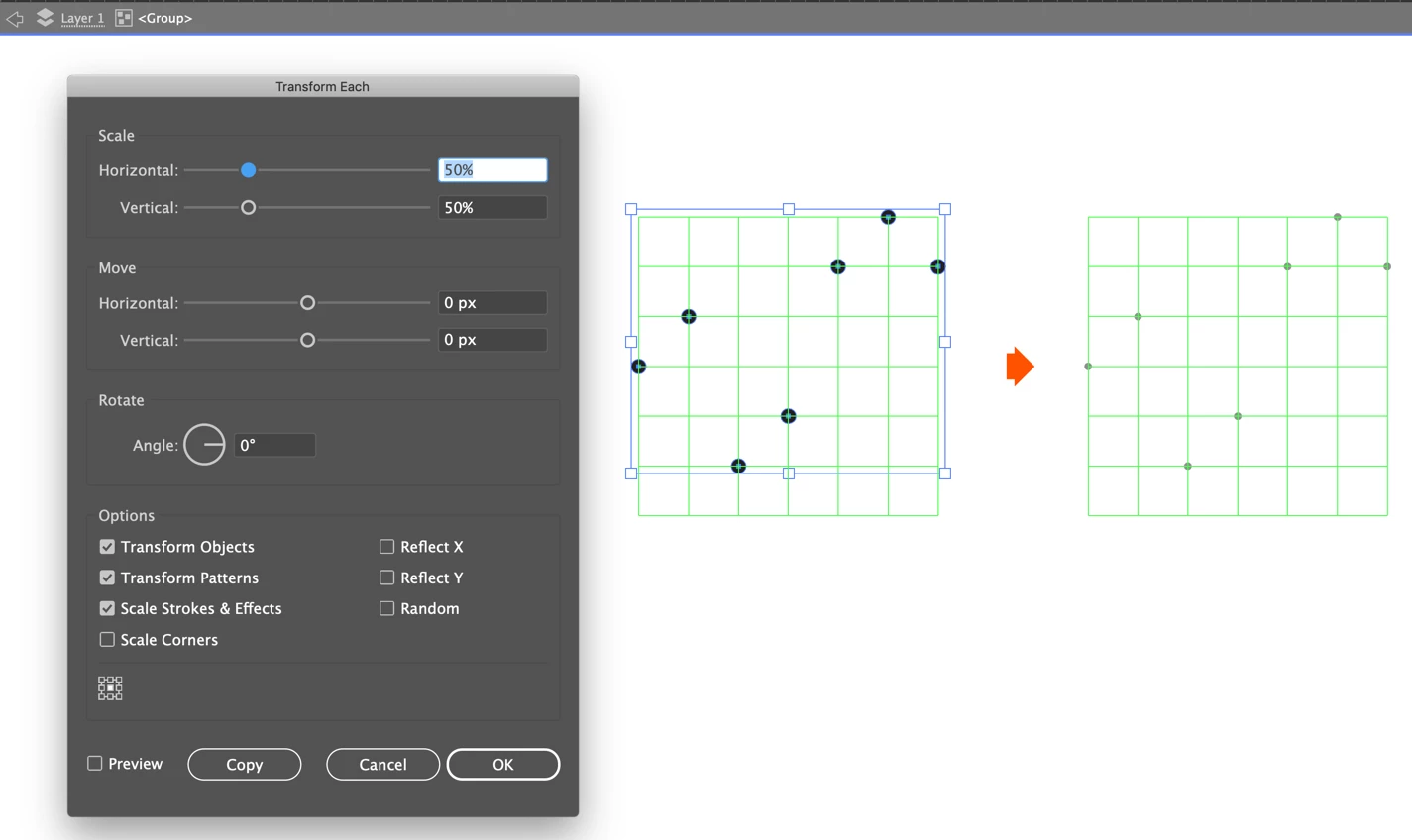
You have a couple of options, both of which involve going to the Object menu > Transform > Transform Each, setting both Horizontal and Vertical Scale to 50%, and clicking OK.

First option: Select the group of points, ungroup, do the above transformation, then regroup.

Second option: Select the group, double-click on one point to enter Isolation Mode, select all but one point, do the transformation; then select the final point and do the transformation on it. Then exit Isolation Mode by double-clicking somewhere off the artboard or clicking the arrow in the upper left corner of the window.

Peter

1 reply

tromboniator
Community Expert
tromboniatorCommunity ExpertCorrect answer
Community Expert
March 16, 2019

You have a couple of options, both of which involve going to the Object menu > Transform > Transform Each, setting both Horizontal and Vertical Scale to 50%, and clicking OK.

First option: Select the group of points, ungroup, do the above transformation, then regroup.

Second option: Select the group, double-click on one point to enter Isolation Mode, select all but one point, do the transformation; then select the final point and do the transformation on it. Then exit Isolation Mode by double-clicking somewhere off the artboard or clicking the arrow in the upper left corner of the window.

Peter