
Known Participant
April 6, 2017
Question

Stylize and warp effects do not rotate with their elements

  • April 6, 2017
  • 5 replies
  • 3721 views

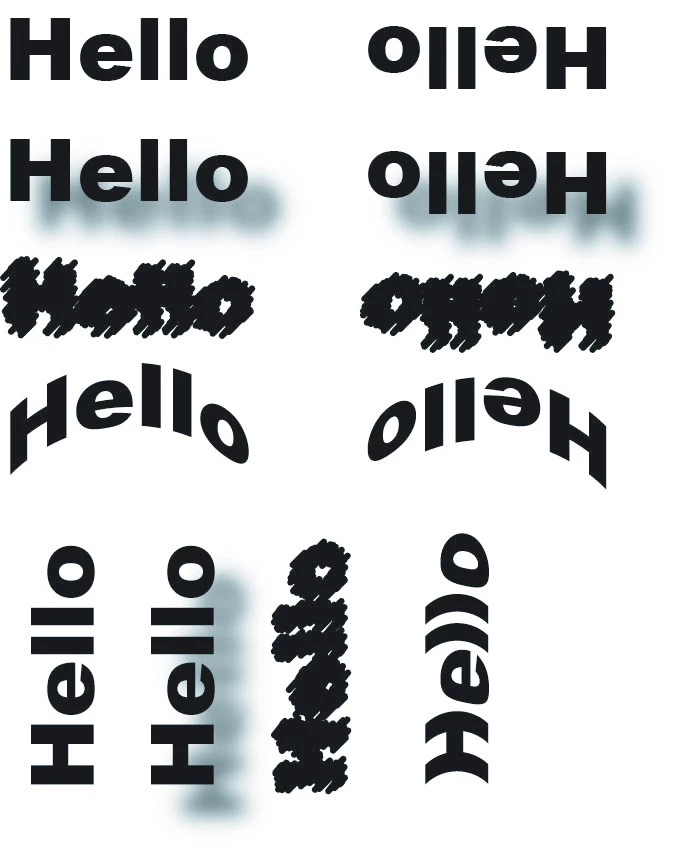
Stylize and warp effects do no rotate with their elements. It doesn't mater if I use the transform box or the rotation tool, the applied appearance does not rotate with the objects(*see example below).  A lot of times we have to rotate whole layouts for certain output devices. A customer can send a huge document that could be scattered with multiple warps and drop shadows and if we don't catch and expand every single one our customer isn't getting what they provided us.

This is either a bug or a missed feature. By bug I mean that all effects like this should probably rotate with their elements and unless you are fiddling at the design stage your going to want it to rotate with it every time.  By a missed feature I mean there could be a check box in the rotate and/or transform box to "rotate effects" similar to the "scale strokes and effects" box in the scale feature. Either option would work, it's just very important we have something.

Has anyone found a fix or a work around for this?  We do not want to expand our whole documents as it ruins other elements.

Example (Also applies to shapes(Not just text)):
This topic has been closed for replies.

5 replies

Ton Frederiks
Community Expert
Community Expert
April 10, 2017

Another option could be to place the document as a link into a new document and rotate the placed document.

You can always edit the original linked document and it will update in the rotated one.

AuntLou42Author
Known Participant
April 10, 2017

Yeah that's the first option we tried out. Basically we are making a output file for a device with certain things that need to be done to it that we do not want done to the original document. We could set up a document for it upside down, make a new document, place it and then rotate it the 180 degrees needed. It's just another work around that works but is still a bit of a pain. We do this to hundreds a documents a week so it's tough to add these steps when only 1 out of a couple hundred have effects applied to them.

Ton Frederiks
Community Expert
Community Expert
April 10, 2017

I see, Mike suggested that it may be possible to detect effects with a script.

If it's only 1 out of a couple of hundred with effects applied (that needs a workaround), I would suggest to ask this in the Illustrator scripting forum.

Illustrator Scripting

AuntLou42Author
Known Participant
April 10, 2017

Is there an easy way to select and/or find objects with effects applied to them?

Ton Frederiks
Community Expert
Community Expert
April 10, 2017

As far as I know there is no easy way to find objects with effects.

But as I suggested, View Outline and a second window in Preview could work.

Ton Frederiks
Community Expert
Community Expert
April 7, 2017

In the Appearance panel, you can try to apply a Distort & Transform > Transform effect and rotate it before the Warp effect.

Or group everything and apply a Transform effect.

AuntLou42Author
Known Participant
April 7, 2017

Very interesting.

Your first suggestion would only work if we knew which objects had effects applied to them. Unfortunately it's usually a mystery to us.

The second suggestion wouldn't work because we still need to edit and select objects after the rotation.

Is there an easy way to select objects with effects applied to them? This way we could at least find them and expand them.

Ton Frederiks
Community Expert
Community Expert
April 7, 2017

When the Transform effect is applied to a group, you can still edit the individual elements.

Just select View > Outline and select the element in the group.

Jacob Bugge
Community Expert
Community Expert
April 6, 2017

auntlou,

Is it an option to select the whole artwork, or each selection of objects, and drag it to the Symbols palette (giveing it a suitable name), then dragging (a copy of) it back and rotating it as desired?

And you can send a bug report/feature request:

https://www.adobe.com/cfusion/mmform/index.cfm?name=wishform

AuntLou42Author
Known Participant
April 7, 2017

Submitted a feature request. Thanks for the suggestion.

Mike_Gondek10189183
Community Expert
Community Expert
April 6, 2017

Make a symbol, and choose static. You can then rotate. Will also help with gaussian blur values adjust themselves when scaling

Add a rectangle of none larger than your graphic prior to making a symbol. This way the with and height of your symbol will be the same so the graphic will not shift place when doing edits. In other words you will lock in your bounding box with this trick.

AuntLou42Author
Known Participant
April 7, 2017

Interesting work around here. We would have to expand it after to be able to continue editing. Doing this expands all my effects and rasterized my drop shadow. Know of a way to make the symbol fully editable again without expanding?

Thanks for your help!

Mike_Gondek10189183
Community Expert
Community Expert
April 7, 2017

Hi Aunt Lou,

Double click on the symbol in the symbol palette to edit.