
Participant
September 17, 2017
Answered

SVG Cut Files and DXF

  • September 17, 2017
  • 1 reply
  • 1772 views

Hello,

I hope someone can help me.

I am new in SVG and DXF and trying to make an arrow.

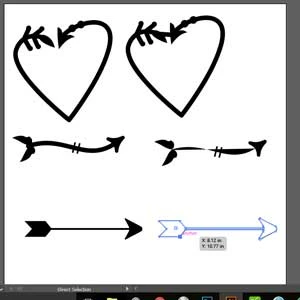
The screenshot below shows three (3) different arrows showing the before (Left) and after (Right) result when I click on Unite in the Pathfinder. The first and second arrows are not the one that I wanted to have. The third one is good. The end result is to have a SVG for cut files when making iron on transfer, wall decal, party printable etc.

I also wanted to have a DXF files. I learned that it needs to be an outlined image. So the third arrow turned into an outline when I try to Unite and leave the fill empty with 1 pt. stroke.
This topic has been closed for replies.
Correct answer Monika Gause

THis shape does not need to be a compound path, so I would not keep that one.

If the other shapes have that tip as well, you will need to combine them in Illustrator using pathfinder functions.

You will run into this again and again. Please learn Illustrator from the ground up, so you don't need to ask someone for every single shape you want to make. It only causes breaks in your workflow.

You will need to learn about shapebuilding:

- drawing with the pen tool How to draw with the Pen, Curvature, or Pencil tool in Illustrator

- applying strokes and brushes How to apply strokes in Illustrator

- converting strokes to paths How to group and expand objects in Illustrator

- using geometric shapes Draw basic shapes |

- using the pathfinder panel How to combine objects in Illustrator

- using the layers panel How to use layers in Illustrator

- appearances How to adjust appearance attributes in Illustrator

And you will need a deep understanding of groups, compund paths, compound shapes, live appearances and what they mean to the SVG code of your files.

1 reply

Monika Gause
Community Expert
Community Expert
September 17, 2017

Before using pathfinder functions you will need to outline all strokes and effects.

Use Object > Expand appearance resp Object > Path > Outline stroke

I don't understand your issues with DXF.

You might want to read the introductory pages of the documentation.

Participant
September 19, 2017

Hi Monika,

I followed the instruction (Object > Expand ) and finally got a hatch and spline for my design so I can export it as DXF. Yet, I got several Spline now - one of these is a compound path.

Should I delete the the layers with Path and retain the layer with compound one?

And, when I opened it in the Silhouette Studio, it has that unnecessary line at the tip of the design.

Monika Gause
Community Expert
Monika GauseCommunity ExpertCorrect answer
Community Expert
September 19, 2017

THis shape does not need to be a compound path, so I would not keep that one.

If the other shapes have that tip as well, you will need to combine them in Illustrator using pathfinder functions.

You will run into this again and again. Please learn Illustrator from the ground up, so you don't need to ask someone for every single shape you want to make. It only causes breaks in your workflow.

You will need to learn about shapebuilding:

- drawing with the pen tool How to draw with the Pen, Curvature, or Pencil tool in Illustrator

- applying strokes and brushes How to apply strokes in Illustrator

- converting strokes to paths How to group and expand objects in Illustrator

- using geometric shapes Draw basic shapes |

- using the pathfinder panel How to combine objects in Illustrator

- using the layers panel How to use layers in Illustrator

- appearances How to adjust appearance attributes in Illustrator

And you will need a deep understanding of groups, compund paths, compound shapes, live appearances and what they mean to the SVG code of your files.