Participating Frequently
September 18, 2019
Question

Why with the jagged lines?!

  • September 18, 2019
  • 16 replies
  • 6405 views

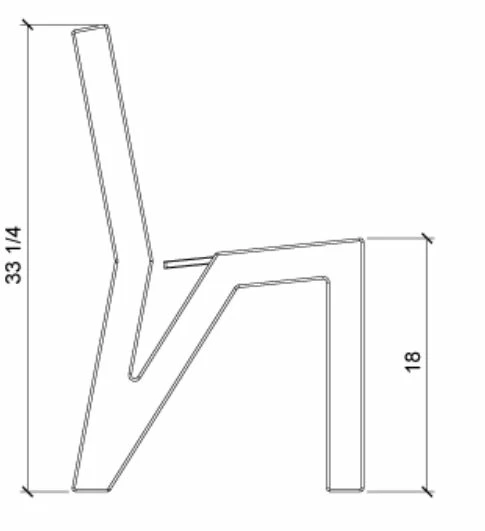
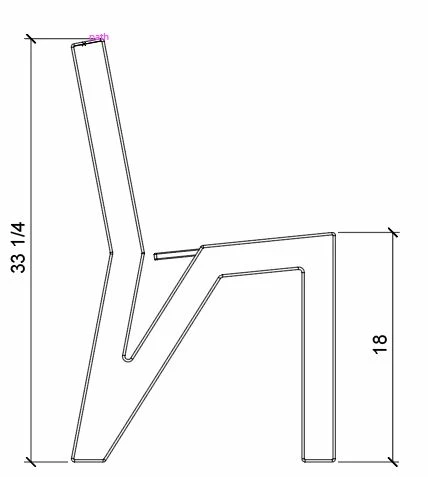
My diagonal lines are jagged and stepped when exporting to .PNG and I can't figure out how to fix them. I've tried turning off GPU, exporting at different resolutions, and numerous other things. I even had someone from Adobe support remote control my computer and they couldn't fix it either. Is this just the quality I get? 
 

    This topic has been closed for replies.

    16 replies

    360FiveAuthor
    Participating Frequently
    September 19, 2019

    Thank you so much everyone! I'd been working on this for days before I put it out to the community, should have just done that from the start! Thanks for all being so patient with my stupid questions and newbie ignorance lol.

    Ton Frederiks
    Community Expert
    Community Expert
    September 19, 2019

    Nice chair!

    360FiveAuthor
    Participating Frequently
    September 19, 2019
    thanks!
    Ton Frederiks
    Community Expert
    Community Expert
    September 19, 2019

    Looks good to me too on your website. It seems that Squarespace creates various sizes starting with a 2500 pixels width.

    https://support.squarespace.com/hc/en-us/articles/206542517

    If you create an artboard in Illustrator of 2500 px wide, use that and export it at 72 ppi with the "Use Artboards" option checked you wil export at the largest size for Squarespace.

    360FiveAuthor
    Participating Frequently
    September 19, 2019
    I'll do that. That way I know its the best it can possibly be for Squarespace and if it looks crappy to me still then I'll know that its just my monitor.
    Inspiring
    September 19, 2019

    Ok, it actually looks very clear to me. Very sharp. I think since you've uploaded the higher-res file you've actually fixed it but your browser has cached the older copy of the image and is stupbornly showing it to you on your machine. 


    Kill your browser History or force the page to refresh all elements of the page & you'll see the nice, clean version.


    You fixed it.

    Inspiring
    September 19, 2019
    I should add that if you're on a low-res monitor an image like this with very thin black lines over a white background might never look very sharp. If the image you pulled off the live web page is really that big (2500 x 1542) then maybe your monitor is just not very sharp.
    360FiveAuthor
    Participating Frequently
    September 19, 2019
    hrm, still looks crappy to me so it must just be my monitor. Hopefully the general population has better monitors than I do so it will look good to them! Glad it looks good to you guys!
    Inspiring
    September 19, 2019

    I would bet that squarespace is not only resizing your image but also re-encoding it as a JPG file. Drag the image from your webpage to your desktop. if the file extension has changed to .jpg &/or the file size is smaller than your original then there is your problem.

    360FiveAuthor
    Participating Frequently
    September 19, 2019
    Squarespace supports .PNG. When I dragged it to my desktop it's still an .PNG, and the size is 2500 x 1542. I don't know if that is the size I started with or not....
    360FiveAuthor
    Participating Frequently
    September 19, 2019

    ok, I used the scale tool to scale things up, not sure what exact size I'm at, I just made it bigger. My stroke weight is 0.5pt and I exported (Export As...) at 600 ppi with the Art Optimize anti-aliasing option to make a .PNG. When I loaded it onto my website, this was my result...

    Monika Gause
    Community Expert
    Community Expert
    September 19, 2019
    The forum software at the moment unfortunately scales down or up the embedded images to its own delight. Nobody can be sure as to what we see. So you might want to post your website adress. This can also help, because someone might figure out if your HTML or your content management system messes up your images. Screenshots don't help here.
    360FiveAuthor
    Participating Frequently
    September 19, 2019

    ok, upping it to 600 ppi didn't do anything for me. Now I'm in photoshop, looking at my image size. Anything look weird?


    Monika Gause
    Community Expert
    Community Expert
    September 19, 2019
    Please tell us the stroke width in Illustrator.
    360FiveAuthor
    Participating Frequently
    September 19, 2019
    0.5 pt
    Ton Frederiks
    Community Expert
    Community Expert
    September 19, 2019

    Try View > Pixel Preview in Illustrator with a 100% zoom factor.

    I am sure your design is too small to export without the distortion you showed.

    Inspiring
    September 19, 2019

    I think you might actually be dealing with what is refered to as "retina support" in the web browser. This means support for high-res screens. There are specific css solutions but I don't know too much about squarespace so I don't know if you have access to css or html code directly.


    a "regular monitor is measured at 72 dpi, retina monitors are more like 220 dpi but the whole placement system is still based on an assumed 72dpi unit so you basically upload images that are about 2x or 3x the size of the space. Square space may figure out the rest on it's own.


    If not, you'll have to edit the code. There are 3 or 4 ways to do it.

    For example: (simplest solution)

    • you have a space on the web page that is 400px by 800px.

    • Upload an image that is 2x (800px by 1600px) 

    • Hard-code the image size in html or css to 400x800

    • This gives you double the resolution in the same display space. The image wil look sharper.


    Search "retina support" & you'll easily find the 3 or 4 best optpns to do it. You may actually just want to export the image way bigger than you think you need & see if squarespace figures it out on its own.

    360FiveAuthor
    Participating Frequently
    September 19, 2019

    From what I was reading on squarespace, I have a resolution limit of 60mp and I should use images that are between 1500 and 2500 pixels wide. I have no idea what size my current image is at nor how to change it....

    Inspiring
    September 19, 2019
    You'll have to export it from Illustrator at a bigger size to begin with. You wont get an "size" option with PNG export in AI. You'll only get a resolution setting. Set it to about 600dpi & try that.
    360FiveAuthor
    Participating Frequently
    September 19, 2019

    Apologies, my captions were incorrect in that first post. The blurry one was the PNG and the clear one was in Illustrator. I'm working at 100% zoom but I'm not sure of the exact dimensions of the image. So I started with a 3D model in Rhino, made 2D line drawings and then saved them as an .ai file with a 1inch = 0.125 conversion. That conversion gave me the best result in Ai and I didn't need to scale the images. From there, I was saving them as a .PNG and I've tried exporting (Export As...) in every resolution option I have, screen, medium and high as well as trying both anti-aliasing options. I should say that I'm then taking the .PNG and putting it on my website and there is where the distortion is really bad. My line drawing is good in Illustrator, smooth even when I zoom in, but it shows terribly on my website. I don't know if its just my screen or something with squarespace (my website host) or what the issue is. I don't how to attach the Ai file for review....