Legend
December 10, 2018
Answered

Edit with > Photoshop?

  • December 10, 2018
  • 1 reply
  • 2058 views

Updated from 2018 to 2019 across indesign, Illustrator and Photoshop.

Before i could right click an image, Edit with > Photoshop / Illustrator

Now i get this;
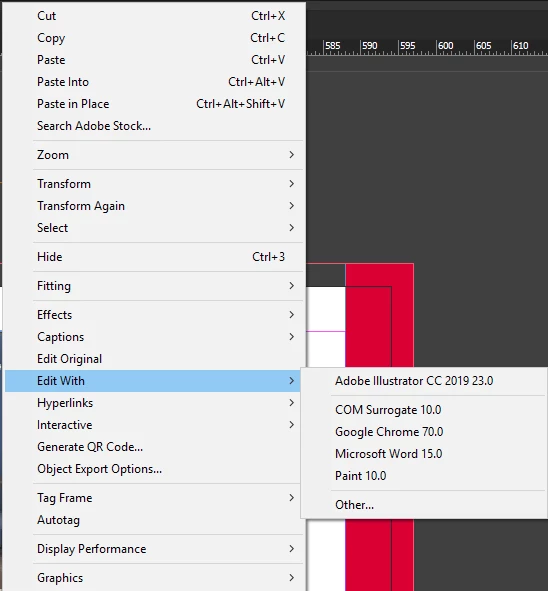
I've asked this question before and know one seemed to have a clue on how you actually specify these option, as previously my work PC would have all the desired options (PS,Ai etc) but my home PC would have similar options to the above (Minus Ai).

Any help on getting Photoshop back on here, I've tried "Other..." then opened PS which works in terms of opening the image but doesn't save it on this menu even though, as mentioned, it used to.

This topic has been closed for replies.
Correct answer Steve Werner

On my Macintosh, it appears that what appear in the Edit With menu is pulled from the Macintosh Finder's list of apps that claim they can open the particular type of file. (I'm not a Windows user but I'm guessing it may be the same there.)

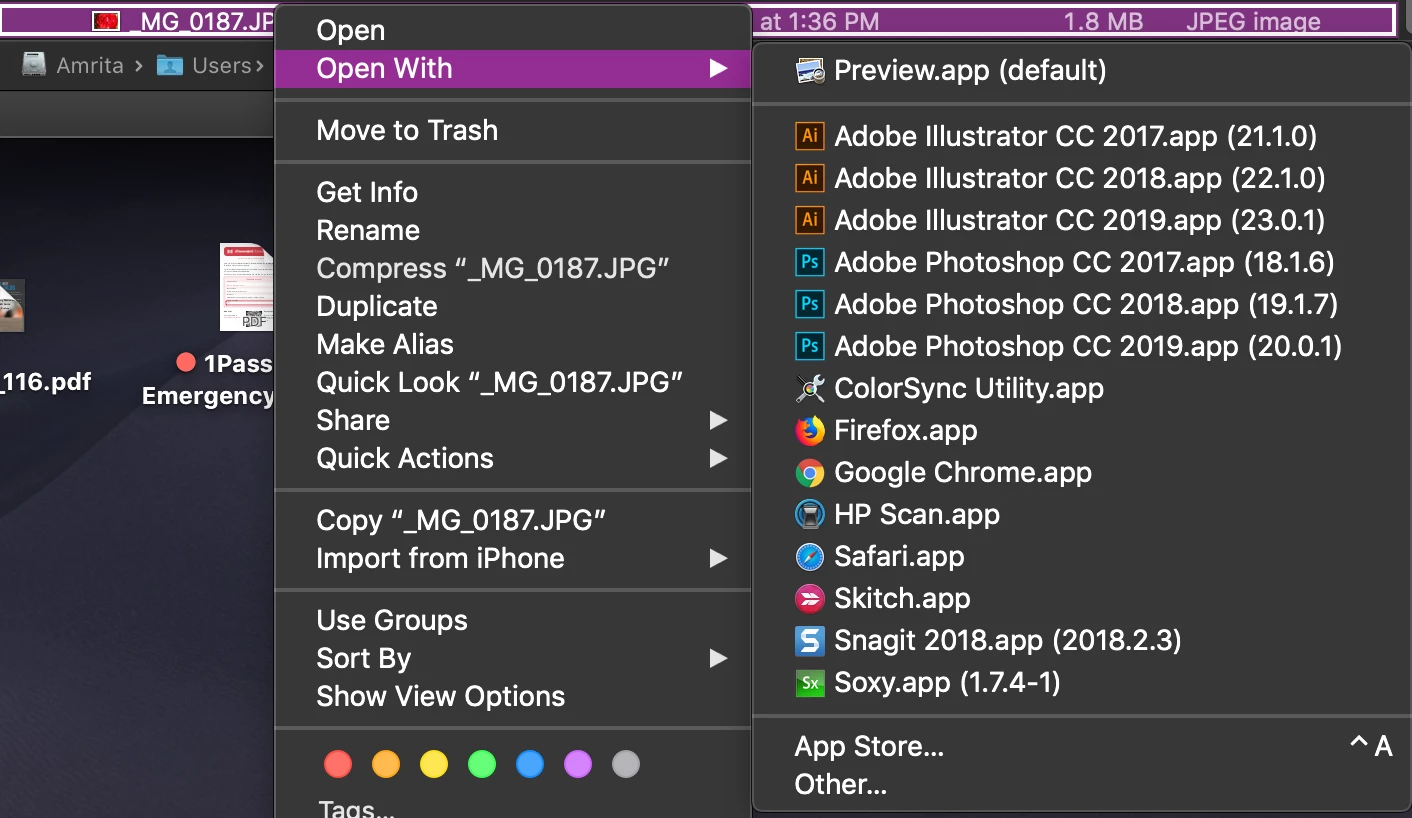
When I select a JPEG file in the Mac Finder, here is the list of Open With choices:

Within InDesign when I select a JPEG file, here's the list of Edit With choices:

So then, since you're a Windows user, you need how to find how to edit the list in WINDOWS, not in InDesign. Can't help you there.

1 reply

Steve Werner
Community Expert
Steve WernerCommunity ExpertCorrect answer
Community Expert
December 10, 2018

On my Macintosh, it appears that what appear in the Edit With menu is pulled from the Macintosh Finder's list of apps that claim they can open the particular type of file. (I'm not a Windows user but I'm guessing it may be the same there.)

When I select a JPEG file in the Mac Finder, here is the list of Open With choices:

Within InDesign when I select a JPEG file, here's the list of Edit With choices:

So then, since you're a Windows user, you need how to find how to edit the list in WINDOWS, not in InDesign. Can't help you there.

Legend
December 10, 2018

You're absolutely correct! I've just followed the above, found Photoshop, gone back into Indesign and sure enough Photoshop now appears!

Thank you so much