Participating Frequently
January 18, 2023
Answered

Indesign not finding tab characters imported from Word???

  • January 18, 2023
  • 3 replies
  • 1673 views

I have a new problem that may be related to an Indesign (or OS) update that I cannot figure out for the life of me. I have bulleted text from Word that I need to reformat with an Indesign style. This results in two sets of bullets followed by a tab; usually I used  Find/Replace to remove the extra bullet and tab, easy peasy. Indesign is now not finding any of these bullets or tabs (GREP, selection story or document) in any text from Word (imported or pasted), in any of my InDesign dox. It finds tabs inserted in Indesign just fine, but not from Word. I can see the tab character clearly but Indesign cannot. This is maddening because there are thousands of these things that I now need to manually delete. InDesign app is v18.1, up to date (creative cloud), as is my mac OS. Already tried (doesn't work) saving my Indesign files as idml, importing text vs. pasting, restarting, running disc utility. Tearing my hair out here. 


This topic has been closed for replies.
Correct answer Bevi Chagnon - PubCom.com

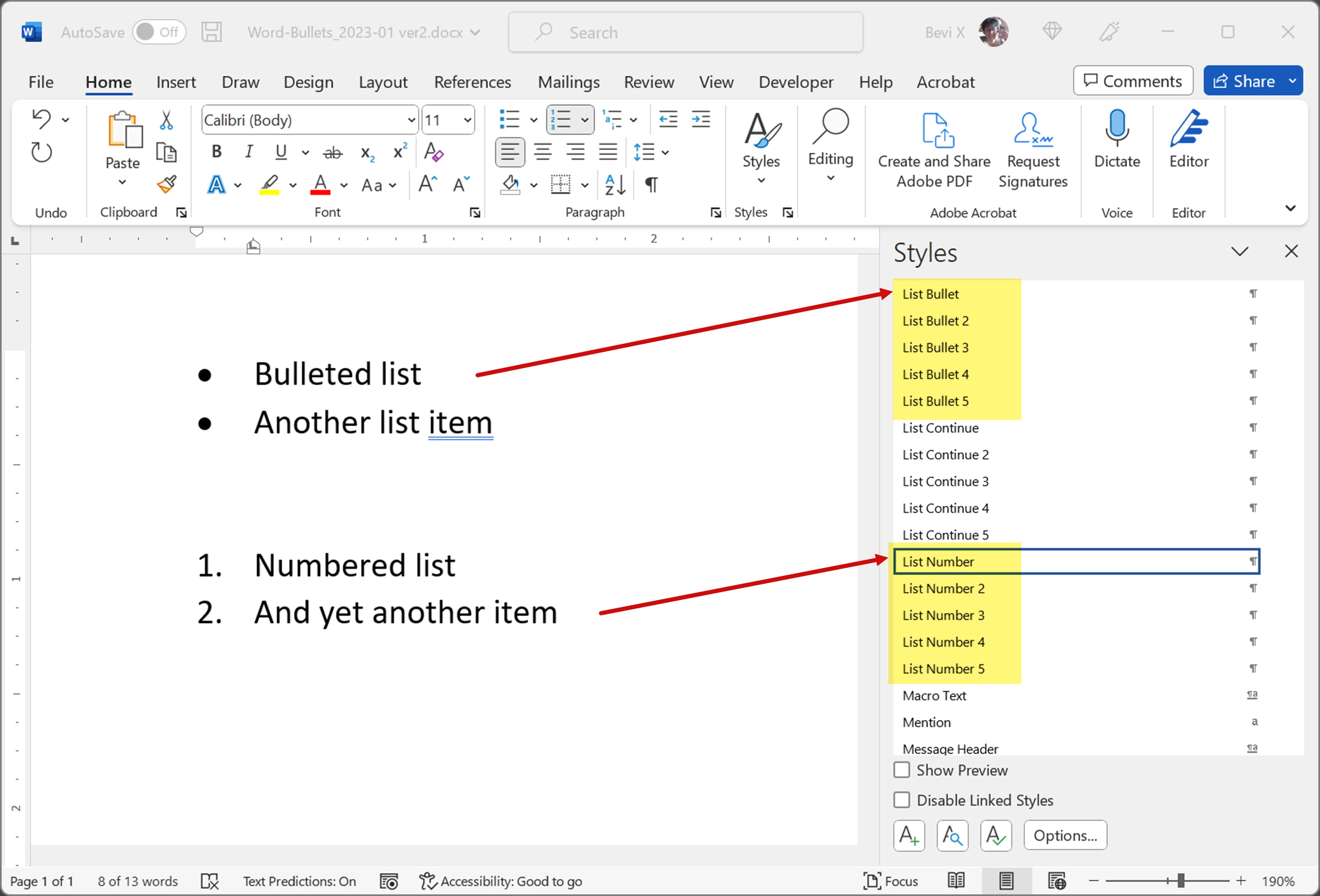
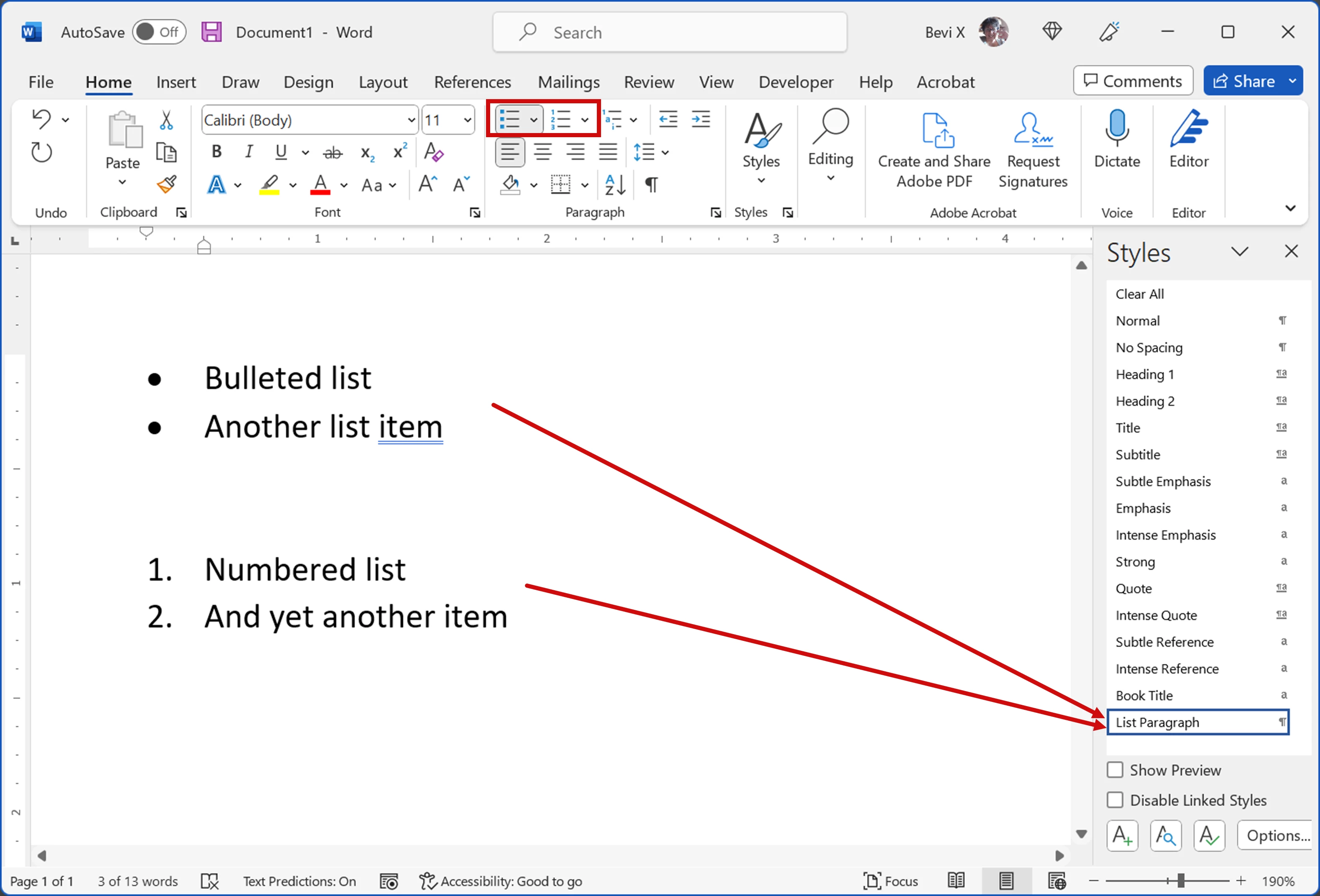
@lisastarr8, Word actually does apply a Word paragraph formatting style to lists whenever the ribbon bar icons are used; it's a generic multi-use style called List Paragraph and it's used regardless of the list's formatting, such as bullets, numbers, letters.


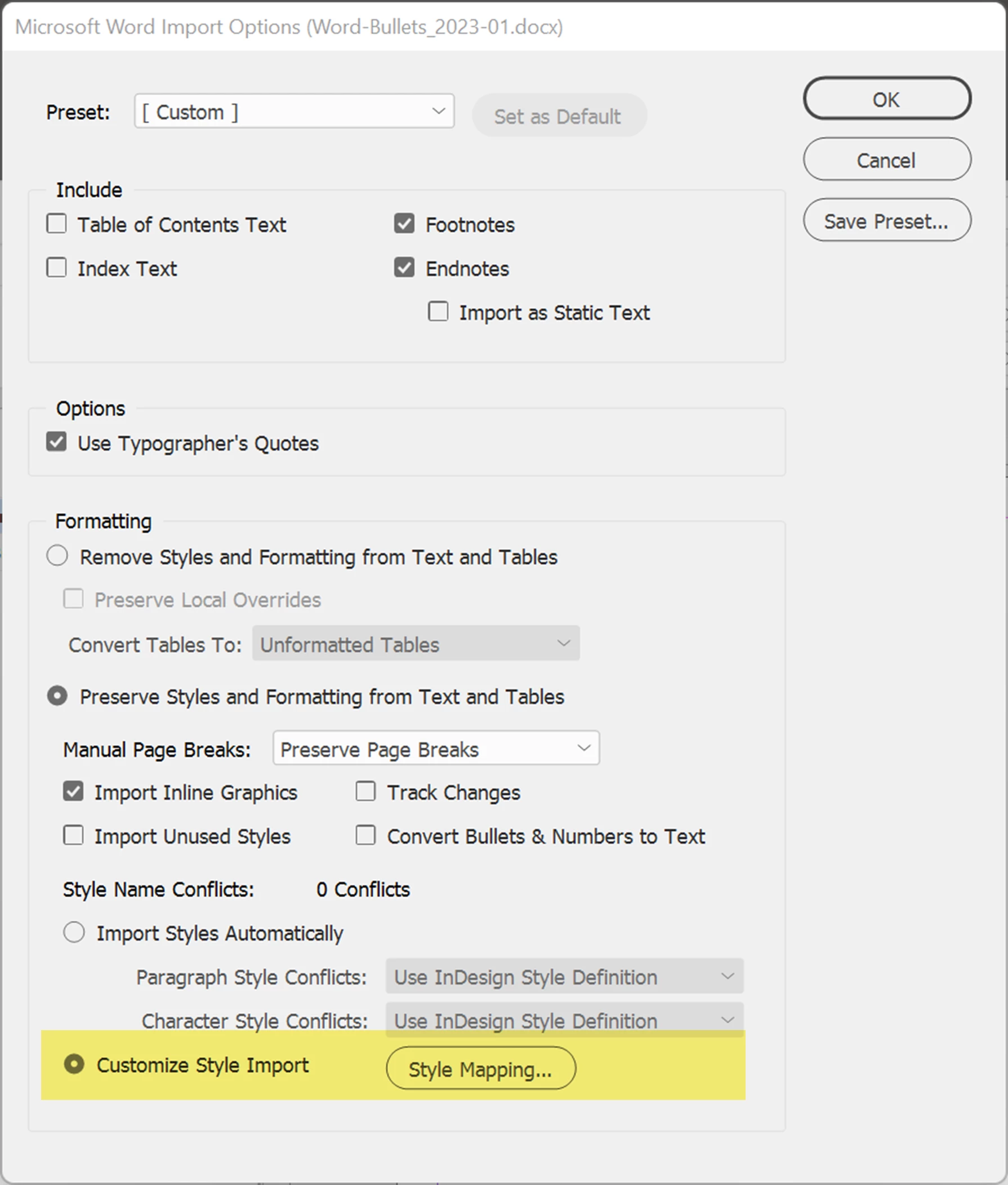
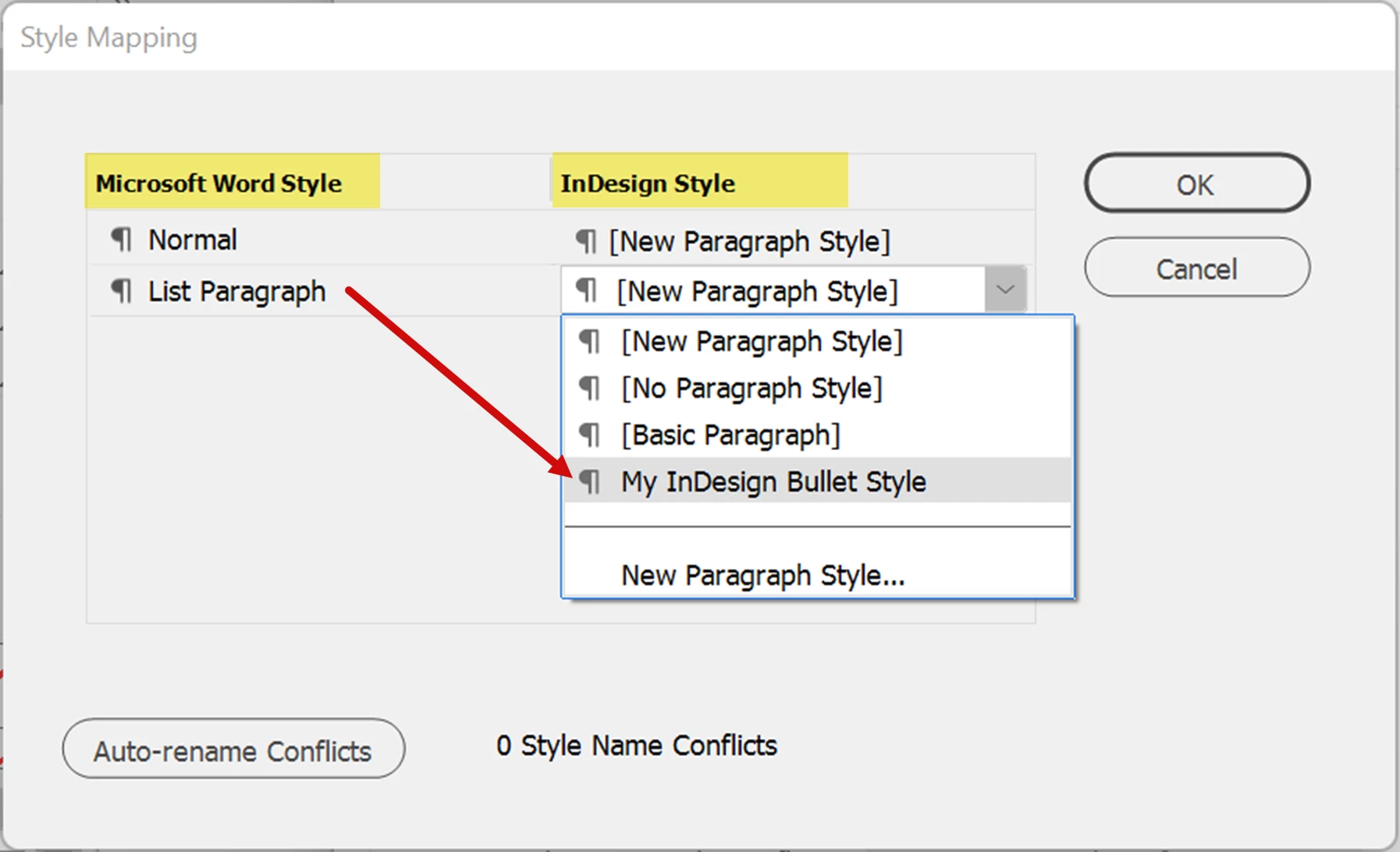
You can take advantage of that feature by controlling the import options into InDesign, specifically Map Styles utility which lets you assign the incoming Word Styles to styles in your InDesign layout.


The drawback to this method is that because Word uses one style to format both bulleted and number lists, you can't differentiate them in InDesign; they're all going to look the same in the layout.


The best solution:

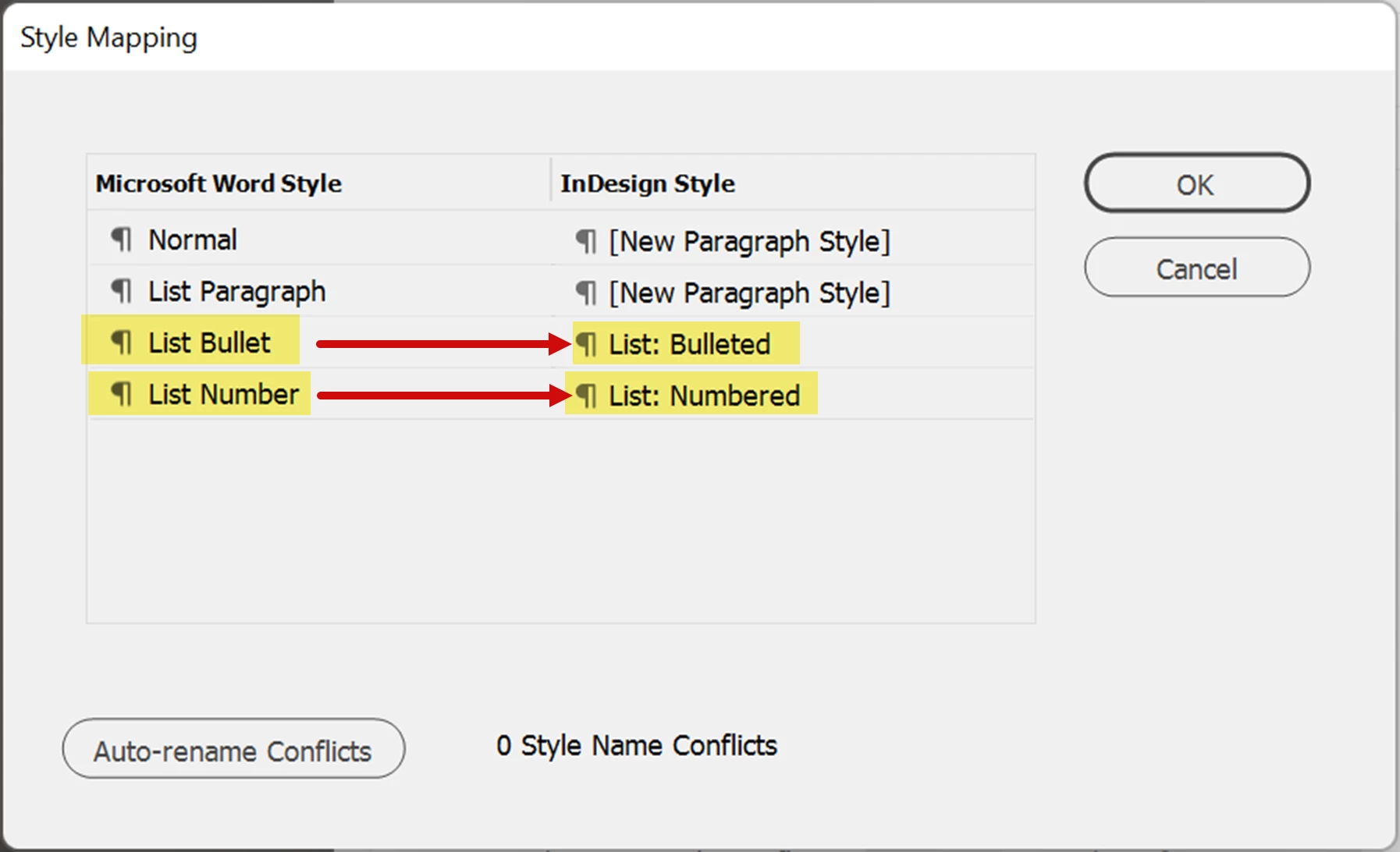
Make better Word documents. Use Word's pre-defined styles for different types of lists: Bulleted or Numbered.


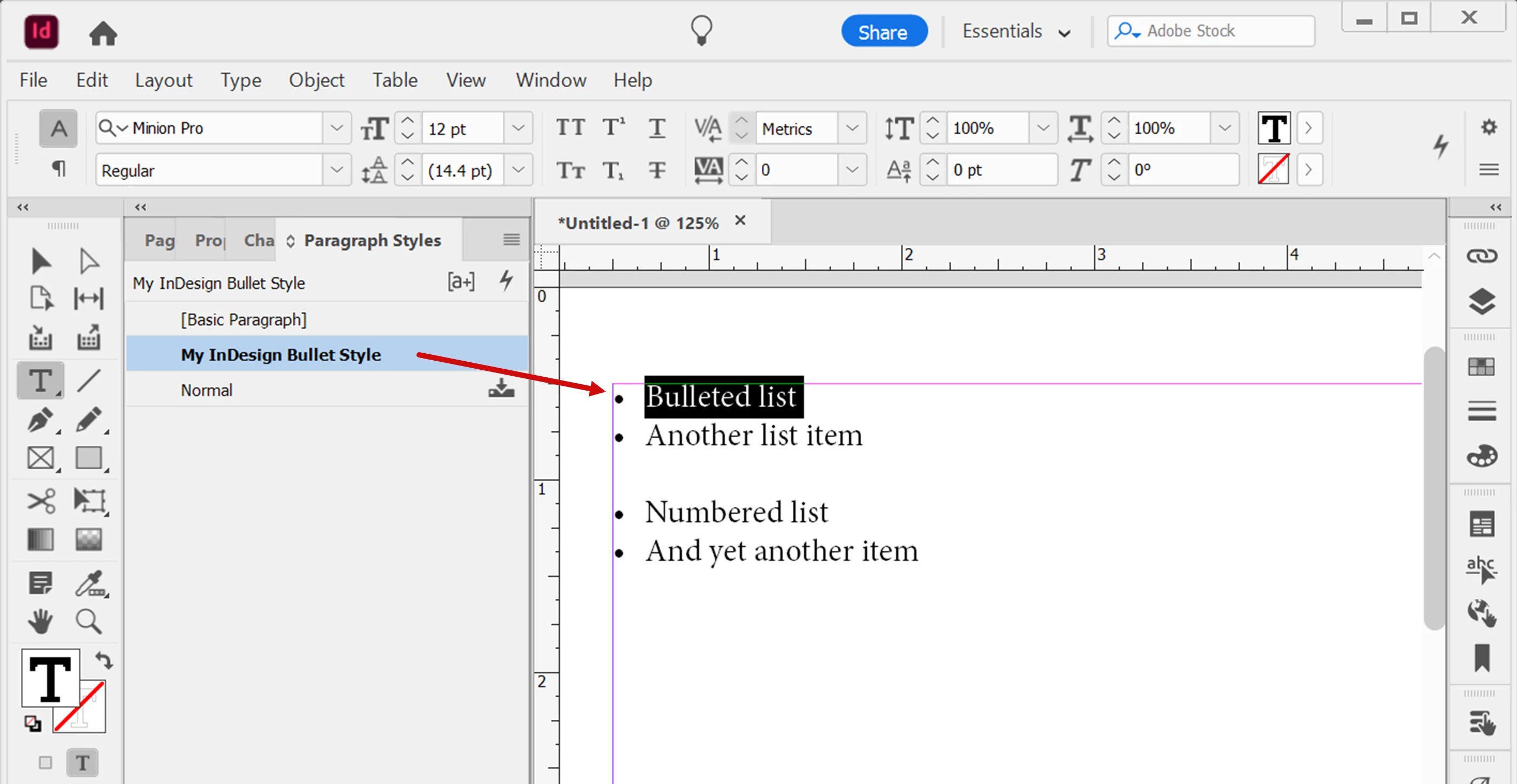
This lets you control the Style Mapping into InDesign. Map Word bullets to your InDesign bullet style, and map Word numbers to your InDesign number style.


The problem you're having now never happens in your InDesign layout.

Bam! Everything is formatted correctly.

Hope this helps!


3 replies

Barb Binder
Community Expert
Community Expert
January 18, 2023

Hi @lisastarr8:


If there is a reliable pattern, we can automate the formatting. Can you just share a few list items as they intially they appear in InDesign? Put it on a file sharing server (creative cloud, dropbox, google), click my avatar and message me the list. You do not need to include anything proprietary, just the initial formatting with some words next to it.


~ Barb

~Barb at Rocky Mountain Training
Participating Frequently
January 19, 2023

Barb, thank you so much for the offer. I tried to make a file for you, but doing so realized that the problem wasn't reproducible in a new file. Spent a couple of hours trying to figure it out, but so far the only thing I can say is it's connected to a couple of ID files and not others. I removed all the content from the ID files and imported Word text - no problem. Maybe gremlins (?) that are not fixed by saving as idml? In any case, my other ID files seem to be ok. Thank you!

Barb Binder
Community Expert
Community Expert
January 18, 2023

Hi @lisastarr8:


When you use File > Place a bullet list from Word, the List Paragraph+ style appears in the Paragraph Styles panel. Just redefine the style and all will be done. 


If you assign bullets manually, then you get into your dilemma. You can:

  • Create a bullet style
  • Find all bullet tab, replace with style
  • Find all bullet tab, remove


~Barb

~Barb at Rocky Mountain Training
Participating Frequently
January 18, 2023

Hi Barb, thank you so much for replying! Your workaround is really tricky, I love it. Unfortunately, the source files have no specific style applied for bulleted lists; bullets have been added manually using the bullet option in Word's Home tab. So it's imported into ID with a general paragraph style. I can't change that style in ID without changing all of the other imported general paragraphs. Your tricky solution works if I apply a list style to the manually bulleted lists in the source Word dox, and then re-import them into ID, but there are dozens of files with thousands of lists so I hope to find a more automated solution 😞

James Gifford—NitroPress
Legend
January 18, 2023

Ah, the joys of Word spot formatting. (I'm writing a lengthy guide to Word use right now and have a few words I won't say about the practice.)


It *seems* as if a macro could be used to find and style all bulleted items. That assumes there's some consistency; it assumes all bullets would use the same style. But anything has to be better than manually fixing them all.


James Gifford—NitroPress
Legend
January 18, 2023

I can't quite tell what's going on from the screen shot, but Word and ID handle bullet lists a little differently. ID will not create a specific tab character for the first line (although you can add one if you need it for style adjustment.)


Searching for bullet/space should work just as well, here. But the missing tab is 'as it should be,' not a glitch.


Participating Frequently
January 18, 2023

Hi James, Thank you so much for replying. It makes sense that ID and Word handle bulleted lists differently, for sure. I've encountered this before, but have always been able to do a find (^8^t) and replace with no character to fix. My ID no longer finds ^8 or ^t in placed or pasted word text, even though it does identifty the invisible character (>>); that's what the screenshot shows. Any other ideas?

James Gifford—NitroPress
Legend
January 18, 2023

Barb's answer has more of the technical aspects, which you might find useful.


If the process worked before and now doesn't, it could be a change in either Word or ID. The first thing to do is try a few other documents from Word to see if the change is consistent. Trying older docs you know to have worked properly is another good check.


But in the end, if one or the other changed some subtle aspect of file structure or import, an update to your method is probably the only good solution. ID does have sophisticated wildcard and GREP search options.


(Bullets are always a little weird, at least for me. I just import and do whatever it takes. But if I had a regular workflow of needing to import bullets and quickly get them tidied up in ID, I'd look more closely at the nuts and bolts.)