Exit
  • Global community
    • Language:
      • Deutsch
      • English
      • Español
      • Français
      • Português
  • 日本語コミュニティ
  • 한국 커뮤니티
0

transparentes Objekt im InDesign beeinflusst die Layoutdarstellung der gesamten Seite

New Here ,
Aug 08, 2019 Aug 08, 2019

Hallo zusammen,

ich habe seit gestern ein Problem mit meiner Darstellung im InDesign und komme trotz Recherche nicht weiter.

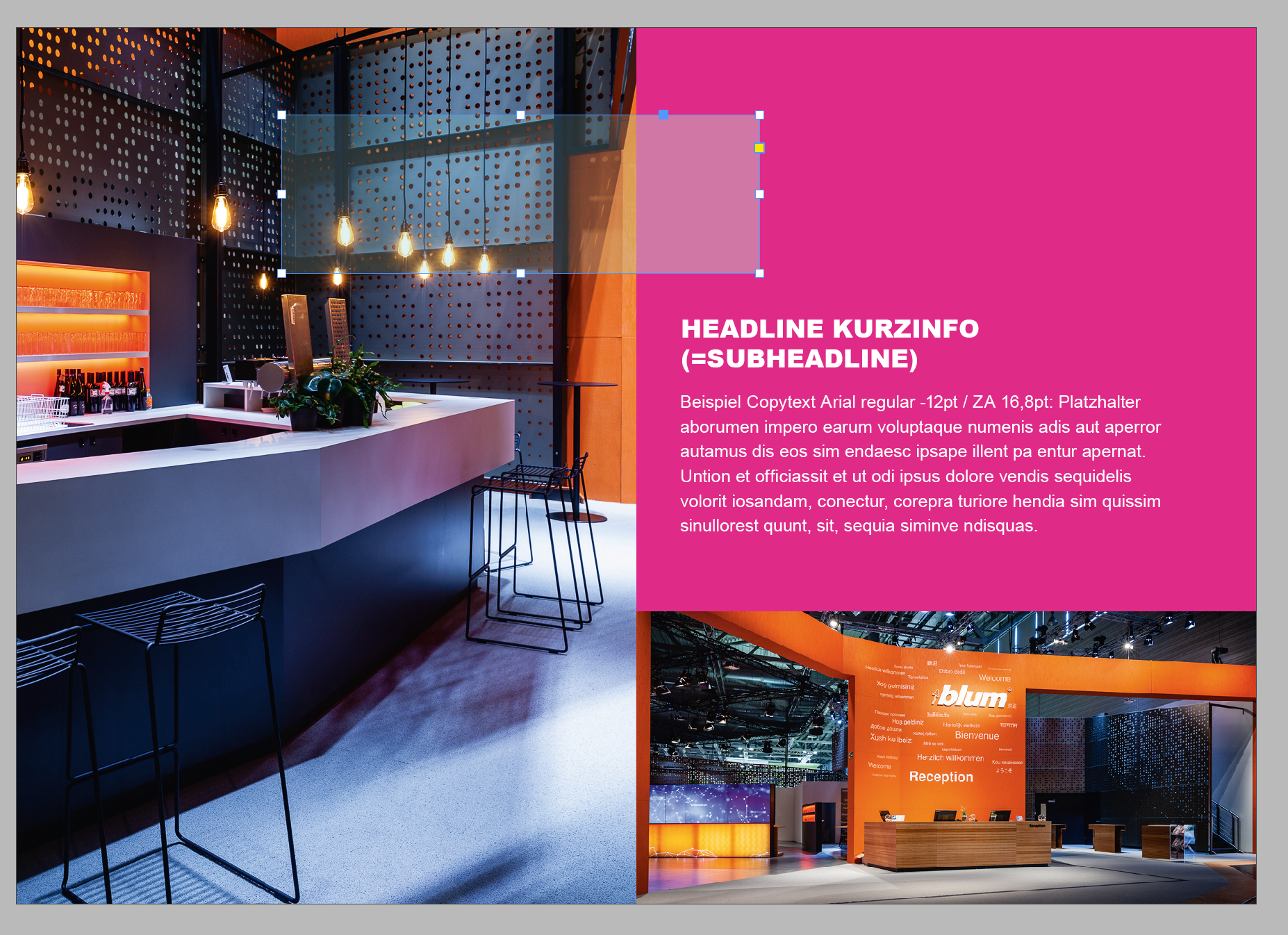
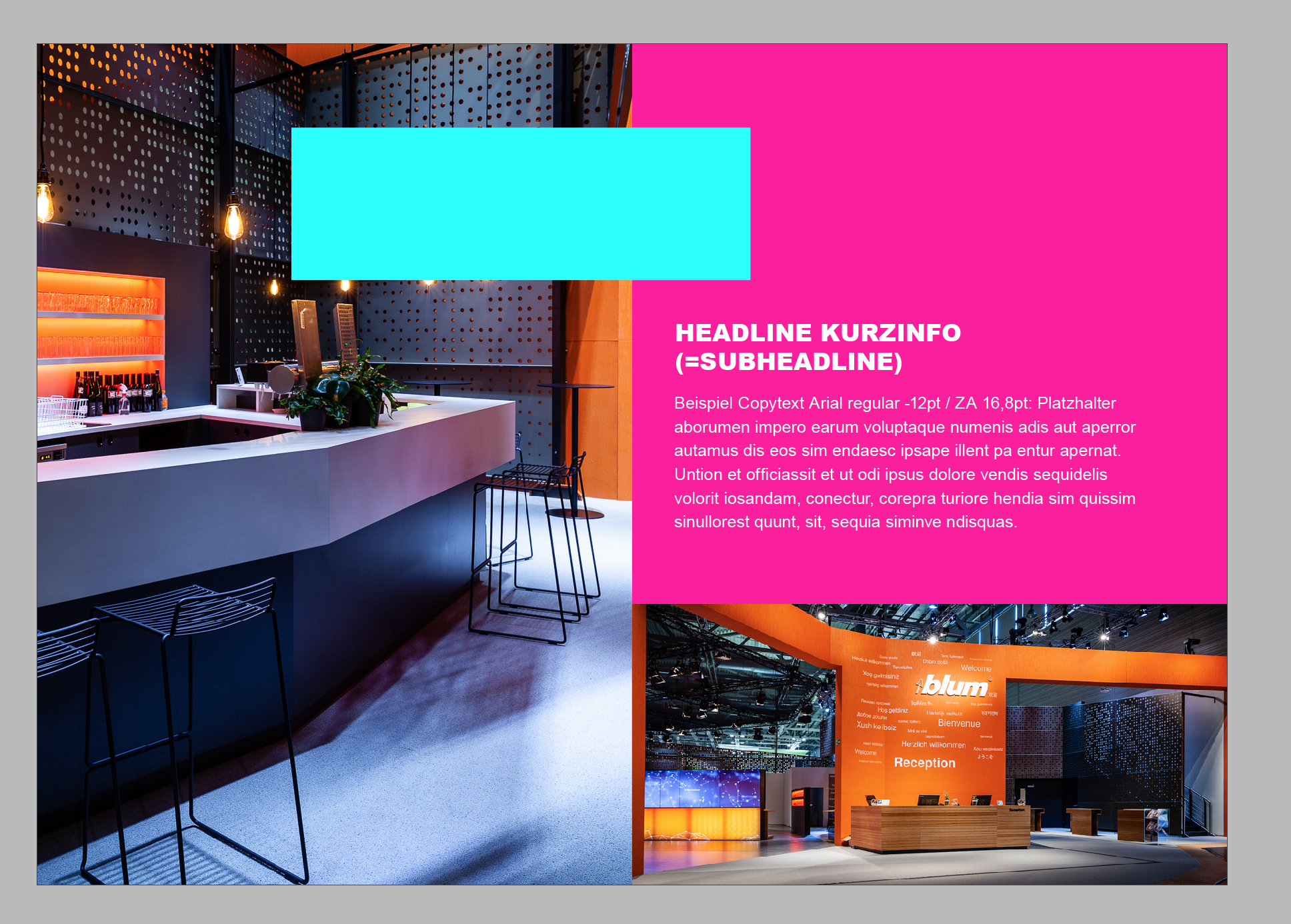
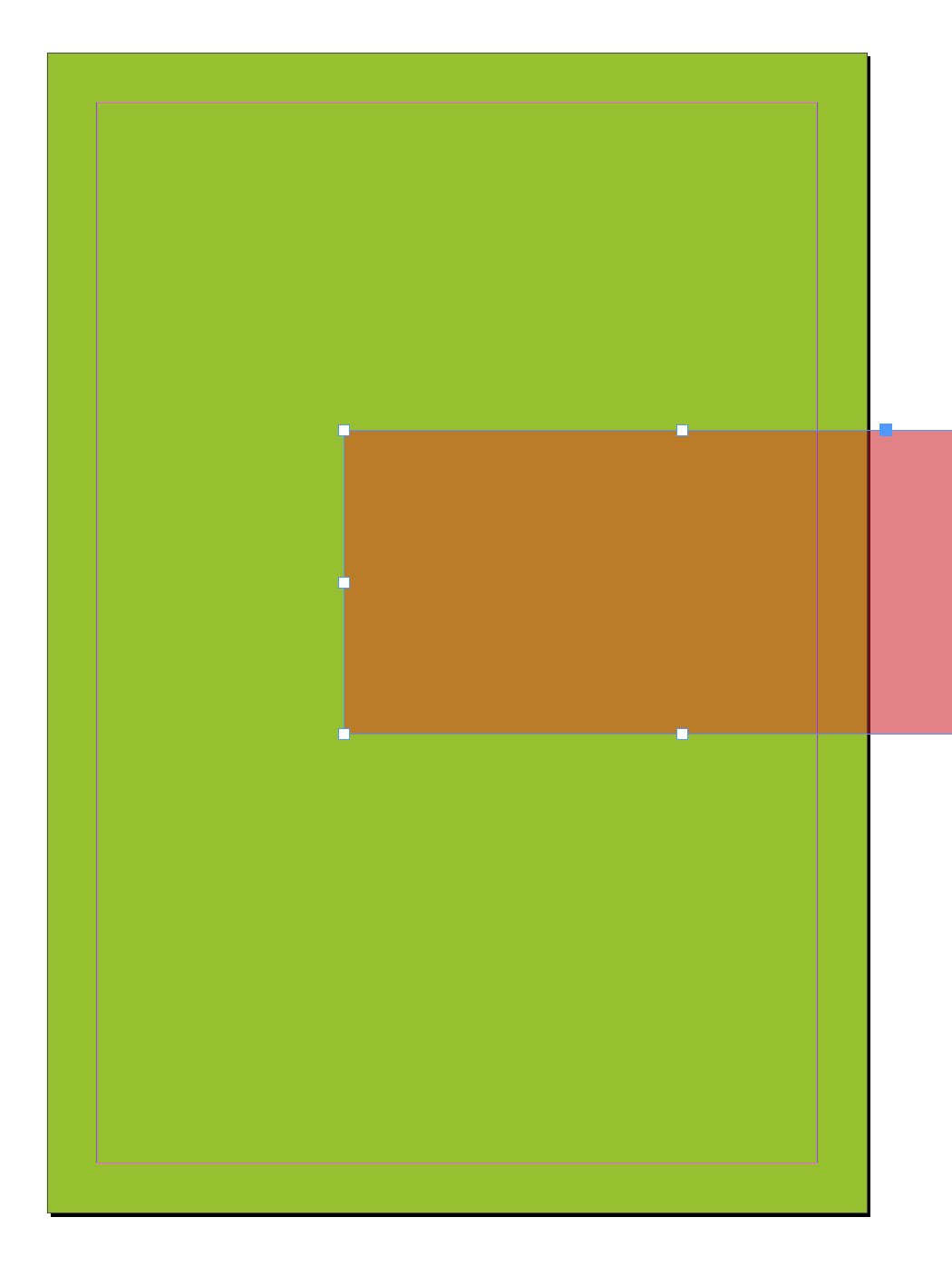
Wenn ich im Dokument eine Seite bearbeite und ein transparentes Element einfüge, bzw. die Deckkraft einer Fläche reduziere so ändert sich plötzlich die Farbe/Transparenz des gesamten Layouts im Hintergrund.


Ich habe einmal Screenshots beigefügt um das Ganze besser zu veranschaulichen. (siehe Beispiel: die pinke bzw. grüne Fläche wird dunkler wenn das Objekt im Vordergrund transparent ist). Bilder beeinflusst das Ganze jedoch scheinbar nicht.

Kann mir irgendwer helfen und Info geben wie ich das Problem beheben kann?

Ich vermute es ist vielleicht eine Änderung in den Voreinstellungen, evtl über einen falschen Shortcut zustande gekommen o.ä.?

Ich habe schon versucht, die Arbeitsbereiche zurückzusetzen aber das hat leider nicht geholfen.

Das Problem tritt nicht in allen Dokumenten auf, jedoch sowohl in bestehenden Dokumenten als auch in neu erstellten docs.

Aber eben nicht in allen. Eine Regel kann ich jedoch nicht ableiten.
Habe auch bereits versucht, zu testen ob sich Sonderfarben darauf auswirken aber auch das ist mal so, mal so.

Ich komme einfach nicht weiter!!

Ich wäre total dankbar für Tips!!!

Vielen Dank vorab!

Annette

Bildschirmfoto 2019-08-08 um 16.10.43.png

Bildschirmfoto 2019-08-08 um 16.10.35.png

Bildschirmfoto 2019-08-08 um 16.08.41.pngBildschirmfoto 2019-08-08 um 16.08.47.png

6.7K
Translate
Report
Community guidelines
Be kind and respectful, give credit to the original source of content, and search for duplicates before posting. Learn more
community guidelines

correct answers 1 Correct answer

Community Expert , Aug 08, 2019 Aug 08, 2019

When there is any transparent object on a spread, your Transparency Blend Space affects the preview of the page. If the blend space is CMYK, that will force the preview out of gamut RGB or Lab process color into the document‘s assigned CMYK space. You can set the blend space to RGB and get an RGB preview, but if the document is going to be printed, out-of-gamut RGB colors will eventually have to be converted to CMYK.

Translate
Community Expert ,
Aug 08, 2019 Aug 08, 2019

When there is any transparent object on a spread, your Transparency Blend Space affects the preview of the page. If the blend space is CMYK, that will force the preview out of gamut RGB or Lab process color into the document‘s assigned CMYK space. You can set the blend space to RGB and get an RGB preview, but if the document is going to be printed, out-of-gamut RGB colors will eventually have to be converted to CMYK.

Translate
Report
Community guidelines
Be kind and respectful, give credit to the original source of content, and search for duplicates before posting. Learn more
community guidelines
New Here ,
Aug 08, 2019 Aug 08, 2019

Oh great! Thank you for your quick reply.

That helps me a lot!

Although I have no RGB colors in the document but special colors in PANTONE.

In that case, it's probably the same topic, I think.

Thank you so much!

Translate
Report
Community guidelines
Be kind and respectful, give credit to the original source of content, and search for duplicates before posting. Learn more
community guidelines
Community Expert ,
Aug 08, 2019 Aug 08, 2019

Although I have no RGB colors in the document but special colors in PANTONE.

If you are mixing Spot and Process colors along with transparency, the color preview options get more complex.

Here I have 2 color fills—a saturated RGB pink that would not be printable with CMYK inks, a PANTONE solid Spot color that also has no process CMYK equivalent, and my Transparency Blend Space is set to CMYK.

If I turn off Overprint/Separation Preview the two colors display unchanged (the PANTONE 909 spot color is defined as a Lab color for display)

Screen Shot 3.png

If I turn on Overprint Preview, the RGB Pink fill displays in the document’s CMYK space as it will print, but the PANTONE Spot color is unchanged because it will output as an extra spot plate and wont be converted into CMYK.

Screen Shot 4.png

If I add transparency to the page and leave Overprint Preview on, I get the same preview—the RGB fill is previewed as CMYK and the Spot color is unchanged:

Screen Shot 5.png

However, if I turn off Overprint Preview the Spot color gets previewed as its CMYK process equivalent—or how it would print if it were set to Process in Ink Manager.

Overprint turned off with the blend space still set to CMYK:

Screen Shot 6.png

Mixing spot color, process color, and transparency makes for complex color management, so if you are using the Pantone solid ink system for picking color, but don’t intend to output extra spot color plates, set the Pantone swatches’ Color Type to Process.

If you do want to mix process color, spot color and transparency, make sure you always have Overprint Preview turned on.

Translate
Report
Community guidelines
Be kind and respectful, give credit to the original source of content, and search for duplicates before posting. Learn more
community guidelines
New Here ,
Aug 08, 2019 Aug 08, 2019
LATEST

Thank you for the fast and complex answer. That really helped me a lot!

Translate
Report
Community guidelines
Be kind and respectful, give credit to the original source of content, and search for duplicates before posting. Learn more
community guidelines