


Copy link to clipboard
Copied
I'm using a compound path created in Illustrator as a text box in InDesign. When I paste my text, it does some weird jumping and creates large gaps on the right of the shapes and I can't figure out why it's happening. I've tried using the silhouette of my shape as the text box, and pasting the inside shapes as separate objects, and then having the text wrap around them, but the same thing happens. Attached is a screen shot of the issue. Any help would be appreciated! Thanks in advance. 


 1 Correct answer
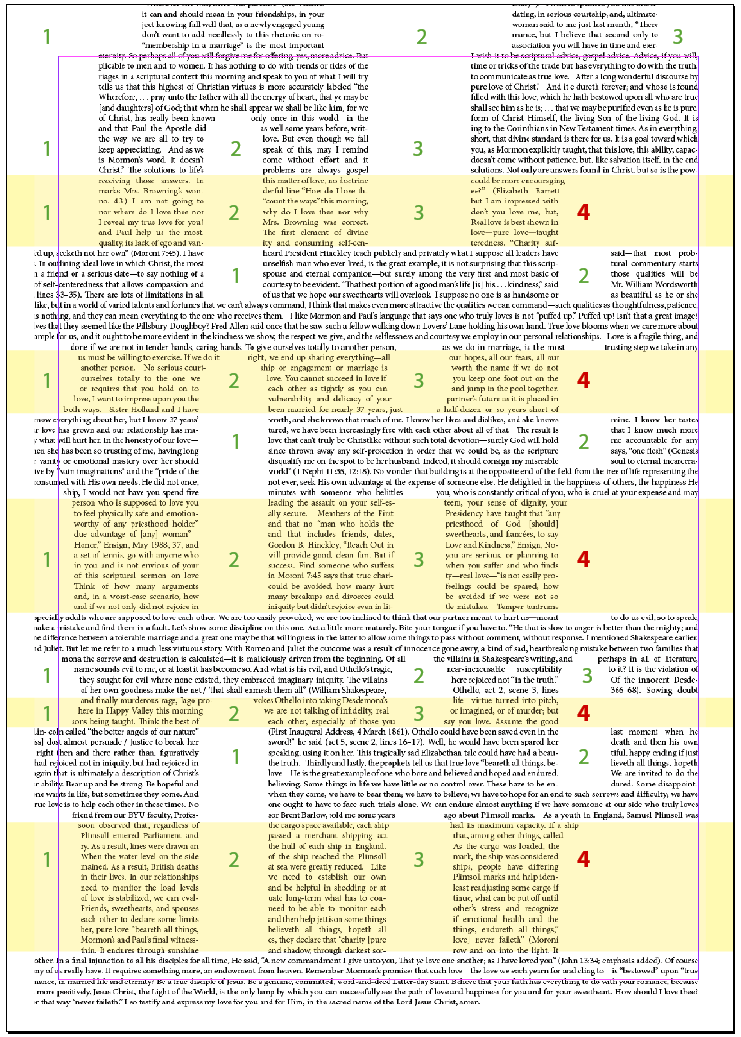
I think, what you encountered, is a feature / limitation. InDesign just won’t allow more than 3 gaps in a text line.
Possible workaround - try add columns to text frame.

 14
Replies
14
14
Replies
14

Copy link to clipboard
Copied
I think, what you encountered, is a feature / limitation. InDesign just won’t allow more than 3 gaps in a text line.
Possible workaround - try add columns to text frame.



Copy link to clipboard
Copied
Hi Jeff,
I would do this kind of layout with Adobe Illustrator.
There is no restriction in the number of gaps there.
Questions about Illustrator can be posted here:
Regards,
Uwe

Copy link to clipboard
Copied
Hi there
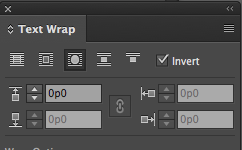
Sometimes what I do I use the text wrap and I invert, maybe you can try
Regards
E
Copy link to clipboard
Copied
Hi Eugenio,
I do not think that invert text wrap will change the rules with the InDesign text composer mechanism.
Here just a simple experiment showing the issue:

Four gaps in a row are ok.
Trouble comes with the fifth one.
Regards,
Uwe
Copy link to clipboard
Copied
BTW, Uwe,
the same on my side: four gaps are ok, text doesn’t flow after the fifth one.
Based on this OP should be good to go, but... he isn’t. Limitation comes into play in one step earlier. Could it be ID version related?
I’m testing on Win7, CS6.
EDIT:
or, maybe, the very left edge just doesn't appear on the screenshot?
Copy link to clipboard
Copied
winterm wrote
…
EDIT:or, maybe, the very left edge just doesn't appear on the screenshot?
Hm. Yes, that could be the case.
Just tested with InDesign CS6 and the issue starts with the fifth gap.
Regards,
Uwe
Copy link to clipboard
Copied
Hi Laubender, sorry you are right
I am going to try a work around
Best
E
Copy link to clipboard
Copied
Hi Eugenio,
no need to be sorry.
Every workaround would be welcome!
As I already said:
I'd do this with Illustrator where I cannot see a restriction.
Regards,
Uwe
Copy link to clipboard
Copied
The issue I'm running into with Illustrator is that I'm not able to use a compound path as a text box. Is there a workaround for that?
Copy link to clipboard
Copied
Why workaround? There's a standard technique in Illy for this. We shouldn't go in details here in InDesign forum, but you always can google adobe illustrator place text inside shapes, or something similar.
Here is one of the quick search results.

Copy link to clipboard
Copied
It's a multi-step process. See the answer #1 (from Monika Gause) in this thread:
Illustrator - trying to type and or place text in a compound path
1. Here is a rectangle with some circles. Make into a compound path. If you try to use the Area Type tool which is what you'd expect it gives and error and says it can't be used with a compound path. So you have to do a workaround.

2. Release the Compound path. Select the circles and bring to front.
3. Select the rectangle and fill with text:
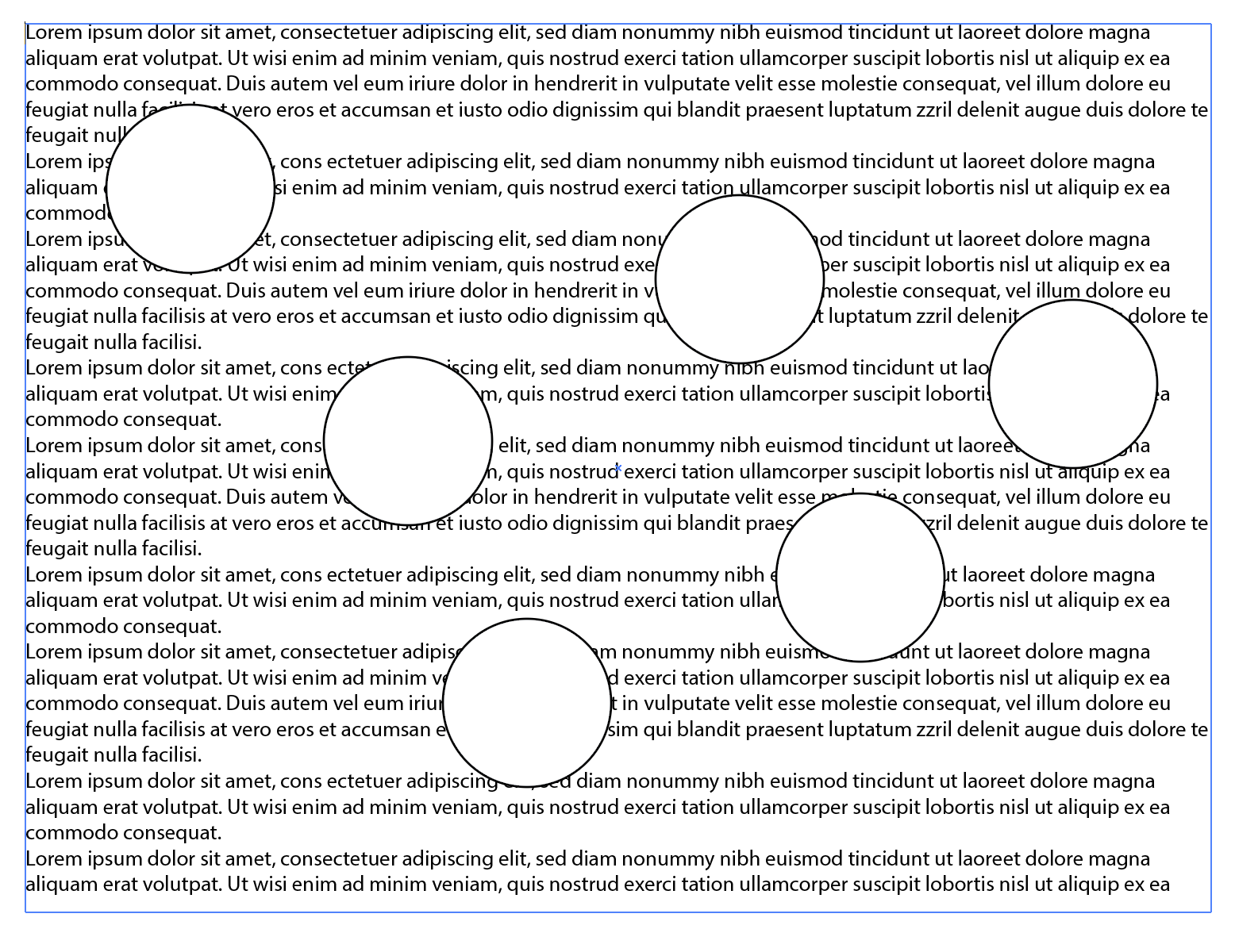
4. Select the circles. Choose Object > Text Wrap > Make
5. Result:

Other answers are welcome. I was just following the steps that Monika gave in here answer in the Illustrator forum.

Copy link to clipboard
Copied
This same effect can be achieved in InDesign using the same method: with the negative space as Objects with a Text Wrap.
No need to worry about Compound Paths.
Copy link to clipboard
Copied
Yes, Eugenio & Uwe mentioned that above in the 3rd and 4th answers above.
I was focusing on Jeff's question of how to use text with compound paths in Illustrator (answer #9 above).
For more information, do a Google search in the Illustrator forum.
Copy link to clipboard
Copied
Hi Steve,
here a version I did with Adobe Illustrator:
Result with my German Illustrator CC 2019:
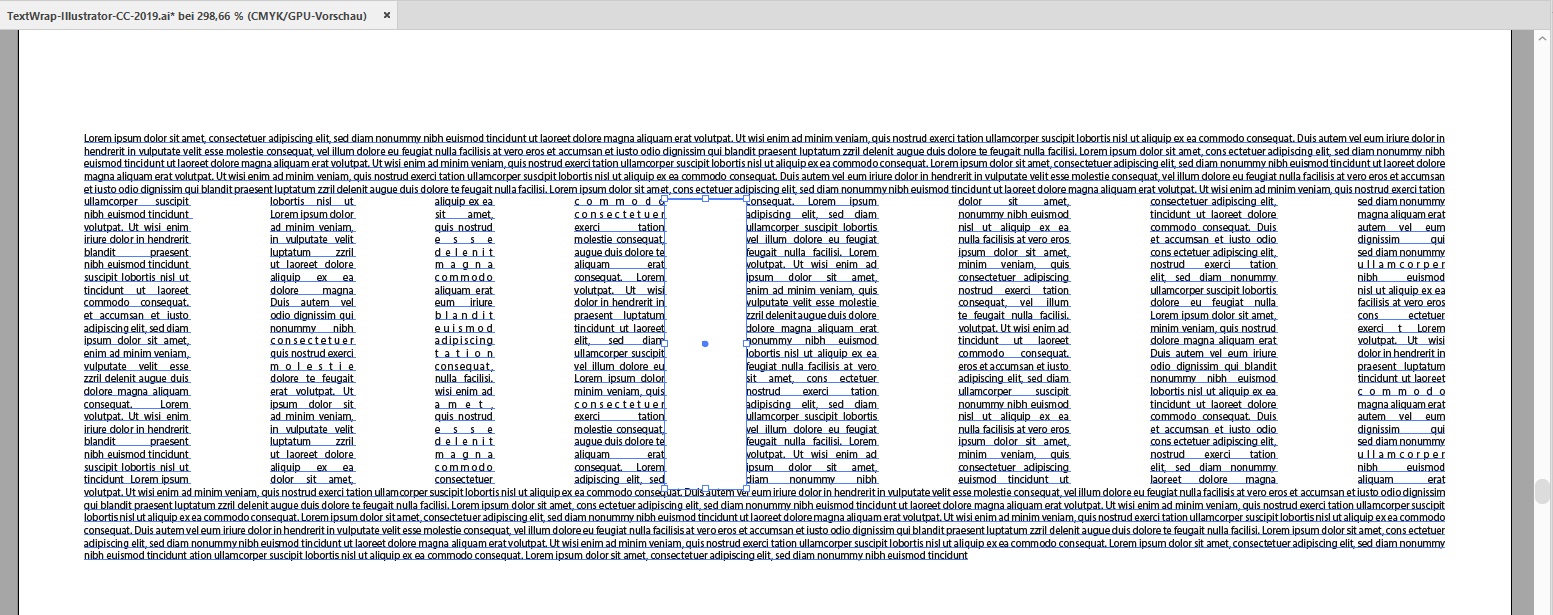
Menu text wrap set for all rectangles stacked above the text:
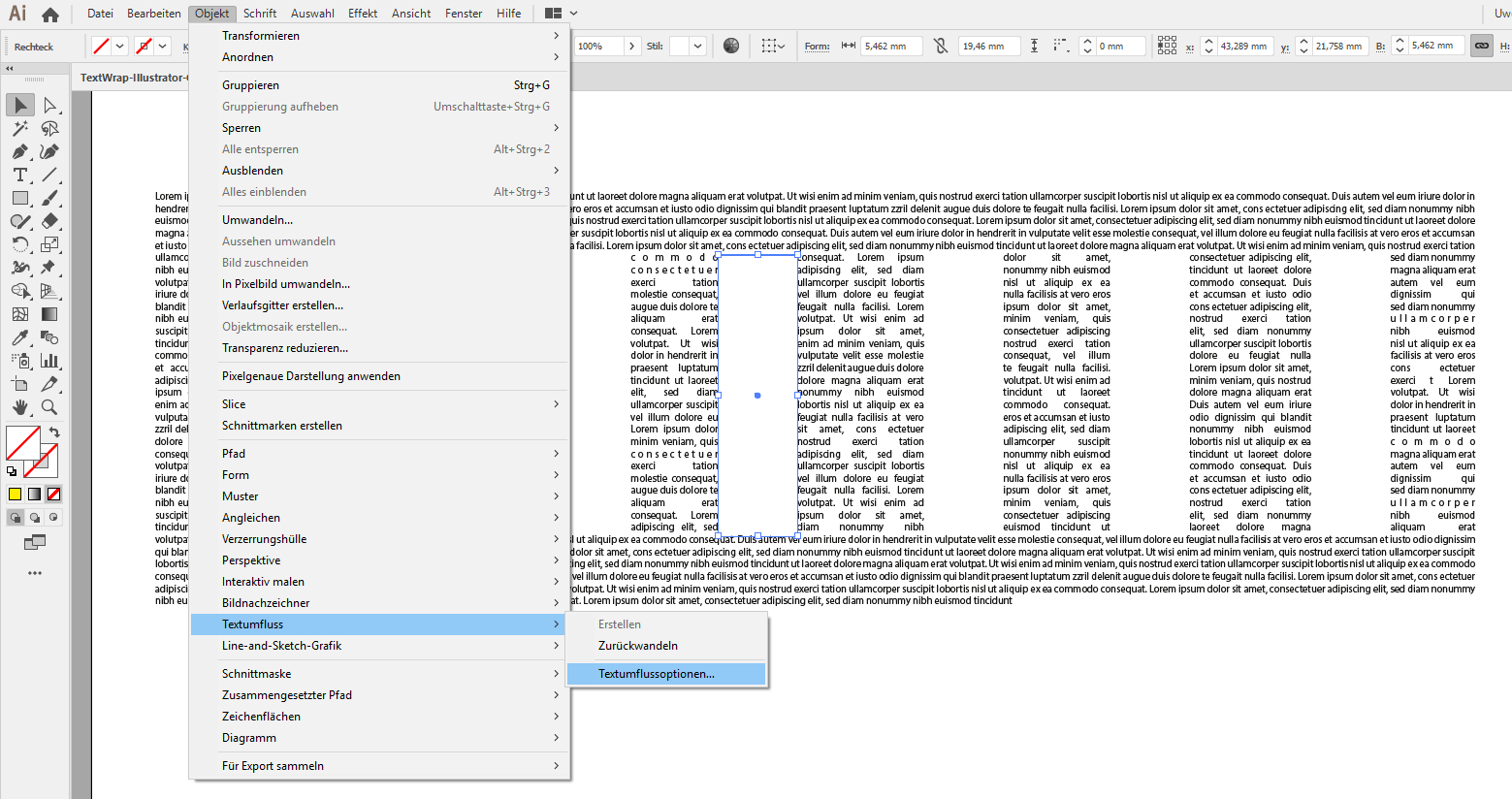
Text wrap options set:

Regards,
Uwe


Get ready! An upgraded Adobe Community experience is coming in January.
Learn more
 AdChoices