


- Home
- InDesign
- Discussions
- Continuous linked text frames - master pages
- Continuous linked text frames - master pages

Copy link to clipboard
Copied
Hi. I have one problem with creating calendar planner. I already have layout in master page like this: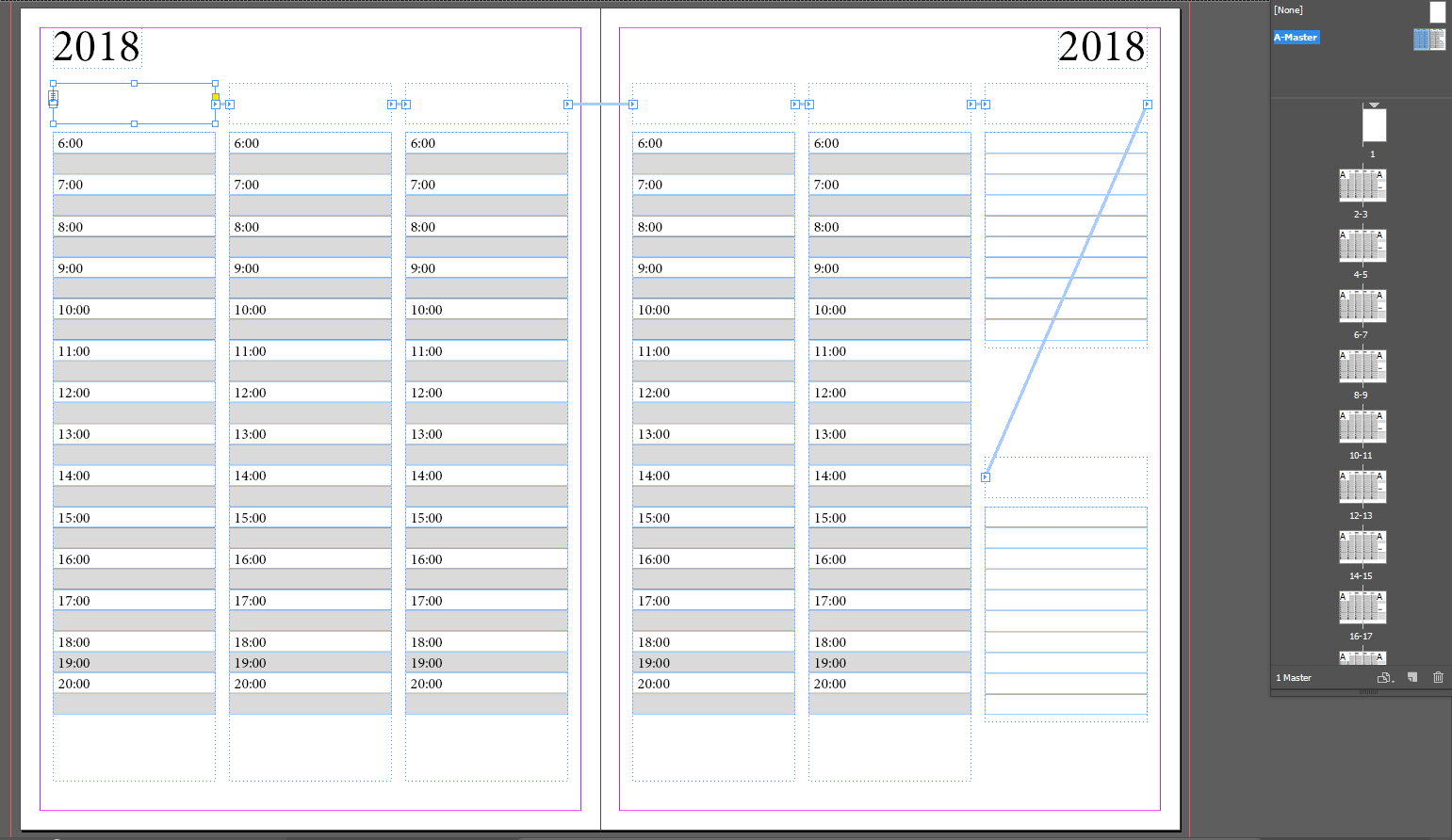
I meant it like: Linked text frames are frames for Day+Date fe. "Mo (TAB) 1." with this layout is no problem. When I'm on first ordinary page, and fill the first text frame with copy+paste content from excel, everything works fine. Su 7. is the last on this doublepage layout, and automaticaly creates more, and more, and every text frames are correctly linked, between themesleves. BUT - and there is the problem - next to the year I need to put new text frame filled with month, and it is not possible, because, when I create text frame in master page, then Ctrl+Shift+click on it in first ordinary page a paste list of months, indesign fill correctly first doublepage, then create NEW second, 3rd, 4th, 5th.... doublepages, and Text frames with day and date are empty, now. Filled doublepages are moved to the end of document and these pages are without month filled in, of course.
Please, is there any trick to work it fine, or very different method to make planner like this effectively?
Thank you.


 1 Correct answer

Oh, it works. Under 'doublepages' you mean spreads?
Assuming you already have Smart Text Reflow turned off, and you copy/paste your text:
1. On a Master create one thread of text frames for Days, and another for Months (just like you did, it's OK).
2. Create two spreads with your Master applied.
3. On the first spread paste your Days text just as you did earlier. Notice the difference: text flows in that active spread only, and stops in the last (Sunday) frame.
4. Click on the red out port indicating
...
 6
Replies
6
6
Replies
6

Copy link to clipboard
Copied
Check Preferences > Type > Smart Text Reflow. Most likely you have it ON. Turn it OFF - don't allow a piece of code trying be smarter than you!
Restart with placing text from scratch. Now InDesign will behave in a bit different manner, which allows to do what you're after. If this will be enough for you - congrats. If no - come back for further instructions.
Copy link to clipboard
Copied
At first, thanks for you reaction, but no, it doesn't work. Because text frames between doublepages are not linked together. When I fill text frame on first page, frame is only overfilled, and nothing happens  ... other text frames are on all pages (because of masterpage), but inactive and empty.
Copy link to clipboard
Copied
Oh, it works. Under 'doublepages' you mean spreads?
Assuming you already have Smart Text Reflow turned off, and you copy/paste your text:
1. On a Master create one thread of text frames for Days, and another for Months (just like you did, it's OK).
2. Create two spreads with your Master applied.
3. On the first spread paste your Days text just as you did earlier. Notice the difference: text flows in that active spread only, and stops in the last (Sunday) frame.
4. Click on the red out port indicating overset text, with cursor loaded go to the second spread, hover your 'first' text frame (no need to override/detach it), and click holding Shift key. Text flows through the spread and continues to pages InDesign will add.
5. Now go back to the first spread and repeat actions 3 and 4 with the Months frame. Text will flow through existing spreads, in correct frames.
That's it.
If you place your text file, instead of copy/pasting, process is even simpler:
1. You need only one spread with your Master applied. Well, you can have more, it doesn't matter.
2. After Place command you have your cursor loaded with text.
3. Hover your 'first' text frame on a spread (no need to override/detach it), and click holding Shift key (notice how cursor icon changes when you press Shift). After clicking text flows through the spread and continues to pages InDesign will add.
4. Rinse and repeat with your Months thread.


Copy link to clipboard
Copied
Did the above suggestion resolve your issue? Please let us know so that we can troubleshoot further if needed.
Copy link to clipboard
Copied
Thank you so much. It really work, as you wrote, and maybe I'm lame, but I dont see the right post there. But yes, if is smart text reflow turned off, and I manually link out port from first spread to second spread, it creates new pages (automatically), filled and linked correctly.
Copy link to clipboard
Copied
Glad you sorted it out.
Don't worry about that 'right' post, it will re-appear soon. I did some minor corrections to text, and it is now being moderated.


Get ready! An upgraded Adobe Community experience is coming in January.
Learn more
 AdChoices