


- Home
- InDesign
- Discussions
- Help with PDF and Image importing via XML
- Help with PDF and Image importing via XML
Help with PDF and Image importing via XML

Copy link to clipboard
Copied
Hello everyone,
I need some help with auto importing XML generated from a custom database?
I am very new to this and no expert so please go easy on me.
I am trying to import and place text, graphic, and PDF documents from one XML script into my InDesign CS5 application.
I have it working fine for just Jpeg image files, but as soon as the XML finds a PDF in the script, it comes up with all sorts of formatting errors and the import of data does not work.
What I am asking is the following...
- Is there is a way to auto place a PDF from XML script?
- If so, will this then work with a multi page PDF?


 16
Replies
16
16
Replies
16


Copy link to clipboard
Copied
Let me know if you find an answer for this.

Copy link to clipboard
Copied
I've been writing scripts for InDesign since 2004, but here from you I hear about 'XML scripts' for the first time. 
As far as I know, Indy supports three scripting languages:
- JavaScript
- AppleScript
- Visual Basic
Did you mean JavaScript (the most popular one)? If so, yes it's possible and here's the MultiPageImporter script. The code is open so you can see how it's done.
— Kas
Copy link to clipboard
Copied
Thank you so much for answering, Kasyan.
The script produces an XML Export from the database: this contains a mixture of non-formatted text and (JPEG and PDF) files.
We can get the text and image to import successfully, into InDesign CS5, however, when InDesign reads the XML, it throws back a formatting error. (something like "Bad Format: Line 10, Column 93") I assume this because it cannot identify the .PDF file extension to place the content correctly within the frame using XML tags.
Copy link to clipboard
Copied
I am afraid I can't help you here. I had experience in making scripts for working with XML in InDesign: placing, manipulating (mostly with xml-rules), exporting, etc. Also, I did some scripts using the XML Object. However, I have no experience with databases at all.
I suggest you to post your question in the scripting forum providing more details: maybe relative code snippets and screenshots.
— Kas
Copy link to clipboard
Copied
Thank you again for replying, Kas.
The database aspect is, I think, irrelevant here.
The "export" looks like this (I have merely substituted the actual words of the text and the actual filenames with "TEXT" and "FILENAME"):
<?xml version="1.0" encoding="UTF-8" standalone="no" ?>
<root>
<memory>
<memoryid>9</memoryid>
<version>7</version>
<title>TEXT</title>
<datetime>2017-05-07 18:47</datetime>
<text>TEXT</text>
<files>
<!--<file href="file:///FILENAME.pdf"></file> -->
<caption></caption>
</files>
</memory>
<memory>
<memoryid>10</memoryid>
<version>3</version>
<title>TEXT</title>
<datetime>2017-05-10</datetime>
<text>TEXT</text>
<files>
<file href="file:///FILENAME.jpg"></file>
<caption></caption>
</files>
</memory>
</root>
You can see that we have commented out the PDF file (with <!-- ... -->).
This is to enable the XML file to be imported. Without the commenting out, the import currently fails with the "Bad Format" message I mentioned before.
We just need to know what we have to change (either in the XML file or in InDesign itself) so that the multi-page PDFs can then be imported along with the text and JPEGs and text.
Thanks again for your ongoing help.
Copy link to clipboard
Copied
It seems to be working for me in CC 2018 (Windows 10). Here the "Test.pdf" is a small two pages pdf file.
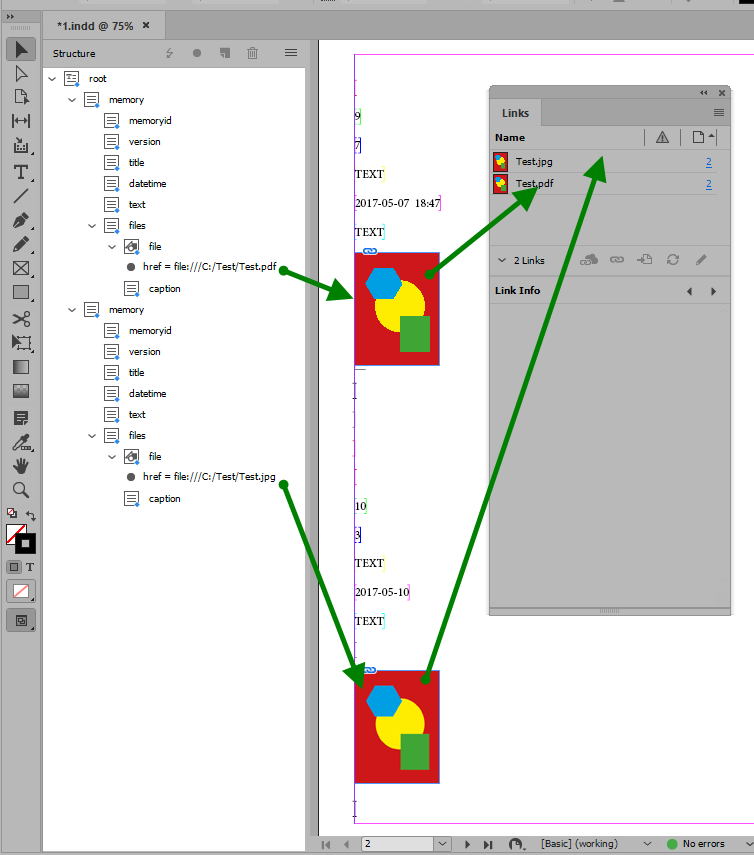
I don't get the error. Obviously, only the first page of the pdf is imported. I don't think you can do multi-page import via XML.
For simplicity, on import I turned all check boxes off:

Here's my xml-file
<?xml version="1.0" encoding="UTF-8" standalone="yes"?>
<root>
<memory>
<memoryid>9</memoryid>
<version>7</version>
<title>TEXT</title>
<datetime>2017-05-07 18:47</datetime>
<text>TEXT</text>
<files>
<file href="file:///C:/Test/Test.pdf"></file>
<caption></caption>
</files>
</memory>
<memory>
<memoryid>10</memoryid>
<version>3</version>
<title>TEXT</title>
<datetime>2017-05-10</datetime>
<text>TEXT</text>
<files>
<file href="file:///C:/Test/Test.jpg"></file>
<caption></caption>
</files>
</memory>
</root>
I am off to bed: it's 3:30 a.m. here.
— Kas
Copy link to clipboard
Copied
P.S. Are you able to place the PDFs manually? Probably they were created in a newer version which CS5 doesn't recognize, or damaged (e.g. while being downloaded from internet).
Copy link to clipboard
Copied
My goodness! What a wonderful answer, Kas!
Thank you so much for going to so much trouble and staying up so late.
I have been trying to achieve the automatic import of multi page PDFs along with the text and the JPEGs.
We managed to get the first page of multi-page PDFs to import automatically but not all the other pages of each and every PDF.
I created the PDFs myself using my own scanners so they should all be fine (i.e. not corrupted).
We found that there is a JavaScript script within InDesign CS5 (Window/Utilities/Scripts/PlaceMultipagePDF.jsx) for multi-page PDFs but we have not yet tried to work this into our Export XML script.
We also had 2 items checked on the Import Options ("Clone repeating Text elements", as there are many text elements, and "Do not import contents of whitespace elements", as these had caused the Import to error).
I will ask my two consultants (one an expert in coding and the other very good at InDesign) to see whether we can gain any help from all that you have so kindly sent us.
What we are trying to do is to import a whole load of very structured but non-formatted text, photos and scanned documents into InDesign in order to do all of the formatting of our "Book" there.
It is therefore very important for us to get all of the pages of the PDF into InDesign in one go and then be able to move them around and resize them easily.
Otherwise, we would have to find and place the PDFs "manually" (i.e. not using a script) and this would be very time-consuming and especially so if the contents of the Book keep on changing (in the database, that holds all of the text, photos and scans prior to Export). This is why we want to get the XML export and import "just right".
Copy link to clipboard
Copied
I have been trying to achieve the automatic import of multi page PDFs...
It is therefore very important for us to get all of the pages of the PDF into InDesign in one go...
No, it's impossible to do while the xml-file is being imported in one step.
When you're importing a pdf manually, you can choose only one page and then, after placing, you can't change it. The same happens if you do this by script. So, you have to do this in two steps: maybe you'll be able to combine them into one script so for the user it would look like 'one go'.
If I were you, I'd use the following approach:
1. Right after placing the xml-file which results in only the first page placed ...

... for each pdf (or an xml element associated with pdf), place the next page until all the pages are placed.
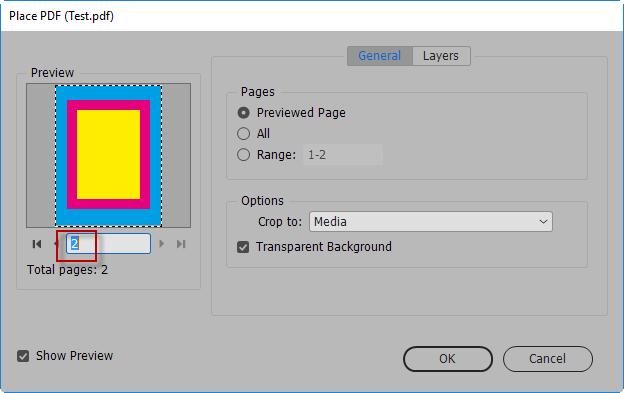
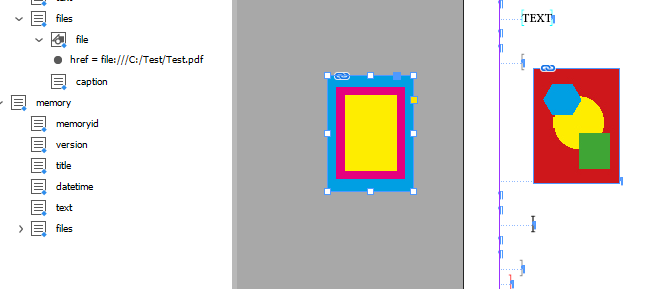
2. Then add it to the xml structure right after the 1st page element applying the file tag.
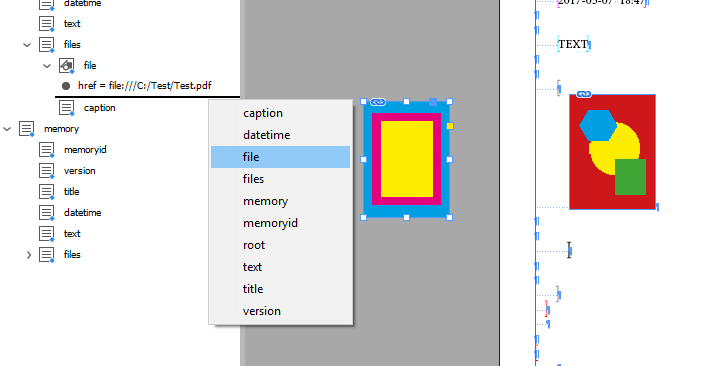
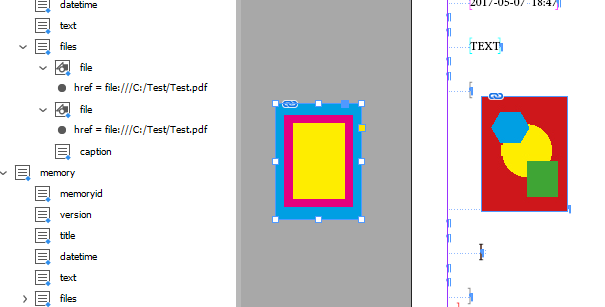
3. Finally, make it anchored object. Manually I shift-dragged it into the frame below the 1st page image to make it inline (you may want another option depending on your layout).
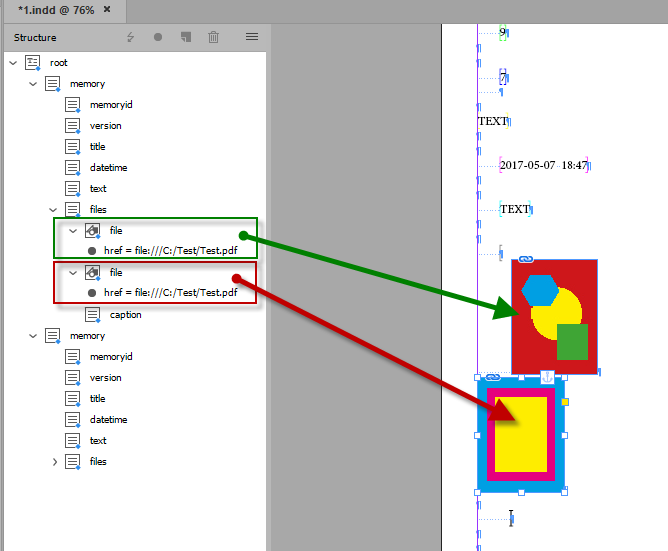
I did this manually so it's possible to do by script.
— Kas
Copy link to clipboard
Copied
Thank you once again for easily the best and most detailed replies I have ever received from a forum, Kas!
I have passed your wonderfully detailed comments on to both of my advisers (the coding expert and the very experienced InDesign user) and one of them may even get back to you on this forum.
It may now take a week or so for us to get back to you, as I will next be seeing my InDesign consultant on Monday, 30.10.17.
Thanks again.
Copy link to clipboard
Copied
I have passed your wonderfully detailed comments on to both of my advisers (the coding expert and the very experienced InDesign user) and one of them may even get back to you on this forum.
It may now take a week or so for us to get back to you, as I will next be seeing my InDesign consultant on Monday, 30.10.17.
I can't promise I would have time to reply you next week. This week we're on a forced vacation so I simply stay at home and have nothing to do.
— Kas
Copy link to clipboard
Copied
No problems, Kas. I have just read your "Brief Bio": great write-up and your dog must be very pleased to see his photo online
Copy link to clipboard
Copied
... and your dog must be very pleased to see his photo online
Unfortunately my dog -- approx. 15+ y.o; the exact age was unknown since my wife found him stray, ill and miserable on a street ages ago -- has died last year.
— Kas
Copy link to clipboard
Copied
I am so sorry to hear that, Kas, but ... he lives on and has even been seen here in England now!
I congratulate you and your wife for taking him in. He was a lucky dog ... in the end!
Copy link to clipboard
Copied
I created the PDFs myself using my own scanners so they should all be fine (i.e. not corrupted).
We found that there is a JavaScript script within InDesign CS5 (Window/Utilities/Scripts/PlaceMultipagePDF.jsx) for multi-page PDFs but we have not yet tried to work this into our Export XML script.
It's a very good example for you to make your own script.
Note: InDesign can't figure out how many pages a pdf-file has and Olav Martin Kvern -- the author of the script -- found a very elegant solution.
Here's the function of interest:
function myPlacePDF(myDocument, myPage, myPDFFile){
var myPDFPage;
app.pdfPlacePreferences.pdfCrop = PDFCrop.cropMedia;
var myCounter = 1;
var myBreak = false;
while(myBreak == false){
if(myCounter > 1){
myPage = myDocument.pages.add(LocationOptions.after, myPage);
}
app.pdfPlacePreferences.pageNumber = myCounter;
myPDFPage = myPage.place(File(myPDFFile), [0,0])[0];
if(myCounter == 1){
var myFirstPage = myPDFPage.pdfAttributes.pageNumber;
}
else{
if(myPDFPage.pdfAttributes.pageNumber == myFirstPage){
myPage.remove();
myBreak = true;
}
}
myCounter = myCounter + 1;
}
}
To place a specific pdf-page we set pageNumber property of pdfPlacePreferences object.
To get the page number of the already placed pdf, we read pageNumber property of pdfAttributes object (which is, obviously Read Only)
The script uses incrementing by one myCounter variable to set the currently placed page number:
app.pdfPlacePreferences.pageNumber = myCounter;
When the script reaches the page number beyond the scope (invalid, unavailable page) -- for example, pdf has two pages and script attempts to add page #3 -- InDesign automatically resets the app.pdfPlacePreferences.pageNumber property back to defaults -- 1 -- and places the 1st page for the 2nd time.
Then the script checks if pdfAttributes.pageNumber is the same as the 1st page (in other words, has been reset) and is so, remove the last page together with the superfluous 1st pdf-page and break the loop.
else{
if(myPDFPage.pdfAttributes.pageNumber == myFirstPage){
myPage.remove();
myBreak = true;
}
}
That's the way it works. I tried to explain you the logic of the script you can use to achieve your goal.
Hope it helps!
— Kas
Copy link to clipboard
Copied
Thank you again, Kas!
I will forward this on to both of my consultants.to see if we can incorporate this into how we "automate" the import and placing of the separate PDF pages.
I will then let you know how we get on with this.
It may take a little time for us to experiment with this, as my coding expert will have to work (remotely) with my InDesign expert and them with me.
I will then let you know how we get on.


Get ready! An upgraded Adobe Community experience is coming in January.
Learn more
 AdChoices