


- Home
- InDesign
- Discussions
- Indesign - Interactive PDF - clicking options?
- Indesign - Interactive PDF - clicking options?
Indesign - Interactive PDF - clicking options?

Copy link to clipboard
Copied
Hey everyone,
I have designed a document with 9 icons on the page.
is there anyway I can make the pdf interactive and allow the user to select which icons they prefer and grey out the others?
then print accordingly?
thanks in advance


 8
Replies
8
8
Replies
8



Copy link to clipboard
Copied
Add interactive buttons in InDesign
Read -
Create multi-state objects


Copy link to clipboard
Copied
They don't work in PDF.
Copy link to clipboard
Copied
Thanks Bob,
So even as an interactive PDF your saying it doesn't work?
Do you know a work around?

Copy link to clipboard
Copied
No, no, no, no, NO!!!!!
It works as an interactive PDF.
You make all the icons into buttons. This includes all black icons and then the same ones as grey.
You create a button that will show one of the sets of black icons and hide the other black icons. And then show the grey versions of those buttons. (Show/Hide Fields)
You create a second button that does the opposite.
The effect can also be done more easily by using a button to show/hide Acrobat layers. But those layers have to be exported from ID. And then the buttons modified in Acrobat.
BUT IT CAN BE DONE!!!
Of course there may be problems if your users work on tablets or non-Acrobat readers. I can't guarantee all results will work.
Copy link to clipboard
Copied
Thanks for your help
but I'm still really confused!

Copy link to clipboard
Copied
Hi Justsammiles
If you're open to suggestions, sometimes I think it's easier to rethink what you're hoping to achieve. A simpler option is to have the icons already appearing slightly greyed out/or a different colour by changing the opacity or colour of the object. Then as they are selected they will appear in full strength or in colour to show the user they have selected their preferred icon. See below for visual.
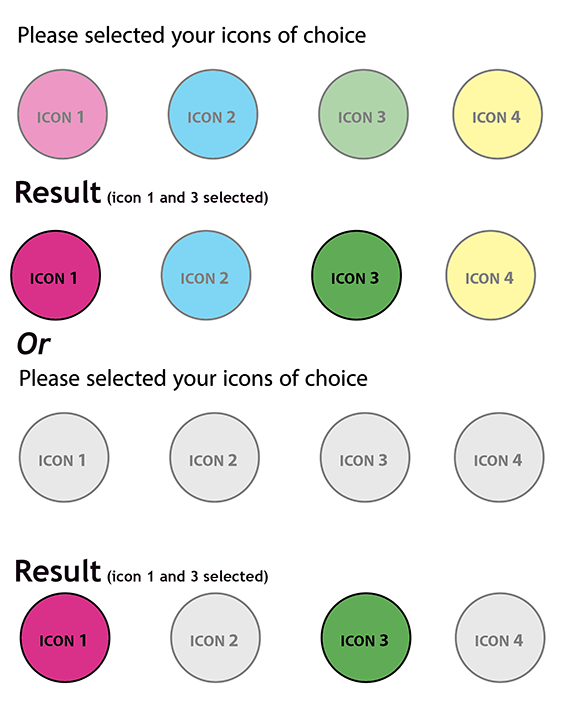
To do this
Select 'Buttons and Forms' panel from the 'Interactive' menu in the 'Windows' menu
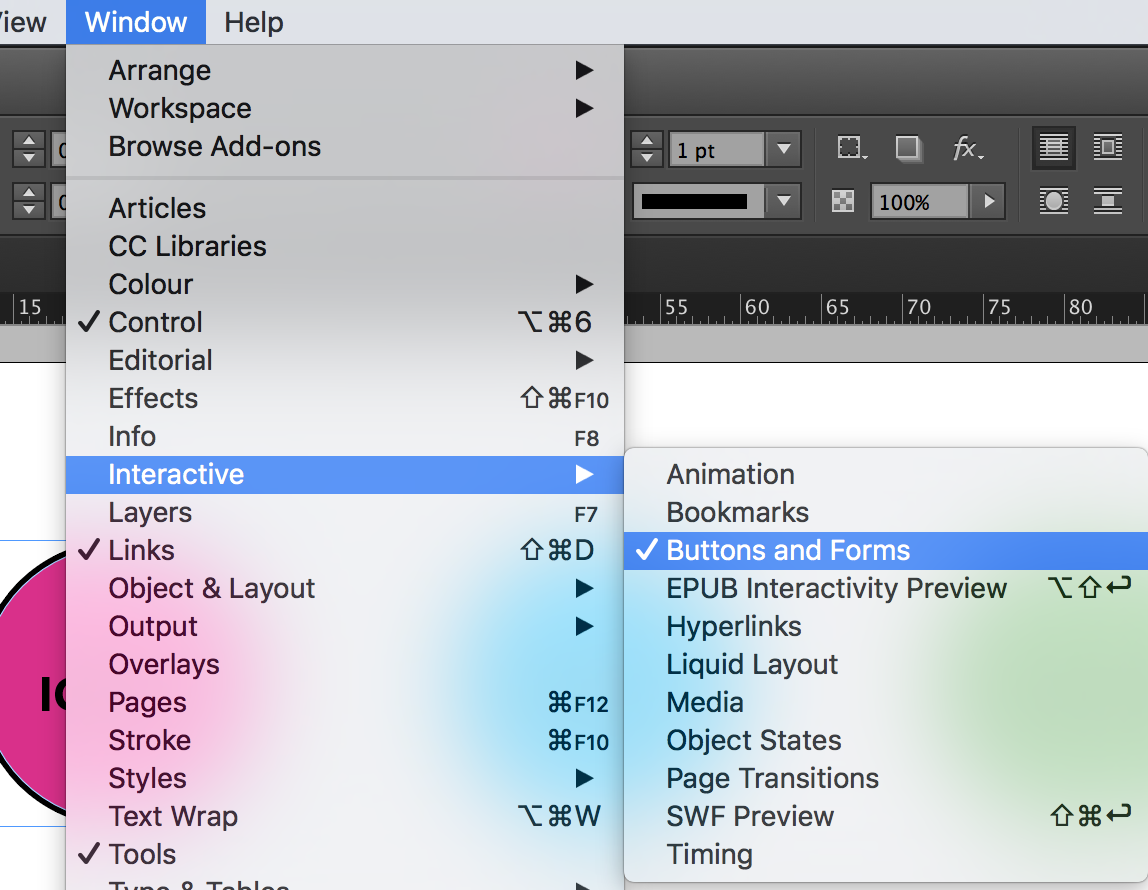
With your object selected, click the icon to the bottom right of the panel to create a button.

in the 'Appearance' area of the panel 'Normal' is highlighted. This is how your button will appear on your pdf. If you change it's appearance at this stage that is how it will appear. Change the opacity of the object so it is ghosted back or changed in colour to grey. (I've chosen to change the opacity to 50%).

In the 'Click' option you can change it to how you would like to look once the user has selected it. (I've made it's opacity 100%).
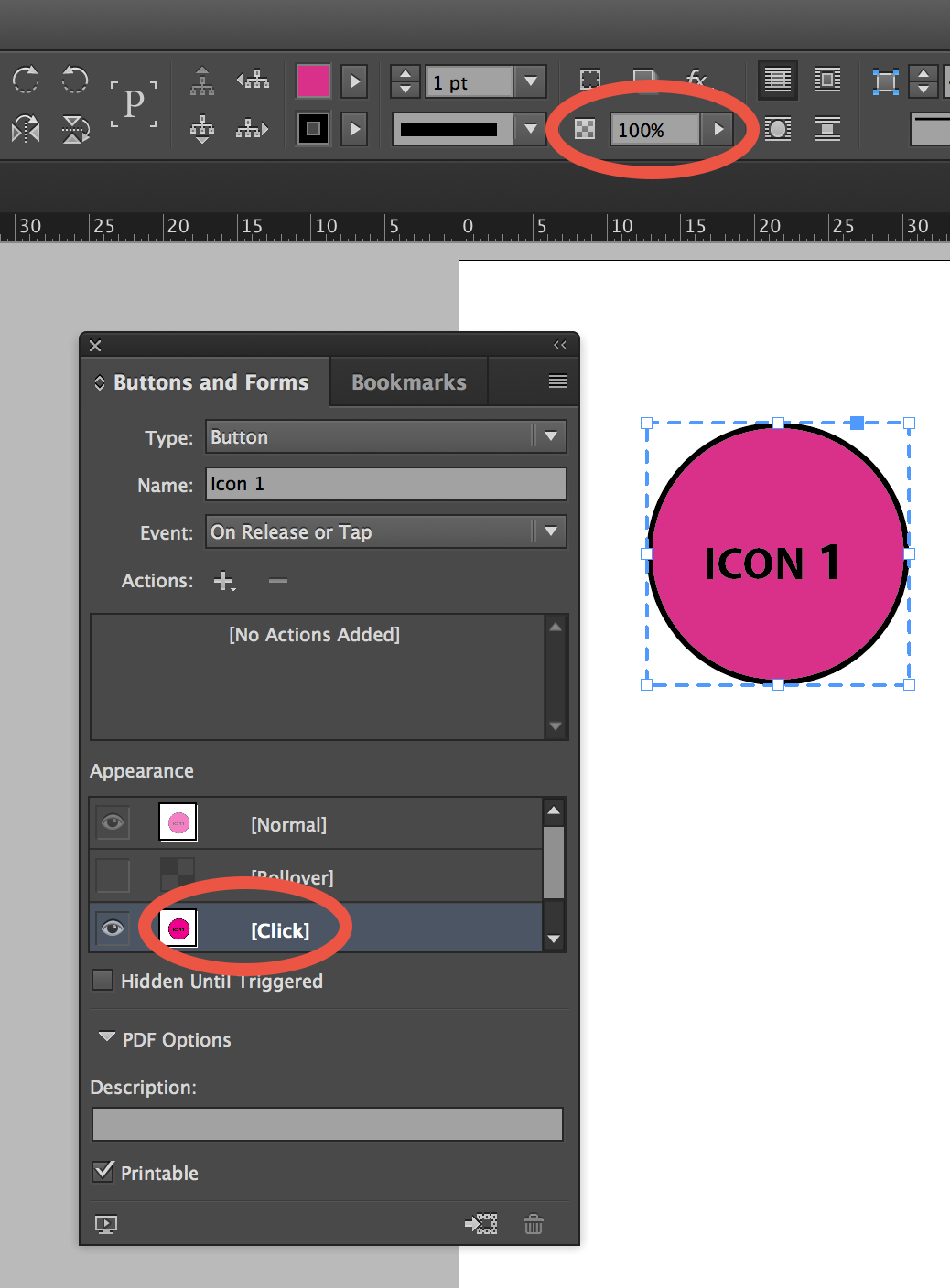
Do this for each of your buttons. Now only the selected icons will appear full strength.
Hope this is a simpler alternative for you.

Copy link to clipboard
Copied
Hi Alma,
I've been using your example to try and achieve something similar to Justsammiles but there's one last thing that I can't seem to solve on my own.
I need it so the button remains in either an opaque or transparent state just by clicking. In your example it does this but reverts back to it's transparent state once the mouse button has been released. I also need the button to potentially be flipped back and fourth between these 2 states indefinitely so the user can change their mind (I hope that's clear?!)
Are you, or anyone, able to help with this or at least suggest another way I could achieve this?
Thanks,
Luke
Copy link to clipboard
Copied
This is an old post. Please start a new discussion with full details on what you're trying to accomplish along with your version of ID, operating system and how you plan on viewing these PDFs.


Get ready! An upgraded Adobe Community experience is coming in January.
Learn more
 AdChoices