
Inspiring
December 14, 2016

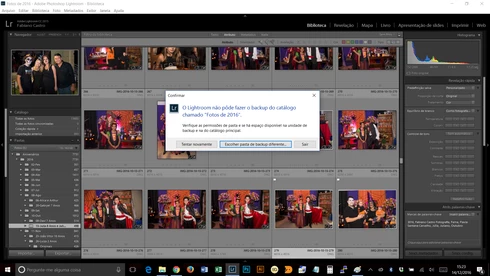
P: If using 2-byte characters for catalog path, unable to backup

  • December 14, 2016
  • 9 replies
  • 560 views

Hello,Since the upgrade to Lightroom CC 2015.8, I get an error with the backup of the catalog in Win10. Lightroom asks me to select another folder or even another drive. I’ve tried both, without success.When will a correction come out?I am unable to make backups of my catalogs.
This topic has been closed for replies.

9 replies

Rikk Flohr_Photography
Community Manager
Community Manager
March 7, 2017
Adobe released Lightroom 6.9/CC2015.9 today.

This issue should be corrected in this release. Please give it a try and let us know if you see any further issues. 

Complete information about this update can be found at the Lightroom Journal: http://blogs.adobe.com/lightroomjournal/2017/03/lightroom-cc-2015-9-now-available.html

If you don’t see the update in your Creative Cloud App, you can use the kbsc [Cmd/Ctrl]+[Opt/Alt]+[ R ]  to refresh your app. If you are a perpetual license holder, you can access the update via Help>Updates...

Refer to this for any installation issues: http://blogs.adobe.com/lightroomjournal/2013/06/keeping-lightroom-up-to-date.html#lrcc2015
Rikk Flohr: Adobe Photography Org
alanterra
Inspiring
February 27, 2017
Hey, just for those of you who are saying "I'm not at all good with the tech speak" and are still dealing with this problem, until this bug is squashed the work-around is pretty simple:
  • Find your catalog in the Finder (on Macintosh, open Lightroom and then command-click on the name at the top of the window to find your catalog if you have forgotten where you keep it).
  • Make sure Lightroom is closed, and then make a compressed copy of your catalog. (On Macintosh, right-click or control click on the catalog (extension ".lrcat") and choose "Compress <file name>.lrcat")
  • Add today's date and the word "backup" to the name of the new compressed catalog
  • Move the compressed file to where ever you want to keep your backups
  • Every week or so, choose File:Optimize Catalog in Lightroom and make yourself a cup of coffee while it completes.
As long as you do the above regularly, you can turn off backups in Lightroom. And, honestly, if you use reliable backup software like Time Machine, backups in Lightroom are a bit like wearing braces and a belt.

A
Inspiring
February 27, 2017
Thanks. Its solves the problem.
Participating Frequently
December 27, 2016
I, too have this problem on my Mac since the update. I'm not at all good with the tech speak, unfortunately. I have no idea how to zip up a file, and I'm not comfortable with following the instructions to deal with the "root presets folder". So, I guess I will have to wait for the fix, and hope it comes soon.
Inspiring
December 23, 2016
Not had this problem myself yet, and sorry to be "dim" but what precisely is meant by "2-byte character"?
Victoria Bampton LR Queen
Community Expert
Community Expert
December 19, 2016
If you're willing to do so, zip up your catalog (just the lrcat bit) and use www.wetransfer.com to send it to me at uploads@lightroomqueen.com (google Lightroom Queen if you want to know who I am!) and I'll attach it to the internal bug for investigation.
Victoria - The Lightroom Queen
Inspiring
December 19, 2016
I have the same problem. the fix with the config.lua file did not solve the problem. Whats next ?
Inspiring
December 15, 2016
Thank you Victoria Bampton. Problem resolved.
Victoria Bampton LR Queen
Community Expert
Community Expert
December 14, 2016
Copying Chandan's response from another thread:

Our engineers are looking into this, looks like a double byte character issue in Lrcat file name. 
For a workaround, if you can remove any double byte character from cat name or could you please try the following
  1. Open Lightroom.
  2. Invoke Lightroom > Preferences... menu command
  3. When the Preferences dialog appears, select the Presets tab.
  4. Click on the button labeled “Show Lightroom Presets Folder...”
  5. Lightroom will reveal the root preset folder in the Finder/Explorer.
  6. Now goto Adobe Creative Cloud  and download the config.lua file and copy it into the root preset folder (under "Lightroom") at step 5. The config.lua file will reconfigure the old backup behaviour. 
  7. Relaunch Lr and follow your normal routines to reproduce the issue to see if it improves. 
  8. (Later)Remove or rename the config.lua from the root preset folder once the bug is fixed.
Thanks!
Victoria - The Lightroom Queen