



johnrellis
Brainiac
January 4, 2017

P: Synchronize Folder incorrectly shows photos as missing

  • January 4, 2017
  • 15 replies
  • 6777 views

Synchronize Folder sometimes shows photos as missing when they're not. To reproduce in LR 13.0.1:


1. Download and unzip this catalog folder:

https://www.dropbox.com/s/rzpzmsn1cpc3xlg/sync-bug.2023.10.27.zip?dl=0 


2. Open the catalog in LR.


3. Uncheck the option Preferences > General > Treat JPEG Files Next To Raw Files As Separate Photos.


4. In the Folders panel, right-click "pics" and do Synchronize Folder.


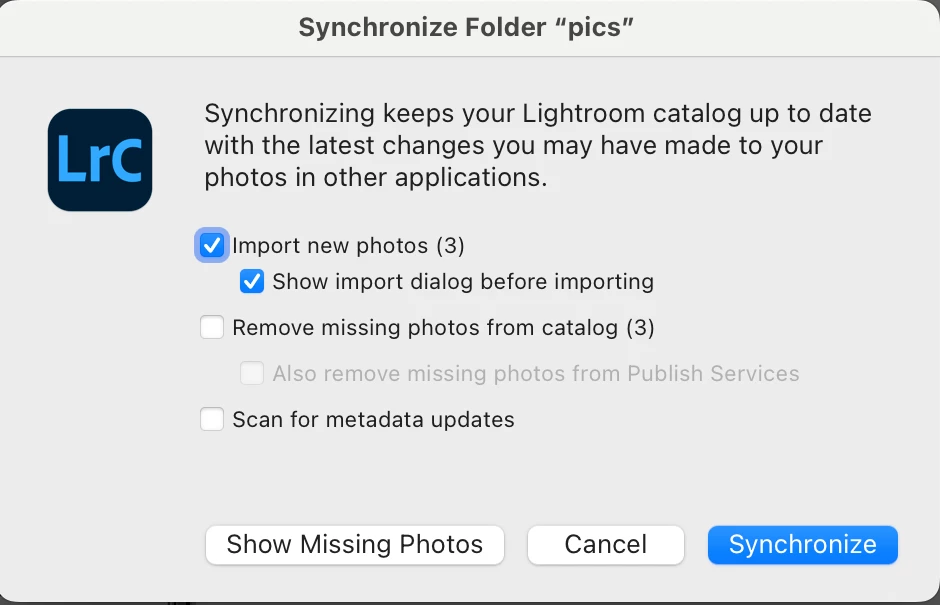
5. Observe that the three photos in the catalog are reported as missing:
 

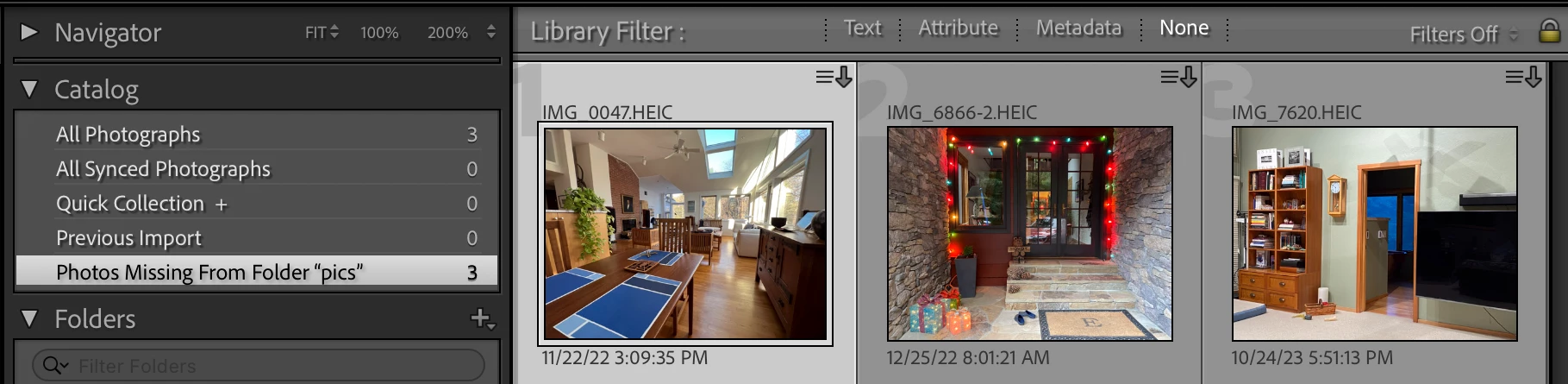
6. Click Show Missing Photos and observe that the special collection Photos Missing From Folder "pics" contains the three photos, and they are not marked as missing:
 

7. Right-click "pics" and do Synchronize Folder again, this time checking Show Import Dialog Before Importing, unchecking Remove Missing Photos From Catalog, and clicking Synchronize.


8. Observe that the three JPEGs in the folder are shown for import. Click Import, and they will be correctly imported and the HEICs will not be removed from the catalog.

--------------------------------------


There have been reports about Synchronize Folder incorrectly showing files as missing since at least LR 6.0.1. There was a bug report in the old feedback forum that didn't copied over -- my email archives show it received at least 19 votes:
 

15 replies

ZimFromIRK
Inspiring
October 27, 2023

This bug report is for Lightroom Classic 13.0.1 on Windows 11.

I have a folder that contains 30 iPhone-created HEIC files and 30 iPhone-created JPEG files that have the same name and (fortunately) content.

Example of one of the 30 pairs of files:


20210717-IMG_3301.HEIC
20210717-IMG_3301.JPG


I have Edit->Preferences->Treat JPEG files next to raw files as separate photos turned off.  As expected, Lightroom does not show me the JPG files, so it appears to be treating them as JPEG files next to RAW files -- even though HEIC files are not actually RAW files. 

Now I right-click the folder and click "Synchronize Folder...".  Here is the resulting dialog:

Lightroom thinks that the 30 HEIC photos are missing.  I know this because when I use "Show Missing Folders", Lightroom creates a collection of the 30 HEIC photos that are clearly not missing.  The collection is named Photos Missing From Folder "2021-07-17" and the HEIC photos are not marked with [!].  I can also see them in Windows Explorer.

If I click "Show import dialog before importing", I can see that it's going to import the 30 JPG photos and remove the 30 HEIC photos.

I have no idea why Lightroom thinks the HEIC files are "missing" and this is disturbing as recently, a folder-full of HEIC files from 2019 in LIghtroom "disappeared" from my computer. However, those HEIC files are reported as "missing" by Lightroom and are actually marked as missing with [!] and no longer exist on my computer.

Here's part 2: if I check Edit->Preferences->Treat JPEG files next to raw files as separate photos and click "Synchronize Folder", I get this:

Sure enough, Lightroom will leave the 30 HEIC photos alone (it no longer thinks they are missing) and will import the 30 JPEG photos as separate photos.

This seems like a bug in how HEIC photos are processed, with JPG photos treated like RAW sidecar files if Treat JPEG files next to raw files as separate photos is turned off. 

I'm not entirely sure how I got into this situation: each JPEG file has the same timestamp as the HEIC file. I don't know if that's important or not but as far as I know, JPG files next to HEIC files should not be treated as sidecar files.

It should be easy enough to reproduce: just convert a folder full of HEIC files to JPG files in the same folder and see how they are treated.

johnrellis
Brainiac
October 27, 2023

There have been reports about Synchronize Folder incorrectly showing missing photos since at least LR 6 in 2015. There was a bug report in the old feedback forum about this, but it got lost in the transition to the new forum platform a couple years ago.


Thanks to all the details you provided, I was able to file a new bug report with precise details for reproducing the problem, making it more likely Adobe might finally fix it.


The workaround is simply to ignore what Synchronize Folder tells you about missing files and never check its option Remove Missing photos From Catalog. Instead, use the menu command Library > Find All Missing Photos.

ZimFromIRK
Inspiring
October 28, 2023

Fantastic! Thanks for herding this along.

Participating Frequently
April 15, 2023

I'm not sure if this is a bug, or simply something I am doing incorrectly. 


Windows OS, Intel Processor, NVIDIA Graphics
Edition: Windows 10 Home

Lightroom Classic, V12.2.1


My process: I manually move photos from my camera card to my Windows folder that Lightroom. Once that is finished, I open Lightroom Classic, navigate to that folder in the Library View. I right click on the folder name and choose "Synchronize Folder". One of the options, Remove missing photos from catalog shows 570 missing photos. This number has consistenly grown over the last month. If I choose "Show Missing Photos" in this box, Lightroom shows me 570 photos and puts them in a temporary collection. There's no grey x in the corner on the photos. If I right click and choose "Show in Explorer" Lightroom opens to the folder and the photo is there. 


If I go to Library - Find All Missing Photos, Lightroom tells me I have no missing photos in the catalog. All photos in this catalog are available.


Is this a bug? I don't dare delete any of the photos, or choose Remove missing photos, because I don't want the photos gone. Am I missing something to fix this problem? 


Thank you for any help. 

JohanElzenga
Community Expert
April 15, 2023

This could be the capitalization error: https://www.lightroomqueen.com/capitalization-catalog-error/

Sometimes Lightroom shows a duplicate folder, but not always. In this case, Lightroom probably sees that second folder when it analyses the folder for synchronisation and so it thinks the photos are missing from it. The easiest solution is to ignore it as long as the final synchronisation does not cause any problems.


-- Johan W. Elzenga
Participating Frequently
April 30, 2023

Nope, it's not a capitalization error. Thanks for the idea.


What I've figured out is it's a DNG/Jpeg error. I don't know how to fix it. 

My Google Pixel takes photos in DNG and JPG. I let it because it's nice to have the Raw photos sometimes, and it's nice to be able to share or print a quick jpg. Somehow, when the photos come into Lightroom, the program sometimes sees them as one photo with 2 types, sometimes 2 photos, and sometimes the missing photo and photo. 

In my attached photo, the yellow flagged photos are the ones that Lightroom has flagged as missing. The first photo of the pizza and the last photo of the dog do not have the missing photo issue. 


I don't know if this has been addressed somewhere, but I'm off to look. Or, if you know how to fix this, please let me know. 

quicky2000
Participating Frequently
July 9, 2022

Hey guys,

I've went through all "missing photo" posts here but it seems that mine is a bit different: When I do "Sync folder" Lightroom Classic tells me that some of my photos are missing. When I look at the images I can even ask Lightroom to show me the photos in my Windows Explorer. And guess what: They are all existing. I have this issue for quite a while now (several years) but now I was able to identify the root cause:

Everytime I have an image which has the identical filename/exif data but a different filetype Lightroom Classic can't find one of them:

E.g. in my folder I have those two images: 20131020_164026.JPG and 20131020_164026.CR2 Lightroom tells me that 20150508_000000.jpeg is missing. As you might see: My filenames match the exif date and time so I don't know if the bug is caused by the filename or the exif data but it's 100% reproducable.


I couldn't find this in the existing bug-overview but it would be amazing if someone could confirm this so it can be fixed in some upcoming release.


I'm running the latest Lightroom Classic on a Windows 11 PC with all latest builds.


Thanks and cheers,


Oliver

johnrellis
Brainiac
July 9, 2022

Synchronize Folder has been reporting incorrect numbers of missing files since at least LR 6.0. There was a bug report filed about this:

Lightroom: Synchronize Folder shows spurious number of missing files | Photoshop Family Customer Com...


But it got dropped in the transition last year from the old feedback forum to the new community forums.


The easy workaround is to ignore what Synchronize Folder says and use Library > Find All Missing Photos instead.


New Participant
February 23, 2019

in grid view I did a right-click on top folder to check for photos (sync folder). Already in the initial dialogue window, LR performed a scan (counting corresponding images) and generated a temp collection "Missing photos"which suddenly contains 2700 images ... BUT when I right-click on any photo of this new collection I can open it in Finder, so it is there and known. No issues, not lost, all seems fine.

So why are these photos collected as "missing"? How can I fix this?

Thank you.

(I have NOT pressed the "Synchronize" button but cancelled out of the dialogue, as I don't want LR to mess with that many photos.)

JohanElzenga
Community Expert
February 23, 2019

I try to avoid ‘Synchronize Folder’ as much as I can. I see too many reports of strange issues. If you think there are new photos in that folder, then simply use ‘Import’, choose ‘Add’ so the images do not get copied or moved, and check to option to not import suspected duplicates.

-- Johan W. Elzenga
New Participant
January 4, 2017

Trying to sync one of the folder content with 4,560 photos already showing in lightroom. When I select "Synchronise Folder..." it shows me 1 new photo and 102 missing photos.

When I select "Show Missing Photos" it list the photos which are really not missing - clicking on "Show in Explorer" gets me to the picture.

When I select "Synchronize" it list 103 photos to be imported. I select "Import" and all looks good however if go ahead and try to sync the same folder exactly the same scenario repeats over and over again.

Mohit Goyal
Community Manager
Community Manager
January 4, 2017

Hi Tomek.M,

Please check the images in Library module, if the images are missing then refer:How to find missing photos in Photoshop Lightroom  and locate the images.

Once all the images looks good and you are able to edit them in develop module, then you add them in one collection and sync.

Regards,

Mohit