Exit
  • Global community
    • Language:
      • Deutsch
      • English
      • Español
      • Français
      • Português
  • 日本語コミュニティ
  • 한국 커뮤니티
0

Export keywords for specific folder

New Here ,
Sep 25, 2018 Sep 25, 2018

I would like to export keywords for a specific folder, but can't seem to find out if that is possible.  For example, I put all of my photos from a birding outing in a specific folder, add keywords (bird names), and then want to see how many different types of birds I photographed that day.  Any help would be greatly appreciated, including using a different workflow to get the same result.

Thank you - tim

735
Translate
Report
Community guidelines
Be kind and respectful, give credit to the original source of content, and search for duplicates before posting. Learn more
community guidelines

correct answers 1 Correct answer

LEGEND , Sep 25, 2018 Sep 25, 2018

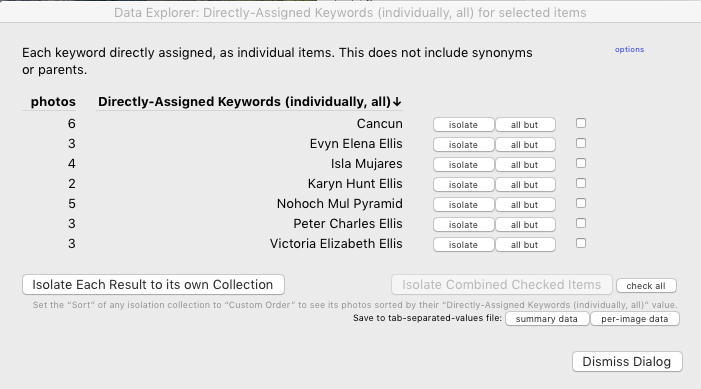
The Data Explorer plugin provides this functionality.  For example, here are the counts of keywords assigned to a selection of 20 photos:

That plugin, and a number of others, let you export a comma-separated text file containing the list of keywords assigned to each photo: Any Filter, List View, LR/Transporter. Each of these plugins provides unique functionality other than exporting metadata fields.

Translate
Sep 25, 2018 Sep 25, 2018

Hi Tim,

Thanks for posting on Adobe forums. I cannot recall a set way of exporting keywords only for a specific folder.

I'd recommend that you to suggest this as a feature request on our Feedback community here: Lightroom Classic CC | Photoshop Family Customer Community

Our Engineers do monitor this space and look for major feature requests from our valuable users like you to shape the product further.

Regards,

Akash

Translate
Report
Community guidelines
Be kind and respectful, give credit to the original source of content, and search for duplicates before posting. Learn more
community guidelines
New Here ,
Sep 25, 2018 Sep 25, 2018

Thank you Akash!

Translate
Report
Community guidelines
Be kind and respectful, give credit to the original source of content, and search for duplicates before posting. Learn more
community guidelines
LEGEND ,
Sep 25, 2018 Sep 25, 2018

The Data Explorer plugin provides this functionality.  For example, here are the counts of keywords assigned to a selection of 20 photos:

That plugin, and a number of others, let you export a comma-separated text file containing the list of keywords assigned to each photo: Any Filter, List View, LR/Transporter. Each of these plugins provides unique functionality other than exporting metadata fields.

Translate
Report
Community guidelines
Be kind and respectful, give credit to the original source of content, and search for duplicates before posting. Learn more
community guidelines
New Here ,
Sep 26, 2018 Sep 26, 2018
LATEST

Thank you John, the Data Explorer is perfect for my needs!

Translate
Report
Community guidelines
Be kind and respectful, give credit to the original source of content, and search for duplicates before posting. Learn more
community guidelines
Community Expert ,
Sep 25, 2018 Sep 25, 2018

I would like to export keywords for a specific folder

Being curious I found a work-around method without plugins that seems to achieve an answer to the post- (that is not too difficult)

Select the specific Folder and images,

Right-Click to {Export this folder as a Catalog},  (Uncheck "Export Negative Files")

Menu: {File>Open Recent} and swap to the exported catalog,

Menu: {Metadata>Export Keywords},

Return to the Master Catalog- Menu: {File>Open Recent}

(Delete the temporary exported catalog with the OS browser.)

Regards. My System: Windows-11, Lightroom-Classic 15.1, Photoshop 27.2, ACR 18.1.1, Lightroom 9.1, Lr-iOS 10.4.0, Bridge 16.0.1 .

Translate
Report
Community guidelines
Be kind and respectful, give credit to the original source of content, and search for duplicates before posting. Learn more
community guidelines
New Here ,
Sep 26, 2018 Sep 26, 2018

Thank you!

Translate
Report
Community guidelines
Be kind and respectful, give credit to the original source of content, and search for duplicates before posting. Learn more
community guidelines