


- Home
- Lightroom Classic
- Discussions
- Re: GPU Acceleration not working anymore - black i...
- Re: GPU Acceleration not working anymore - black i...

Copy link to clipboard
Copied
I think it started causing errors with the latest Update.
The Images don't render, it's just all black, only in the Library, they show up, not in Develop.
When reopening the App it works for the last opened image but as soon as I hit G to view the Grid then E again to Edit, then it's only black and never goes back to work.
I'm using an AMD R9 Fury, already installed older GPU drivers back to August, none of them fixed the problem,
rolled back to the older LrCC version, didn't help either.
I'm updating to the latest driver and software versions now and just gonna live with slower software rendering until it works again I guess. WHich is a pain because it worked so nicely before what happened Adobe?
When I looked up that problem it seems that this has been a problem for a long time already for many users ...
My PC shouldn't be the Problem,
Lightroom on SSD, Ryzen 2700X, 16GB RAM, R9 Fury GPU, W10 Pro
Oh, and while we're at it, the performance is kinda bad once I add multiple Brush layers on my D850 files.
CPU and GPU aren't doing much I guess the software is just inefficient.


 1 Correct answer


If other Windows 10 users have this problem, please try the following workaround if your system meets these requirements: you are running 64-bit Windows 10 version 1607 or later and have a GPU and GPU driver that supports DirectX 12.
Look at the Lightroom (or Camera Raw ) preferences dialog under the GPU Acceleration checkbox. If "OpenGL" is displayed and you are experiencing problems, proceed to the next step.
Look for the following file:
%USERPROFILE%\AppData\Roaming\Adobe\CameraRaw\GPU\Camera Ra
...
 15
Replies
15
15
Replies
15


Copy link to clipboard
Copied
Hi Christophk,
Sorry to hear that, have you tried turning off the Graphics processor from the Lightroom preferences? Go to Lightroom > Preferences >Performance tab > Uncheck GPU > Restart Lightroom.
Regards,
Sahil
Copy link to clipboard
Copied
Hello,
yeah I have done that, as I said I’m using software rendering now so no GPU acceleration. Letting the CPU do all the work. But of course it’s not as fast even though it’s a Ryzen 2700X.
Regards
Christoph
Copy link to clipboard
Copied
Hi,
In the Lightrooom preferences dialog on the Performance tab underneath the Use Graphics Processor checkbox, is the name of your GPU listed? Next the GPU name does it display "OpenGL" or "DirectX?" Also, do you know exactly which version of Windows 10 you have installed (ex: the 4-digit version like 1607, 1703, etc.)?
Thank you,
David

Copy link to clipboard
Copied
A screenshot would be very helpful.
Now, making an assumption,and you know what they say about making assumptions...
Is this the issue, where in develop mode you can see the filmstrip, but in the main central area where the image of what is selected should be, you see nothing???
If so, click on help, click on system information, note what it says about license. Should stare Creative Cloud, not Unknown.
Copy link to clipboard
Copied
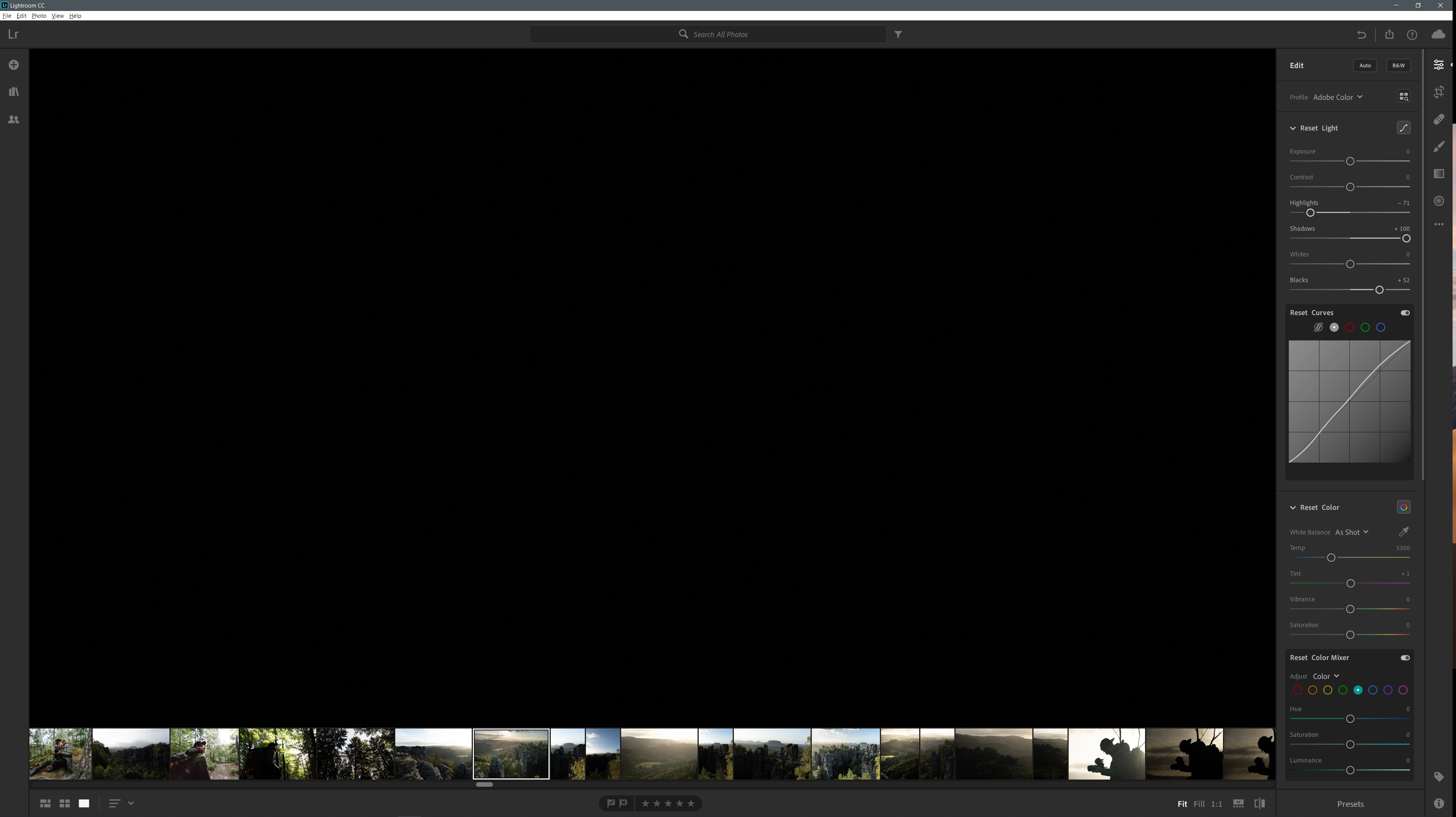
When I switch on GPU Acceleration and then enter the Edit mode with one of the images it's black.
When I enable GPU Acc from viewing an image it works until I enter fullscreen and go back to Gallery then fullscreen edit again.
Under System Info it lists my Adobe Account under User, not Unknown?
My GPU - AMD R9 Fury driver 18.12.1.1 - it's OpenGL in Lr
Windows is 1803
Displays: Dell P2715Q and Cintiq 27QHD
Edit: It's very weird, it goes back to working when switching Lr to the other display and switching between Edit and Gallery then.
It works on that display until again leaving Edit to Gallery and back to Edit. It's black again then.
Then I have to switch displays again to get the Image back. But only as long as I don't leave Edit to find a different image and then entering Edit again - black again.
When switching again it stops working on the other display then.
Copy link to clipboard
Copied
I'm sorry you're having problems.
It looks like AMD may have a newer, version 18.12.2, driver available (as of yesterday--pretty new). If you try it, please let me know if it improves your experience with Lightroom.
This may be the correct link to get the driver, but please double-check it's the right one for your exact model of GPU.
AMD Radeon™ R9 Fury Drivers & Support | AMD
If you still have problems, please run the following diagnostic test and send me the results.
1. Hit the Windows key on your keyboard
2. In the Windows menu search text box enter "dxdiag" and then hit your return key if the "Best Match" says dxdiag Run command.
3. This should launch a program, DirextX Diagnoistic Tool. It will run some tests.
4. When the tests are done, click the Save All Information... button. This will let you save the results as a plain text file, DxDiag.txt
If you do not want to share the text file with the results on this forum, you can e-mail this plain text file (please do not zip or reformat it) at dfranzen@adobe.com (that's dfranzen at sign adobe dot com -- if the forum obscured the address).
Thanks,
David
Copy link to clipboard
Copied
First of all, I'm sorry that I ended up in the wrong thread, I don't know how that happened, I have Lightroom CC, not Classic.
Unfortunately, the driver update for the GPU didn't help.
I did a clean install of it.
I sent you the System Info file from mdxdiag via email.
Regards
Copy link to clipboard
Copied
Cool, you need to paste things like your system info, or screenshots, etc, into a reply, the e-mail via this forum has limits applied, and you will not get an error message.
oh, and you will get e-mail including text content like system information, but that’s not via using the e-mail feature, but from the forum system e-mailing content out, yes, odd.
Copy link to clipboard
Copied
Is my imagination, or am I overlooking something, Its basically Ok to inquire on this forum about your Lightroom issue, but is this not a screenshot from Lightroom CC not Lightroom Classic CC?
If it is LR CC, you might have better luck on the correct forum.
Copy link to clipboard
Copied
If other Windows 10 users have this problem, please try the following workaround if your system meets these requirements: you are running 64-bit Windows 10 version 1607 or later and have a GPU and GPU driver that supports DirectX 12.
Look at the Lightroom (or Camera Raw ) preferences dialog under the GPU Acceleration checkbox. If "OpenGL" is displayed and you are experiencing problems, proceed to the next step.
Look for the following file:
%USERPROFILE%\AppData\Roaming\Adobe\CameraRaw\GPU\Camera Raw GPU Config.txt
Note that %USERPROFILE% is your “home” directory. For example mine is C:\Users\David, but your home directory will be different on your machine. Also the “AppData” directory is hidden by Explorer by default.
If that file exits on your PC, open and look in that file look for a line like:
crs:gpu_preferred_system="OpenGL"
If you find this use a plain-text editor to change it to:
crs:gpu_preferred_system=""
Before editing the file quit Lightroom and any app that uses the Camera Raw plugin (Photoshop, Bridge, etc.).
Or just delete the file or move it to another location.
After making this change you may see "DirectX" listed in the Lightrooom and Camera Raw preferences dialog if your system meets the requirements.
Copy link to clipboard
Copied
So this was the solution, everyone!
Change it to prefer DirectX by deleting OpenGL from the text file.
However somehow today it was set to OpenGL again, some software seems to create this and change it to OpenGL.
I'll tell you if I find out what's causing this.

Copy link to clipboard
Copied
This is what I'm seeing also. Each time I restart Lightroom, the GPU Config file resets to "OpenGL". I'd like to know when this will be fixed!
Copy link to clipboard
Copied
Also found as solution 3 in
Copy link to clipboard
Copied
Thanks for the suggestion. Unfortunately, I'm using Lightroom CC, not Lightroom Classic CC.
Copy link to clipboard
Copied
rquellet wrote
Thanks for the suggestion. Unfortunately, I'm using Lightroom CC, not Lightroom Classic CC.
So, have you placed your own discussion in the Lightroom CC forum? The abov fix is for classic not for LR CC
oh, and check your GPU driver for updates, no, I have no idea what it is.


Get ready! An upgraded Adobe Community experience is coming in January.
Learn more
 AdChoices