


- Inicio
- Lightroom Classic
- Hilos de conversación
- Re: Lightroom is not showing all the pictures in a...
- Re: Lightroom is not showing all the pictures in a...
Lightroom is not showing all the pictures in a folder

Copiar vínculo al Portapapeles
Copiado
I am wanting to edit some images in a particular folder in Lightroom. When looking at the folder in File Explorer there are almost 100 image files in the particular folder. However, Lightroom only sees 22 files. I've selected the folder and tried both IMPORT and SYNCHRONIZE however nothing happens.
How do I fix this?


 78
réplicas
78
78
réplicas
78




Copiar vínculo al Portapapeles
Copiado
I am sure it is not at all meant as condescending, to point out that how an apparently simple and obvious resolution (re-importing as duplicates), will create some other less obvious, and much more difficult to resolve issues.
These issues seldom wait indefinitely, nor until it is most convenient, to emerge and bite you.
For example, straight away: "where has all the editing history gone?". "Why aren't these photos in any Collections?"
What the LR Folders panel shows you, is merely a representation of LR's current beliefs (memories) as to where files are located.
If something happens which changes where files are located - and there are a number of ways that drive details can alter, or some part of the folder path can alter - those beliefs naturally become outdated. Either the photos are "not found", or they ARE found - but just not showing up at the place in the Folders panel where you expect to see them... under a different drive volume, maybe.
The preferred resolution of this is surely to correct those wrong beliefs in relation to the already imported photos, either so that they are found, or so that they show up where you want, and then carry on.
NOT to have LR still persist in these accidentally wrong (albeit still correctable) beliefs about some secret mothballed version of each photo - one which preserves your edit History to date, collection memberships etc - while also introducing a new (valid) belief regarding a brand new, separate image version - which lacks all that work.
Especially since these two parallel image versions must contradict and clash, if you ever seek to tidy up the mess.

Copiar vínculo al Portapapeles
Copiado
As I stated, the problem is that you have accidentally imported the photos using COPY, and so now you have a second copy of the photos (which Lightroom knows about) that are not in the folder you think they are in. And so there is no problem with the software, it did exactly what you (accidentally) told it to do.
But unless you look for the photos elsewhere, you will never know.
And your solution of renaming the originals is not really a solution. As richardplondon stated, this causes other problems, you now have two copies of these photos in Lightroom, and they will not have the same edits and will not have the same user-supplied metadata. This is a recipe for confusion and disorganization and frustration.

Copiar vínculo al Portapapeles
Copiado

Copiar vínculo al Portapapeles
Copiado
I have a similar situation where I have two folders 5/12/12 one in 2012 and 1 in 2013. When I try to move the ones from 2013 to the folder in 2012 it says they are already there and it won't allow me to. They are not showing however, nor can I move them in any other way- there are also a bunch in my hard drive lightroom folder for that date that are in neither 5/12/12 folder that are not showing via Lightroom

Copiar vínculo al Portapapeles
Copiado
I am experiencing the same problems as tonymuffin and Jim_Air. I too have had several thousand images shown in the Catalogue up until a few days ago. However, at the moment I have all the separate folders in Lr still shown, but Lr tells me there are no images in these folders. Do I have to import them all again? If so can I do it by say folder or some higher system?
Fortunately all the folders and images are still shown on my D Drive and a separate copy on my G Drive.
Please can someone tell me what needs to be done?
Thanks
jhcrabs
Copiar vínculo al Portapapeles
Copiado
"However, at the moment I have all the separate folders in Lr still shown, but Lr tells me there are no images in these folders."
It says 0 to the right of the folder name? What happens if you click on the folder anyway, do the photos appear?
If that doesn't work, what happens if you search for one of the vanished photos by file name, by following ALL FOUR of these steps:
1. In the Lightroom Library Module, on the left, under Catalog, click on All Photographs
2. Turn off all filters (Ctrl-L once or twice)
3. Turn off all stacking (Photo->Stacking->Expand All Stacks)
4. Search for at least one of these photos by file name using the Lightroom Filter Bar
Do you find the photo then?
Copiar vínculo al Portapapeles
Copiado
I have tried the 4 steps you have suggested, although I have "Expanded All
Stacking" not turned it "off", without any success. I get a message "No
photo matched the filter".
When I open Lr and click on All Photos in Catalogue, it shows that there
are 27,584 photos there and in the preview screen all 27,584 photographs
are shown. I can scroll down to the bottom.
However, when I look in the Folders on the left hand side, all the Folders
I have created are there, but there is a zero where I would expect to see
how many photos there are in each Folder.
If I try to open a Folder I get a message on screen " No photos in selected
Folder".
I think Lr is currently trying to access Cat 2. I can't be sure but I
think it might have been Cat 1 before. However, if I try to Relanch Cat1
(the 0ld) and click on Upgrade the older Catalogue I then get a warning
that "This operation cannot be undone....Etc, etc.
Because of the warning I have NOT asked to upgrade Cat1.
I hope this makes some sort of sense and you can advise what needs to be
done to get back to where it was a few days ago.
BTW, whilst I was in the middle of typing this message everything crashed
and used Task Master to shut down Google Chrome which was running at 27% of
CPU.
Jim_jhcrabs

Copiar vínculo al Portapapeles
Copiado
See reply to OP.
Copiar vínculo al Portapapeles
Copiado
I'm glad to see this thread is still active since it is happening to me also and I am rather ticked off about it, being in the middle of going through all my photos (50K+) and sorting them and deleting the trash. I'm running the latest versions of Lightroom Classic, Photoshop and Bridge on Mac OS 10.14.6 on a Mac Pro with 48GB RAM, 8GB VRAM, and all SSD. In Bridge my photos are arranged by year, with subfolders named for the date imported using Nikon Transfer 2, i.e., 2019 (folder) > 190101(subfolder) and so on. I simply imported the entire drive containing those folders into Lightoom. Just now, I discover that somehow some of the folders that are 2019 subfolders are in the 2020 folder in Lightroom, not in Bridge—but still exist in the 2019 folder but are empty. I did not import using "Copy," simply Add - add photos to catalog without moving them. How they got into the 2020 folder is a mystery but like others here there is no easy way to get them back into the proper folder. Frankly, I've had so many issues with Lightroom and Photoshop lately I'm about ready to jump ship even though I have another year of my subscription left. Yeah, be kind and respectful to Adobe. Pay your money and take your chances.
Copiar vínculo al Portapapeles
Copiado
To heck with it, I'm removing the 2019 and 2020 folders from Lightroom and will re-import them and see what happens, although it is a very time-consuming operation given the number of images in those 2 folders.

Copiar vínculo al Portapapeles
Copiado
Be aware that you will lose any editing that has been done to the images (beyond the initial default processing) when they are removed and when they are re-imported they will come in as virgins.
Copiar vínculo al Portapapeles
Copiado
Thanks. All the edits I do are in Photoshop and saved as a .tif so it is fine that the original RAW files have no editing when re-imported.

Copiar vínculo al Portapapeles
Copiado
Hi bigusmacus, welcome to the Lightroom forum I see that you have only recently started posting in this forum.
It would have been much better to have started a new thread with an appropriate heading.
I think you need to describe exactly what is happening, as far as I am aware Lightroom Classic, which is a complete stand-alone application, does not work or communicate with Bridge. Bridge is used to work with Photoshop and other Adobe applications.
When you use the Add option in the import dialog box you browse to the location on your HDD internal or external, network drive, where the photos are located that you wish to import. The photos will remain at their current location.
Lightroom nor the Lightroom Catalog file contain any photo files.
Copiar vínculo al Portapapeles
Copiado
Are you able to advise me on my post of 6th May?

Copiar vínculo al Portapapeles
Copiado
I am going to wade in here. I had the same problem where not all the files were showing. I tried all above steps. Every single one. I knew already that there were NO copies anywhere else. So in the end I opened the guilty folder showing 694 photos on my desktop and aligned it 6 photos across as I did the same one in LR classic with the folder only show 662 photos. I scrolled down matching the end photo in the line in both "folders. I discovered the problem right away. LR2020 classic was not recognising my jpg files which I had taken at the same time in my nikon camera with raw as seperate files. I deleted all the jpg files. I do not shoot both anymore - these were from years ago when I was learning to process in LR. In the past LR had a preference/catalogue option to treat the jpgs as separate files. I can not find this option anymore. But as eveything was unstacked anyway, hmm... I'm not impressed. I now have the same photos in both folders and I'ld like to say it would help if the gentleman giving solutions and sticking rigidly to the same steps would accept that his solution does not work for everyone and it helps to think outside the box.
I hope be very happy if someone would let me know if this was the problem for them. 3 hours of work to rectify my "missing photos" problem - on small laptop (mac) so laborious. Have a nice day everyone!
Copiar vínculo al Portapapeles
Copiado
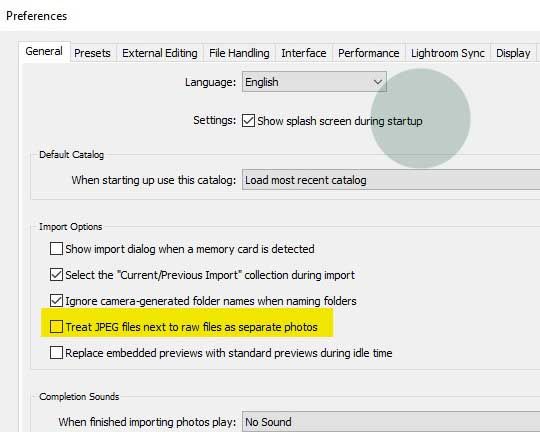
The setting for treating JPGs imported alongside Raws as separate images, is in Lightroom preferences - General tab as screenshot below.

Copiar vínculo al Portapapeles
Copiado
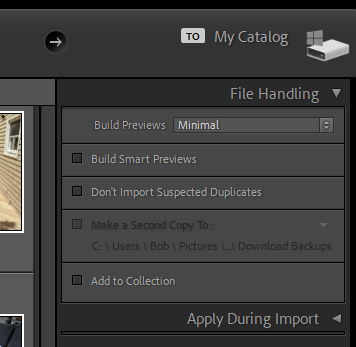
For me it came down to "turn off do not import suspected duplicates". It was a file handling option located in the top right portion of Lightroom 10.3.
Copiar vínculo al Portapapeles
Copiado
This means your Lightroom Classic catalog now has two (or more) copies of each photo. This is a good recipe for confusion, and is not a good practice.
Copiar vínculo al Portapapeles
Copiado
I think in many cases you are correct. I deleted the Lightroom folder (but not the pictures on hard disk) and reimported the whole folder. I think something got corrupted when a large import did not complete so somehow Lightroom thought pictures were duplicates when they were not.

Copiar vínculo al Portapapeles
Copiado
Quelle est la solution pour résoudre ce problème.Je voudrais continuer à importer des photos.Je suis pour l'instant bloqué.
Copiar vínculo al Portapapeles
Copiado
@defaulte6o69f3r0ocsPlease start a new thread, and explain your problem in detail, starting from scratch, and leaving nothing out.

Copiar vínculo al Portapapeles
Copiado
I had the same problem, turned out to be lightroom thought 21 of 628 photos I recently took were the same as ones I took 15 years ago which had the same IMG_... name except the new one was a CR2 and the 14 year old one was a JPG. Had to add manually rename the new NOT DUPLICATE photos in explorer before I could successfully import them.
Copiar vínculo al Portapapeles
Copiado
I had the same problem, turned out to be lightroom thought 21 of 628 photos I recently took were the same as ones I took 15 years ago which had the same IMG_... name except the new one was a CR2 and the 14 year old one was a JPG. Had to add manually rename the new NOT DUPLICATE photos in explorer before I could successfully import them.
By @Icarusjj

This should not happen, unless you have encountered a bug in Lightroom. Normally this happens because you have previously imported the CR2, and now you are trying to import it a second time ... this to me is the most likely explanation, we see it regularly here in this forum.

Copiar vínculo al Portapapeles
Copiado
Very late but i ran into the same problem and i found a quick solution, just highlight all the missing images and rename them. i typed in 1 and then clicked enter and it renamed all of the images in sequence and when i syynchronized the folder, all of my images appeared.
Copiar vínculo al Portapapeles
Copiado
Very late but i ran into the same problem and i found a quick solution, just highlight all the missing images and rename them. i typed in 1 and then clicked enter and it renamed all of the images in sequence and when i syynchronized the folder, all of my images appeared.
By @defaultkzl07hm50vlp
In my opinion, this is not a good solution, because now you have the file twice in your catalog, with different edits and different user-provided metadata.


Encuentra más inspiración, eventos y recursos en la nueva comunidad de Adobe
Explorar ahora
 AdChoices