
Inspiring
September 25, 2011
Open for Voting

P: Allow use of Drive Letters A: and B:

  • September 25, 2011
  • 72 replies
  • 4820 views

In the import dialogue in Lightroom 3 on Windows the drive letters A: and B: does not show up. I have A: assigned to an HDD and B: assigned to an SSD where I like to save my DNG files. (It was a VERY long time ago since those drive letters were reserved for floppy drives).
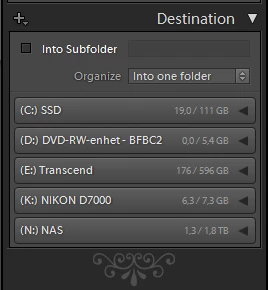


My suggestion is to make all drive letters assigned to an attached storage device visible as a destination in the import dialogue.

72 replies

Participant
February 15, 2024

The photos in my catalog are all on my A drive. (It's an internal 16Tb drive and the drive letter and name does not change.)

When importing, this drive *used* to show up in the source list on the left, and the destination list on the right. However, while the other drives still appear, and I can still select the A drive at the top left and right, it no longer shows up on the right (when I am importing photos from another folder on my A drive) or on the right (which was very handy to make sure they were importing in the correct folder structure).


The A drive is still available: it shows up as green in my folder list...

...and I can, in fact import successfully. But it's disconcerting to be doing so effectively "blind", particularly in regards to previewing the destination folder structure. I really miss having the preview folder structure on the right side. Any idea why my A drive isn't showing up in import - and how to get it back?

I'm running 13.1 on Windows 10.

johnrellis
Legend
February 15, 2024

[This post contains formatting and embedded images that don't appear in email. View the post in your Web browser.]


A lot of people have complained about this bug:

https://community.adobe.com/t5/lightroom-classic-ideas/p-allow-use-of-drive-letters-a-and-b/idi-p/12249562


It's been present since LR 1. While it's true that by convention floppies were assigned to A & B, all of the 32- and 64-bit versions of Windows that LR 1 ran on allowed programs to query a drive to see it's type, so there's no technical reason LR 1 couldn't have allowed the use of A & B:

https://community.adobe.com/t5/lightroom-classic-ideas/p-allow-use-of-drive-letters-a-and-b/idc-p/12804623#M14909


I don't know how you observed different behavior in Lightroom Classic. What was the previous version in which it worked for you?  I'm 95% sure all of the versions have behaved the same, except LR 6.2.1, which radically redesigned the Import window and implemented A & B correctly. But Adobe quickly rolled back the redesign after user outrage, and the correct implementation of A & B was discarded.


You've discovered the workaround for selecting A & B in the Source and Destination. You can also preview the destination folders by clicking Destination Folders at the top of the center panel: 


It's not as concise as the Destination panel's list view, but you can use the = and - keys to quickly adjust the size of the thumbnails to get more on the screen.


Participant
February 16, 2024

Thank you @johnrellis  and @D Fosse! I promise I did search for related issues before posting (both here and on Google, with frustratingly little luck), but evidently I was using "source" and not the specific drives "A" and "B" in my searches. It didn't occur to me the issue might be the drive letters themselves.

John: it has been a couple months since I used Lightroom, and it's possible that I hadn't tried an import since re-naming my drives as part of a computer rebuild last spring. I certainly thought I had, but it seems more likely that my memory is faulty than I had some sort of miraculous exception for a little while.

You both have "correct" answers, but I'll mark john's since it has more detail that might be useful for other people running afoul of this issue.

KR Seals
Community Expert
Community Expert
October 30, 2023

I do not use drives A: or B: in Windows for data, but for YEARS I have been setting up an SSD as drive B: which is where I keep my LrC catalog. Never an issue.

MacOS uses drive names rather than lettters and drives must be renamed precisely when substituting one LrC data drive for another. For example when a larger drive is required for image files.


Ken Seals - Nikon Z 9, Z 8, 14mm-800mm. Computer Win 11 Pro, I7-14700K, 64GB, RTX3070TI. Travel machine: 2021 MacBook Pro M1 MAX 64GB. All Adobe apps.
Participant
October 30, 2023
  • I recently added a second SSD to my laptop, running Windows 11 Home.
    • Being a bit persnickety about drive letter assignments, when I partioned it into two drive I assigned the drive letters A & B to the partitions created.
  • Photoshop had no problem reading or writing to the A or B drive, however Lightroom Classic is still under the impression that A or B drives belong to floppy drives or some sort of issue like that.
  • I reassigned the drive to letters E & F and I now have full access to the drives in both Photoshop and Lightroom Classic. 
  • I do not know if this would be an issue with MacOS or not.


@Adobe Support please add this as a note for your Tier 1 tech support because they wanted to monkey around with the permissions and such on my drive when I specifically if drive letter assignment was a known issue. 


Best Regards Y'all.

Participant
May 16, 2023

I have just connected a new SSD (Samsung T7) to my laptop that I have downloaded some images to, I open up LRC, go to import and the drive is not showing, all of my other drives are, just not the new one. 
I have shutdown the computer and restarted with drive attached and then relaunched LRC, but still cannot see the drive (B for drive letter). I can see the drive in file explorer and add and delete from it, security settings are turned off.
Never had this issue before with SanDisk SSD, just plug and play, or even with my old Samsung T5
Any ideas gratefully recived

DizMatt
Participating Frequently
March 25, 2023

it's a work around, not the solution.

Participating Frequently
March 25, 2023

It's a crazy limitation and silly the things apologists in this thread have come up with over the years to try to defend the status quo.  Even after you override and get your desired drive to the 'To' destination at the top right, Lightroom refuses to show your selected destination amongst the expanded Destination list at the right.  Adobe should be embarassed. 

dj_paige
Legend
March 25, 2023

Does the answer marked "correct" not work for you?

DizMatt
Participating Frequently
March 25, 2023

I posted about this yesterday, having not found another thread on the topic... because the thread was so old!!
12 years later and it's still not resolved. 
In a couple of years, this thread will be ready for school leaving exams

DizMatt
Participating Frequently
March 24, 2023

hi, it's really simple.

I'd like to simply navigate to my B: Drive when looking to import files into lightroom.

I realise that it's just a legacy concept that A and B drive were portable (floppy) drives only, but times have moved on.

I used a high speed SSD labelled as B: drive for all sorts of tasks.

I can get there by "selecting a source" but it would be simpler if the B drive was listed along side all of my other drives.


thanks


GoldingD
Legend
March 24, 2023

Probably a limitation brought on by the OS. 

Participant
December 29, 2022

Problem z importem do Lightroom.

W przypadku pracy na dysku A (kiedyś to była dyskietka) - LRC nie widzi tego dysku w źródłach. Dopiero w wyborze WYBIERZ ŹRÓDŁO i poszukaniem tego dysku jest on dostępny. Dlaczego, skoro to normalny fizyczny dysk program go nie widzi? 

F. McLion
Community Expert
Community Expert
December 29, 2022

It could well be that letters A and B are still system-reserved as removable floppy disk drives.

It also is still the case that Windows first system disk is always C.

I suggest not to use A and B for any drive at all.

--- Got your issue resolved? Please label the response as 'Correct Answer' to help your fellow community members find a solution to similar problems. ---