
Known Participant
October 28, 2021
Released

P:(Masking) Invert/Flip Mask Group

  • October 28, 2021
  • 28 replies
  • 9560 views

Description:

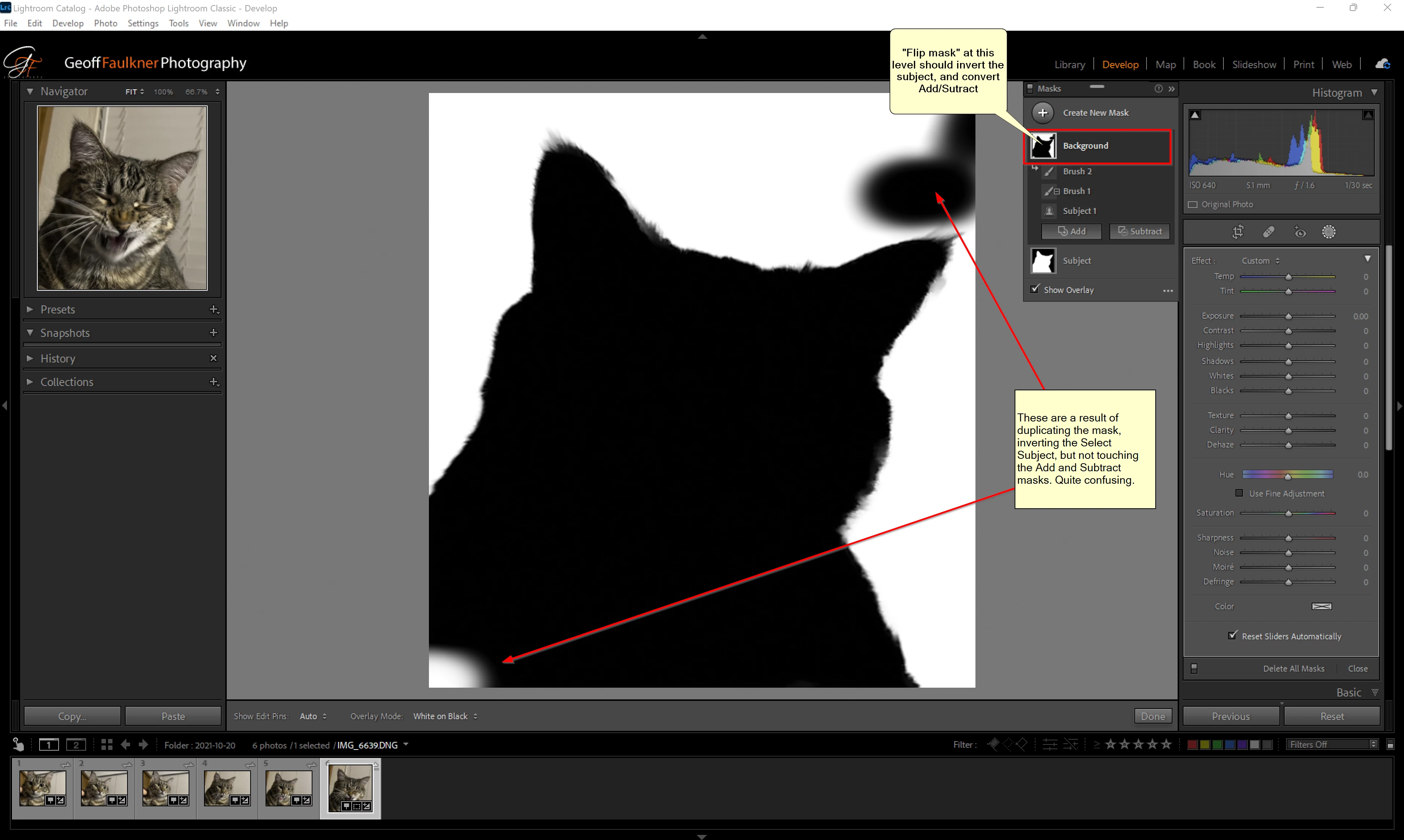
Selecting subject in the new Lightroom release is great...but no automatic tool is perfect. After creating a subject selection mask, I often Add or Subtract with a brush to clean it up (There is currently no "Refine edge" function, which would be awesome, by the way).  My problem is this--Now that I have the Subject selected, I duplicate the mask so I can select the background. But the Add/Remove brushes don't work properly and must be converted.

Proposed improvement:

Instead of duplicating the mask and going to each element to invert, convert to add, convert to subtract, I would like to see an option on the mask itself to "Flip" it. The Flip at the top level would invert the select subject mask, and convert the Add to Subtract, and convert the Subtract to Add. Then the mask would be a perfect inversion in one step. 

You would have to consider how it would behave with the other mask elements--I was only considering the select subject/Add/Subtract.
28 replies

Known Participant
November 6, 2021

It's a kind of weird but I didn't find any Adobe suggestion or tutorial about inverting a complex mask.
I figure out the solution you can find in the attached video (starting from minute 4:40) but I wonder if it's the right method (sorry but the video is only in Italian language but I hope you can get the method just looking the screen).
Can someone tell me if there is a shorter and most intuitive process to do the same?

If the method used is the right one, why we don't have a button to automate it?

Thanks in advance.

https://youtu.be/vDEJuSnyyww

Known Participant
November 6, 2021

Sorry, just find there was an already open discussion on this subject. 

Bob Somrak
Legend
November 4, 2021

Its a super simple TWO step rule


1. Right-Click on the BOTTOM Mask Component and chose "Invert" from the menu"


2. Right-Click on EACH of the Mask Components ABOVE the Bottom one.  You don't even have look at the icons to see if it was originally Added or Subtracted, just pick the second item on the menu.


If it was originally Added it will show this.  Pick "Convert to Subtract"


If it was originally Subtracted it will show this.  Pick "Convert to Add"


M4 Pro Mac Mini. 48GB
Ken Nielsen
Legend
November 4, 2021

I thank you for adding the steps here with pictures... but I'm still in the dark on this whole subject, the "who what why when where and how" in actual use and seing what is being accomplished in actual working, I think, could only really be accomplished in a methodical and step by step video. I take it that none exists. I will try the steps you mention here Michael, but without having a clue what I am doing or why... You would honestly think this would be easier, like adding to a mask or erasing on a mask in Photoshop... Not the case in what we are working with now in Lightroom and I don't really know why. Thanks for doing this as maybe by messing with it some bells will go off and I will actually learn something.

GoldingD
Legend
November 3, 2021

Yep, same


Take a different approach


Two ways


Creat the initial mask, Do not Add/Subtract just yet. Invert the mask, then Add/Subtract


Or you could create the initial mask, copy it, invert the copy, continue.


Oh, a new idea? Flatten Mask? I think I will go and post that.


Known Participant
November 2, 2021

I like your new masking feature in Lightroom. Thanks a lot. I have one observation and suggestion. Say I choose the option to mask using select object and the selection is 90% correct but I have to do a bit Add and Substract to get it right.

After that I am unable to Inverse the masking. The invert option is for the original subject selected which was only 90% correct.

DhandaNot
JohanElzenga
Community Expert
Community Expert
November 3, 2021

You can invert a combined mask. What you need to do is invert the base mask, and then right-click on each submask above the base mask and toggle between add and subtract. I hope that Adobe will add a button one day, that does all of this in one click, but you do not have to start all over again if you want to invert a mask that you already fine tuned with one or more submasks.


-- Johan W. Elzenga
Ken Nielsen
Legend
October 31, 2021

Mac OS 11.6, Lightroom Classic 11.0. - When I select my 'completed' mask, both the Lightroom selection of the subject and the brush strokes I've added to it, the 'Invert' box is covered and not available. My aim is to now select the background which is outside of the mask I'v made, but without the 'Invert' box I cannot make this choice. How can I make this work? I've included a screen shot of the subject, Mask 1,  and added brush strokes showing on the image and in the mask pallette to help clarify.

TIA,

Ken

Participating Frequently
November 1, 2021

The new selection and invert feature is a great addition and works well with subject selection but when I add and/or subtract areas (brush) and then invert the result is a mess. Am I missing something or is this a bug? Can these multiple selections be combined into one?

Bob Somrak
Legend
November 1, 2021

To invert the WHOLE mask do the following.  Adobe will hopefully implement a whole mask in the future but this is a workaround.


Select the BOTTOM Mask component and Invert it

Select each of the Mask components above it and if it has been Added then change it to Subtract and if it has been Subtracted change it to Add using the Right Click menu on the mask component.


A convoluted workaround that needs to be fixed but it works if you need it.

M4 Pro Mac Mini. 48GB
BiJeiTi_Ph
Known Participant
October 29, 2021

I propos a list of improvement that I think can improve the workflow with the new masking panel:


  1. Invert a mask: Add the possibility to invert a complete mask groun and not only the single selection tools.
  2.  Change the Add/Subtract mode after creation: Add the possibility to change the sum mode (Add/Subtract) from the masking panel, for example by using the ALT+click over the small icon of the mask.
  3.  Easy creation options: Add the possibility to add new mask in easy way without click in the mask panel in order to simulate the old workflow (with previous version, using gradient or rdial filter was possible to add multiple contribute simply by cliccking).
    So I propose to have a similar behavior when you select Linear Gradient and Radial Gradient that permit to "continuous" drawing new mask (for example without ALT in the same group and with ALT in a new group). This behavior can be controlled by a flag. 
    I know that is present the shortcut, but the short cut waas slowest and different from Lrc, Lr and Cr.
  4.  Auto rebuild of AI mask after syncronization: Add an option that enable the auto-recalculation of the AI mask when this mask was copied or synced in a new photo.
  5. Add the possibility to indicate the subject: As alreeady present in photoshop from the previous version, I think that can be interesing add some features to the subject selection tools. For example add the pre indication of the subject or the area subject selection tools in order to guide the Sensei to select the object that we want.
  6. Add the shape selections tools: Add an istrument similar to the "Lasso" selection tools to create a custom shape selection. Moreover add the possibiliti to "feather" the selection.
  7. Add the Feather controll of a Mask group: Similar to photoshop, please evaluate the possibility to add the feather control of a complete mask group. 


I thinks that this new instrument was very powerfull but whit some imprevement can be super!

Foto-Curly
Participating Frequently
October 28, 2021

Hello,

I LOVE the now "select subject" option for masking! Of course, it does not work perfectly. So you have to add or substract parts to/from the resulting mask by using the paint brush. When you try to reverse the completed mask afterwards (for instance to work on the background of the subject instead of the subject itself) it only reverts the added/substracted area, but NOT the automatically selected subject! This is a big problem, as reverting a mask is one of the most needed features when working with main subjects. 

How can I reverse the whole mask? I tried to reverse both parts separately (subject and brush) but that doesn't work either. 

Looking forward to your help,

Foto-Curly

Foto-Curly
Participating Frequently
October 28, 2021

Why is this so important? Because in 90% of all cases I want to make the background of my main subject smoother, darker, lighter etc., instead of working on the subject itself.