
Participating Frequently
March 28, 2012
Open for Voting

P: Use whole screen in the develop and library modules

  • March 28, 2012
  • 13 replies
  • 770 views

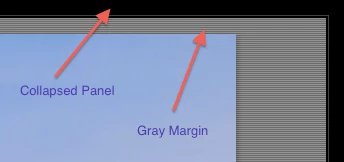
I would like to use the entire area of my monitor to see my photos. As it is, LR4 always steals some space from the four edges of the screen for the collapsed panels. On top of that, photos in "fit" mode get another margin between the panels and the photo.

There should be a way to get rid of the edge bars for the collapsed panels. They are essentially very large buttons and are unnecessary. Moving the mouse to the edge of the screen could accomplish the same thing. (you could still show them in the click-to-expand mode)

The "fit" mode should get rid of the extra margins. I know they look pretty, but form should follow function and not the other way around. (perhaps make it an option).

If you do the math, the collapsed panel bars and the margins take up 13% of the screen


PS: THIS HAS NOTHING TO DO WITH LION'S FULL SCREEN MODE PLEASE DON'T MERGE MY TOPIC AGAIN.

13 replies

Inspiring
February 2, 2013
Hey, for handling and work on my photos, I switched from Adobe Bridge and Photoshop CS4 to Lightroom 4. I was thinking a lot about what software I would prefer to work with in the future. I had to decide between Lightroom and Aperture. I choosed Lightroom because the workflow was much more comfortable. But there is one big thing missing on LR4: Editing your picture in fullscreen mode. It's so nice with Aperture to go to fullscreen and just have your toolbar as a small window which you can move around wherever you want. Adobe developers: please add this small feature which is a huge step for more comfortable work. Thanks from Germany!

Participant
December 9, 2012
In Lightroom you can view images in the loupe mode. However, it is not possible to view and navigate the pictures full screen. Why does Lightroom miss this functionality? And could it be added?

Participant
December 9, 2012
I like to use the catalog Feature in lightroom and add tags, to find images better.

But then i need a feature that lightroom or any application that can read lightroom catalog show the image in fullscreen. is there a plugin or something, that support lightroom catalog search features, so lightroom is not need ?

I can also use lightroom, because it start fast now on my system (I have a SSD)
currently i find the key L. when press 2 times, the surroundings of image get black but the image is not enhance to monitor size.
I find the keys shift+tab. this make the image larger, but still the image is not fullsize.

Also i notice that key "i" do not work when borders black. This i need too, so i am able to see which image is show, or get some image information

key left/right to choose next previous picture work and zoom to 100% work. but i find not key to increase the zoom more or zoom to 50%. Is there any ?

Have somebody suggestions how i can use Lightroom as a image viewer replacement ?

Participant
December 9, 2012
I have images the same resolution as my secondary monitor, 1400 x 1050. I want to display these full screen on the second monitor from Lightroom so they are not scaled. But Lightroom adds toolbars around the edges, forcing the image to be scaled slightly smaller. Any way around this? If not, what pixel size should the image be to dispaly at 100% ?

Participating Frequently
March 29, 2012
To address your last point first. If you reduce one dimension, your photo is reduced in the other dimension proportionally. That is why, in the vertical shots, I did not subtract 68 from the width. I calculated it by dividing the height by the 1.5 aspect ratio (3:2 = 1.5). In the horizontal shots, the difference is trivial so I didn't bother.

You are talking about linear resolution, but my concern is area. Two different things. I don't care about the resolution because I can always zoom in if I have to work on details. However, to get the best impression of my full photo I want the most screen real estate, and that is reduced from 9 to 16% by the bars and margins.

Finally, I would suggest you take a look at Aperture's full screen editing mode. I don't like Aperture that much, but its full screen editing is great. Photos just look great when they're big. That's why we make large prints. It's not to increase the resolution.
dorin_nicolaescu
Inspiring
March 29, 2012
But resolution is a linear measure, not sqaure. That is, we perceive details as dots per inch, not per square inch. So, you do not have calculate the area.

Also, the image is usually limited by the screen in one dimension, either width or height.

Thus, for your iMac it's 68/1200=5.6%.
Participating Frequently
March 29, 2012
I agree that the border looks nice, but I don't want it there when I'm working on the image. A painter doesn't paint on a framed canvas. The frame is added later when the painting is done.

Also, in this mode you don't have to decouple the image from the rest of the UI because there would be no "rest of the UI". That's the whole point of this request: to use the entire screen to display the image.
Participating Frequently
March 29, 2012
Well, you asked for the math...

The total thickness of the bars + margin is actually 34 pixels per side (68 per dimension). But you have to remember that you are dealing with area.
You are removing a 34 pixel thick frame from all around the screen.

On my iMac's slightly larger than 1080p screen :

(1920x1200) = 2,304,000 pixels
(1920 - 68) x (1200 - 68) = 2,096,464 pixels
That is a 9% difference

On my MacBooks Pro's smaller screen:

1200 x 800 = 960,000
(1200 - 68) x (800 - 68) = 854,660
That's an 11% difference

However, this is only if the photo I'm looking at closely matches the screen's proportions. If I'm looking at a vertical 3:2 aspect ratio shot my usable dimensions are different.

On the iMac:

1200 x (1200/1.5) = 960,000
(1200-68) x ((1200-68)/1.5) = 854660
Now its an 11% difference

(No surprise there, since the iMac's vertical dimension
is equal to the MacBooks horizontal one.)

On the MacBook:

800 x (800/1.5) = 427,200
(800-68) x ((800-68)/1.5) = 357,216
That's a whopping 16% difference!!!

With these screen dimensions you would lose more on 4:3 horizontals but less on 4:3 verticals. However, the proportions of the screen matter too. I got 13% using a different monitor.
dorin_nicolaescu
Inspiring
March 29, 2012
Aslo, how did you get your 13%?

The total width of collapsed panels and margins on two sides of an image is about 40 pixels. That's about 4% of an average 1080p desktop.
dorin_nicolaescu
Inspiring
March 29, 2012
I like the idea of making the collapsed panels 1px wide (but only those that touch the desktop edge in a given view mode) but I do not agree that space and drop shadow around the image itself is just eye candy.

The form and function are in harmony here. Imagine looking at a print on your desk or a picture matted and framed on your wall. Is it ok if the picture is on the table's edge or framed without a matte?

It's the same here in Lightroom — the picture needs some air around to be decoupled from the rest of UI.