
Inspiring
September 7, 2023
Answered

Can I turn off Auto-Generating Fill when using Crop tool?

  • September 7, 2023
  • 1 reply
  • 12958 views

(Ps Beta 25.1) When I use the Crop tool to expand my work area, Generative Fill automatically kicks in to fill that space for me. I would like the option to NOT do that until I ask it to G-Fill. I cannot find any setting to allow this. My primary use for this is revising logos and clip art from customers. All I want is to add a bit of visual elbow room so I can work. I don't necessarily enlarge my canvas area every time. 


Am I missing a toggle somewhere to turn it off? Is this a feature that Adobe thinks I want to have everytime?


Thanks
Correct answer Kevin Stohlmeyer

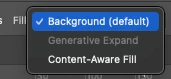
Hi @JNDGroup yes you can control this at the top option area when you have the crop tool selected:


1 reply

Kevin Stohlmeyer
Community Expert
Kevin StohlmeyerCommunity ExpertCorrect answer
Community Expert
September 7, 2023

Hi @JNDGroup yes you can control this at the top option area when you have the crop tool selected:


Participant
March 27, 2024

that is not working for me, I do not have "Background (default)" as an option, it only has Transparent (default), and Generative Expand. I am just trying to crop down a photo and the generative fill keeps doing strange things. When I change to Transparent(default) my photo disapears into a tiny dot. This is very frustrating. 

Kevin Stohlmeyer
Community Expert
Community Expert
October 30, 2024

The problem there is not in the conditions, but in the behavior of this function.

Even if I don't have the option "delete cropped pixels".
Even if I don't have the delete option, when I crop the image, then press Enter, and then return part of the image with the crop tool, the generative fill will kick in. The system doesn't understand that the image wasn't completely cropped before.
Moreover. With the advent of this functionality, if I rotate the image to the horizon I need, the picture is not cut off at the edges, but rather increases. Types - "we will now fill these unfilled areas for you with the content you need using our innovative tool." After such a rotation of the picture, you have to sit and cut these areas. Madhouse.


@marvinaustin it is a setting you control. Turn off the AI Generative Expand in the Fill setting before you use the crop tool and everything will be as you expect. Don't blame the system when it's doing what the Fill settings are telling it to do.